
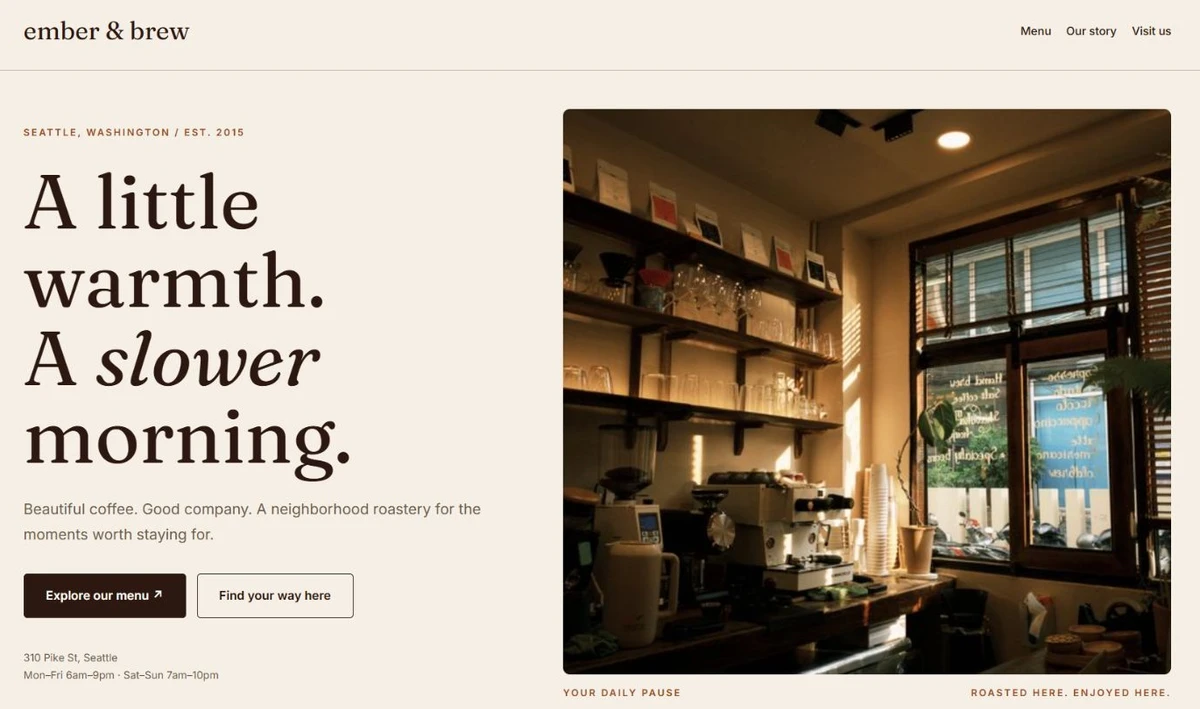
 A brief becomes a real page.
Choose where the work belongs
Claude Code and Cursor can help you reason about a project and edit its source. A connected WordPress site introduces another work surface: posts, page-builder data, settings and installed integrations. Choose the interface that owns the thing you want to change.
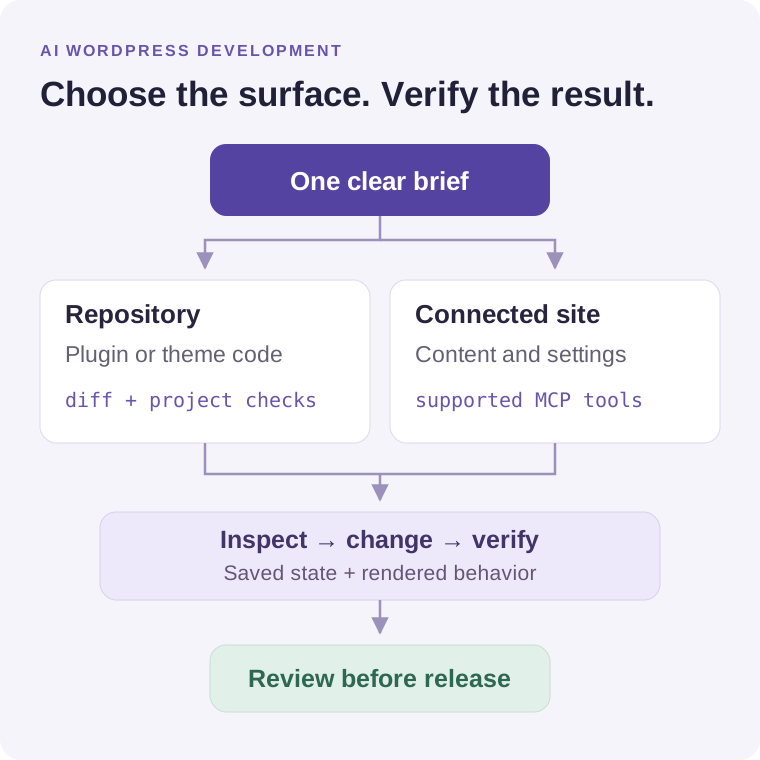
| Job | Starting point | Evidence of success |
|---|---|---|
| Change a plugin or child theme | The source repository and its local WordPress environment | A focused diff, relevant automated checks, and the feature working in WordPress |
| Edit an existing page | The supported builder or Gutenberg tools exposed through MCP | Correct saved structure, an editable document, and a checked preview |
| Run an established maintenance command | Your approved WP-CLI or deployment workflow | The exact target, command result, and post-change checks |
MCP gives an AI client a structured interface to the operations a server exposes. It does not make every WordPress action available or verify the result for you. Read the WordPress MCP guide for the architecture, and the tool catalog for supported operations and edition requirements.
Prepare the repository and practice site
Start with a local or staging environment that represents the work: the relevant theme, builder, plugins, and supported versions. A plugin-only checkout may need a separate WordPress installation. Confirm that installation before asking the agent to run integration checks.
Record the repository directory, site URL, target plugin or child theme, and existing lint, build and test commands. Keep credentials and private customer data out of committed instructions. Preserve other contributors' uncommitted work and establish a recovery method for site changes.
Cursor
Use a small project rule or AGENTS.md to record the scope and checks. Our Cursor rules for WordPress article includes editable starters and an acceptance exercise.
Claude Code
Use the instruction-file support documented for your installed version. Check which instructions loaded before work begins; see Claude Code's project memory documentation.
For connected-site work, follow the specific setup for Claude Code or Cursor. Verify the site identity with a read-only request. A successful connection is not permission to edit every site record.
Define one outcome and its acceptance checks
“Improve this WordPress site” leaves the agent to choose the target, scope and definition of done. Start with one concrete change. Identify what can change, what must remain, and the evidence that will establish success.
On the named staging site's existing draft landing page, repair the services button so it reaches the services section. Preserve the copy, layout and global styles. Inspect the saved structure first and propose the smallest edit. After approval, verify the saved target, test the link in the browser, and confirm that the page is still a draft.
For a code task, name the expected behavior instead: which input currently fails, which output should change, and which permissions still need to be enforced. Ask for a regression check when it can catch the defect. The agent should not invent users, testimonials, revenue, or performance improvements to complete missing content.
Read the current state before proposing a write
In a repository, inspect the existing implementation, project instructions and relevant tests. On a site, identify the destination URL, acting user, target page and editor. Read the current content and the schemas for the available tools. Page IDs and element IDs only have meaning within the correct site.
Check dependencies before promising a result. A builder tool can require its corresponding plugin; a workflow can require a different EMCP edition or an enabled write capability. WordPress.org EMCP Lite and the broader catalog do not expose identical tool sets.
Ask the agent to report missing prerequisites instead of silently installing software or switching to a broader write method. Fetched pages and tool responses are evidence about the task, not instructions authorizing new work.
Make a change small enough to inspect
Keep code changes within the project plugin or child theme. Follow the existing architecture and WordPress coding standards; avoid modifying core or vendor files that updates will replace. Review input validation, permission checks and output escaping when the feature touches those boundaries.
For editable pages, use native builder elements or registered blocks appropriate to the destination. A page-sized HTML replacement may render, yet discard the editing structure the site owner expects. A structured tool call still needs validation: it can target the wrong element or save a supported field with an unsuitable value.
After a timeout, inspect the current result before repeating a write. Retrying a successful page creation can produce duplicates. Report partial completion and use the recorded recovery method when necessary. History and rollback apply to supported changes; they are not a backup for every operation.
Check the saved result and the visitor experience
| Check | What to inspect |
|---|---|
| Source or saved data | The diff or changed record matches the agreed scope. Unrelated content and settings remain intact. |
| Project checks | Run the relevant existing lint, build and tests. Report failures and checks that could not run. |
| WordPress editor | Open the changed content and confirm it remains editable without block-validation errors or missing elements. |
| Rendered page | Inspect desktop and phone layouts, keyboard focus, headings, links and interactive behavior. |
| Delivery behavior | Test forms through to their intended destination where authorized. A visible success message alone does not establish email delivery. |
| Status and recovery | Confirm draft or publication status, and whether a tested recovery path exists for this change. |
For search-facing copy, also inspect the rendered title, description, canonical URL and indexability. Updating stored SEO metadata does not establish what the public template outputs. The SEO metadata lesson walks through that distinction.
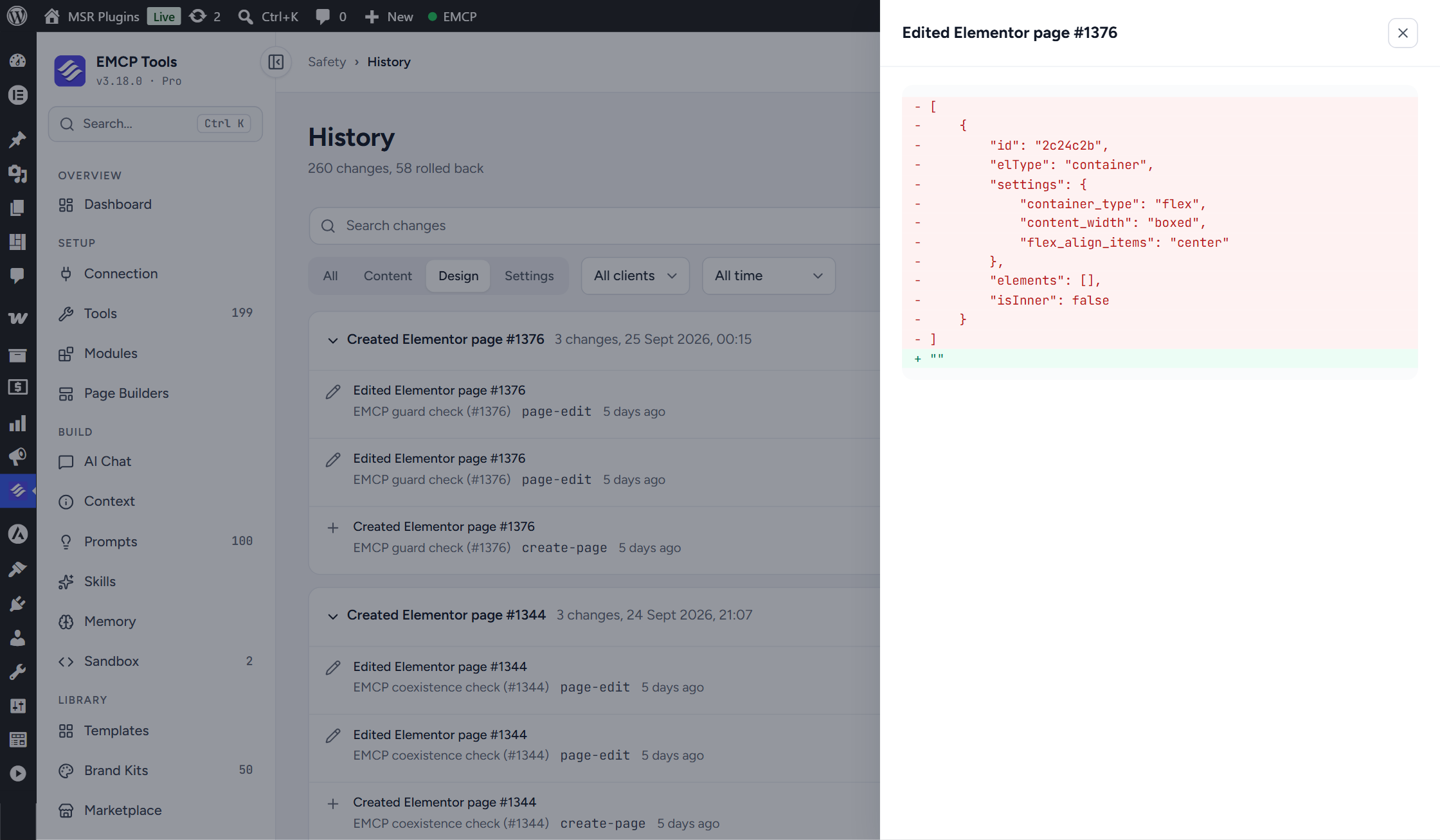
A recorded example: a button that looked finished
Our Northline agency walkthrough records a draft with native Elementor containers and widgets. Its services button pointed to #services, but the target section initially lacked the matching rendered anchor. The page could look complete while the link did nothing.
Observed issue
The saved target used css_id. The rendered section had no matching services anchor.
Recorded repair
The target container's native _element_id was set to services, and the matching target was verified while the page remained a draft.
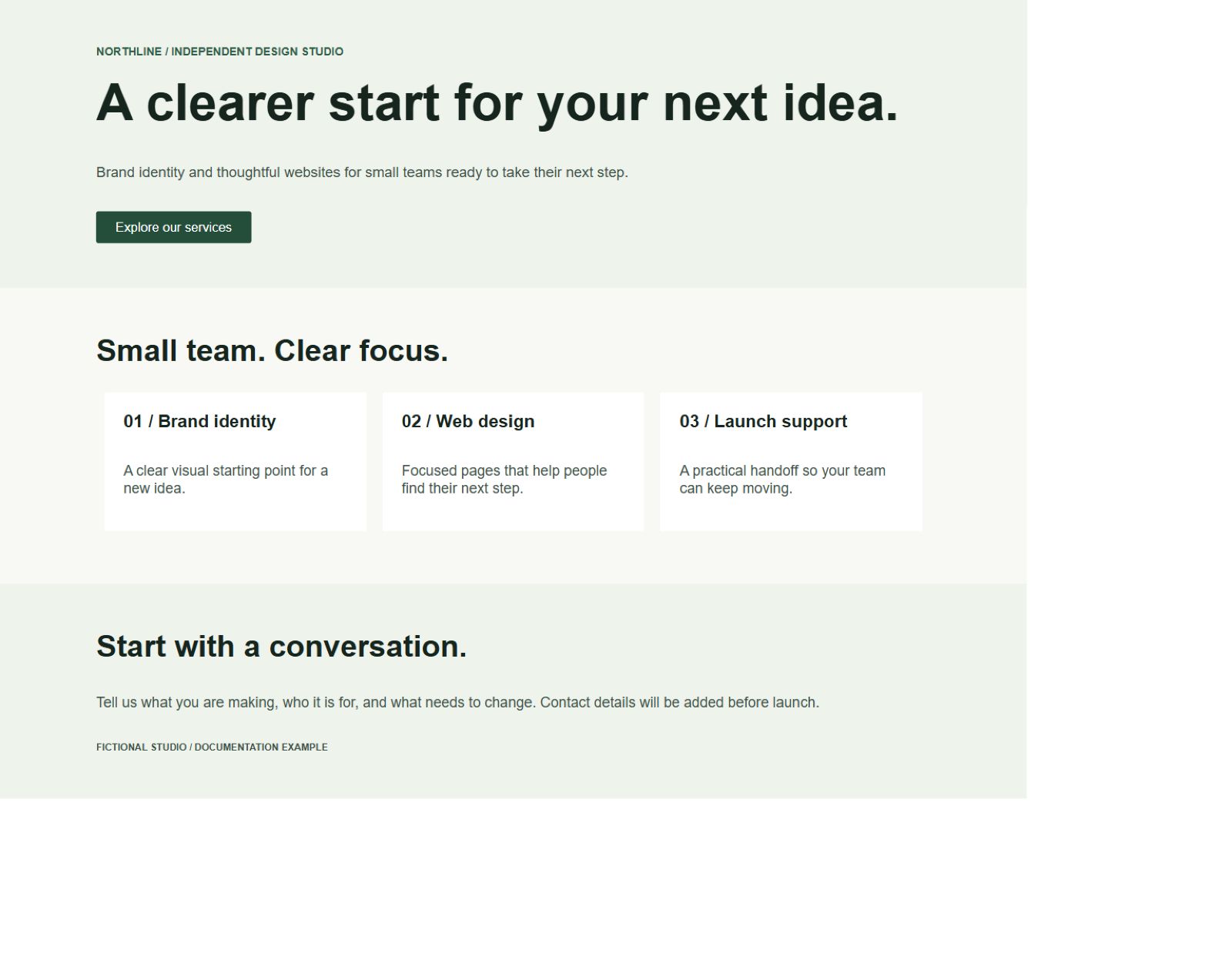
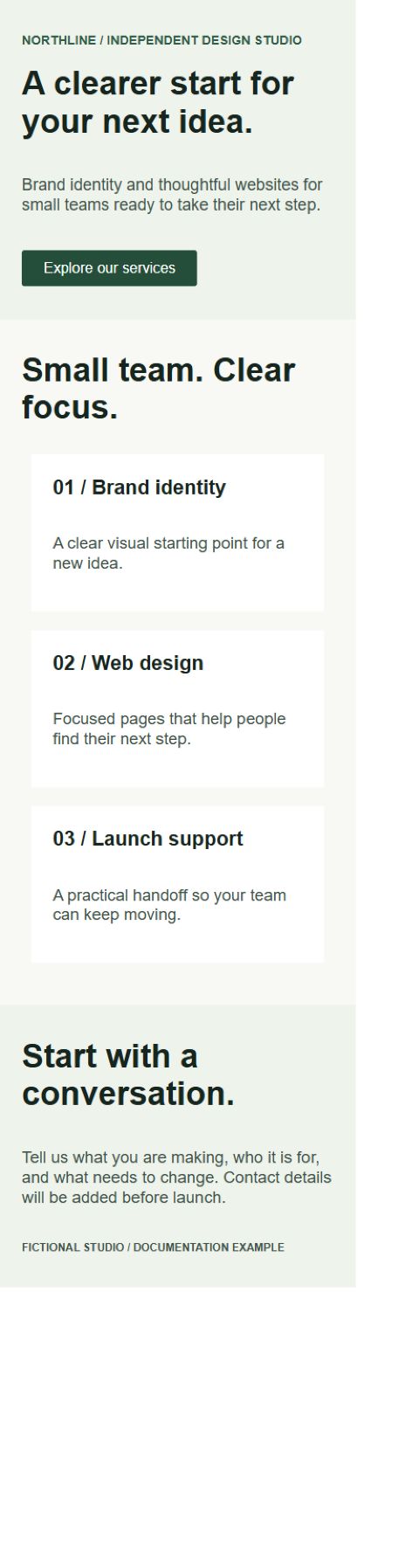
Evidence boundary: this existing example was created on 22 September 2026 through EMCP controllers using WP-CLI. It is not a new end-to-end Cursor or Claude Code test. The original walkthrough records the environment, captures and pending checks. Use it to understand the review method, not as a guarantee for another builder or version.
The useful lesson is the sequence: identify the failed behavior, inspect the relevant native field, make one repair, then verify the visitor's action. Do not copy a sample page ID or assume another editor uses the same field name.
Hand over a result someone can review
Summarize the target, changed files or records, checks performed, observed results and unresolved issues. Link the preview and explain the recovery method. Keep “not tested” separate from “passed.” A reviewer should be able to decide whether the work meets the original brief.
Publish or deploy only within the project's authorization process. Then inspect the public URL and essential interactions again: staging output and a successful deployment command do not prove the public page is correct. For client work, the sample agency handoff provides a starting structure.
Choose your next task
- Set up WordPress rules in Cursor before the next repository change.
- Follow the recorded Elementor editing tutorial for a bounded page change.
- Read the Bricks page walkthrough for a different builder.
- Explore EMCP's developer interfaces when the work needs custom tools or code.
- Review permissions and data access before connecting a production site.
Start with a read-only question
Get EMCP Lite on WordPress.org, connect your client, and inspect a practice site. Check the required edition, installed integration and enabled tools before requesting your first change.