
 A brief becomes a real page.
- Free
- Off by default
Lighter images, with no outside service.
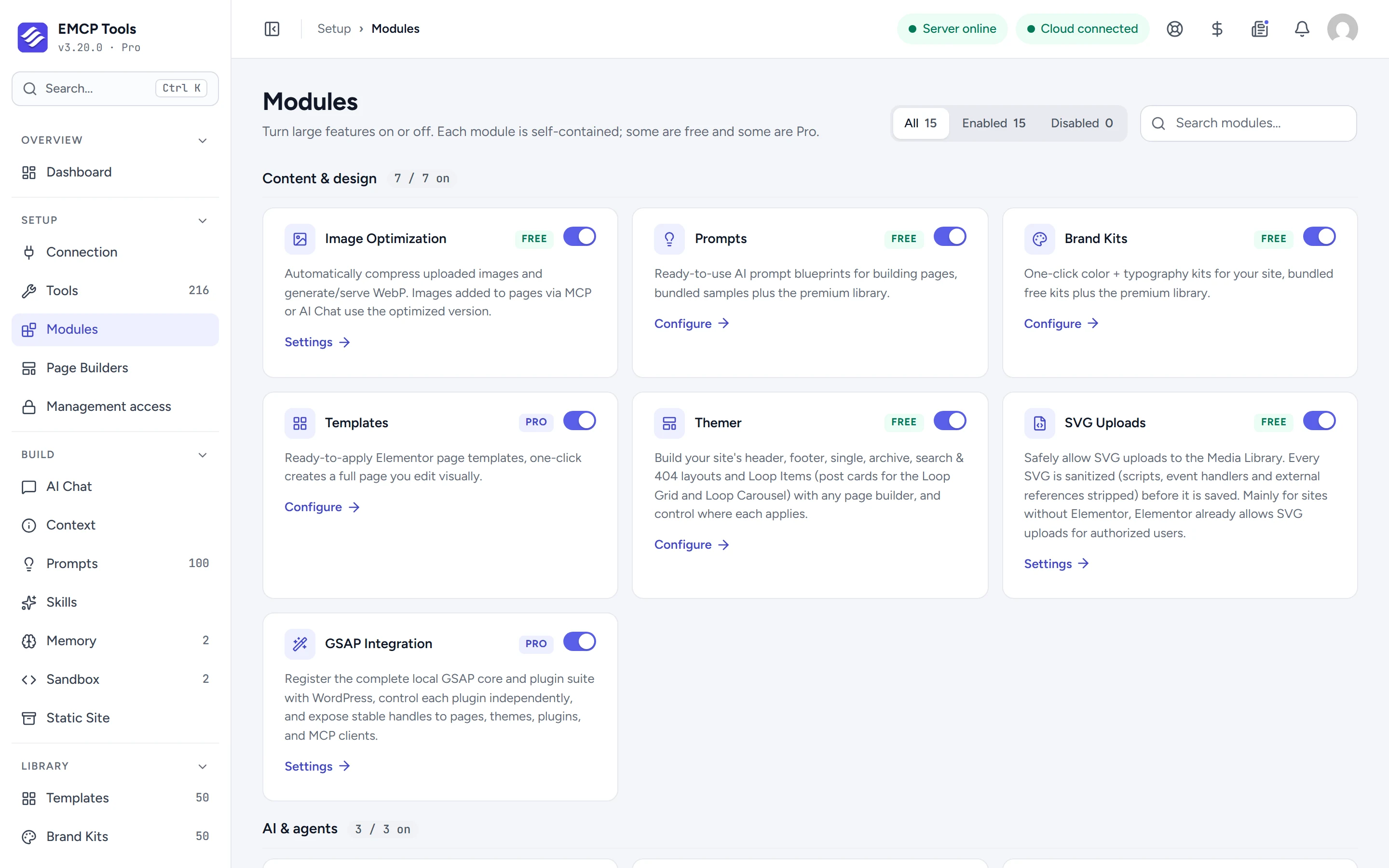
Image Optimization compresses images as you upload them and creates WebP copies, using WordPress’s own image editor on your server. Browsers that support WebP get it, and the originals are kept so you can put them back.
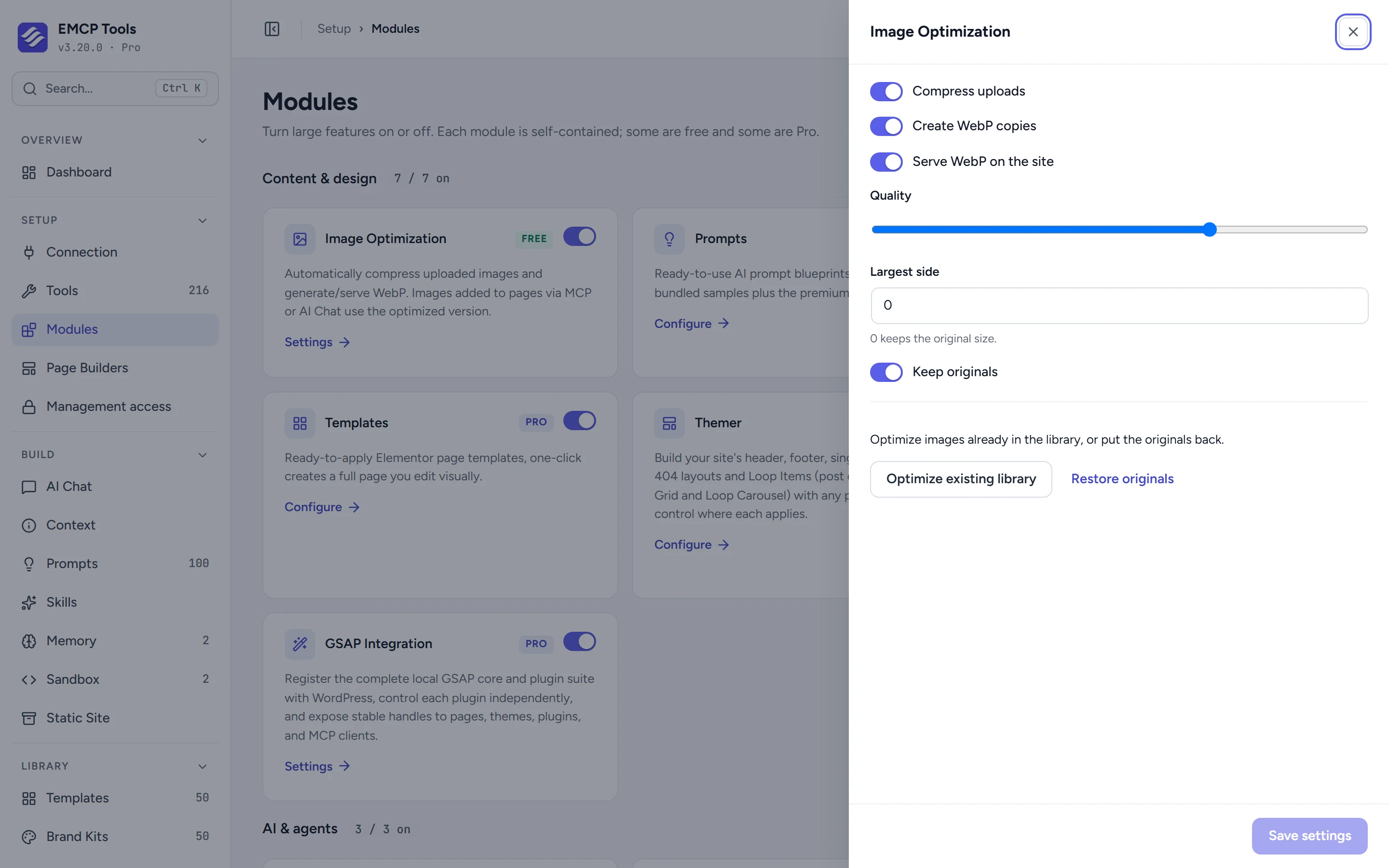
Compressed and converted as you upload.
New JPEG and PNG uploads have their generated sizes compressed and get a WebP copy beside each file. The full-size image is kept as it is, unless you set a Largest side to shrink oversized originals.
WebP for browsers that ask for it.
With Serve WebP on the site on, visitors whose browser accepts WebP get the WebP files and everyone else gets the originals. Images your AI agent places through MCP or AI Chat always use the WebP versions.
Optimize the library, or put it all back.
Optimize existing library processes older images in batches of ten with a progress bar. Restore originals copies every backup back and removes the WebP files, as long as Keep originals was on.
Agents also get resize-media, which resizes an image in place, keeping its ID and address, and rebuilds its sizes and WebP copies.
- It is off by default, because it changes your uploads.
- Your server’s image editor must be able to write WebP files.
- Only JPEG and PNG files are compressed and converted.
MCP tools this adds 1
What a connected AI agent can call. Tools marked "Off by default" are switched on under EMCP Tools, Tools.
resize-mediaResize a Media Library image in place (scale to fit, or crop to exact size). The attachment id and URLs are unchanged, and the original is backed up.
Questions, answered.
Still stuck? Drop a line at [email protected] or open an issue on GitHub. Most replies are under one business day; Pro tiers go to the front of the queue.
Open the full docsMake every page lighter.
Install EMCP Tools free and switch on Image Optimization in Setup → Modules.