
 A brief becomes a real page.
- Free
Connect your AI client in four steps.
The Connection screen walks you through connecting Claude, Cursor, ChatGPT and other MCP clients to your site: pick the client, pick how it signs in, copy the setup, and watch for its first call.
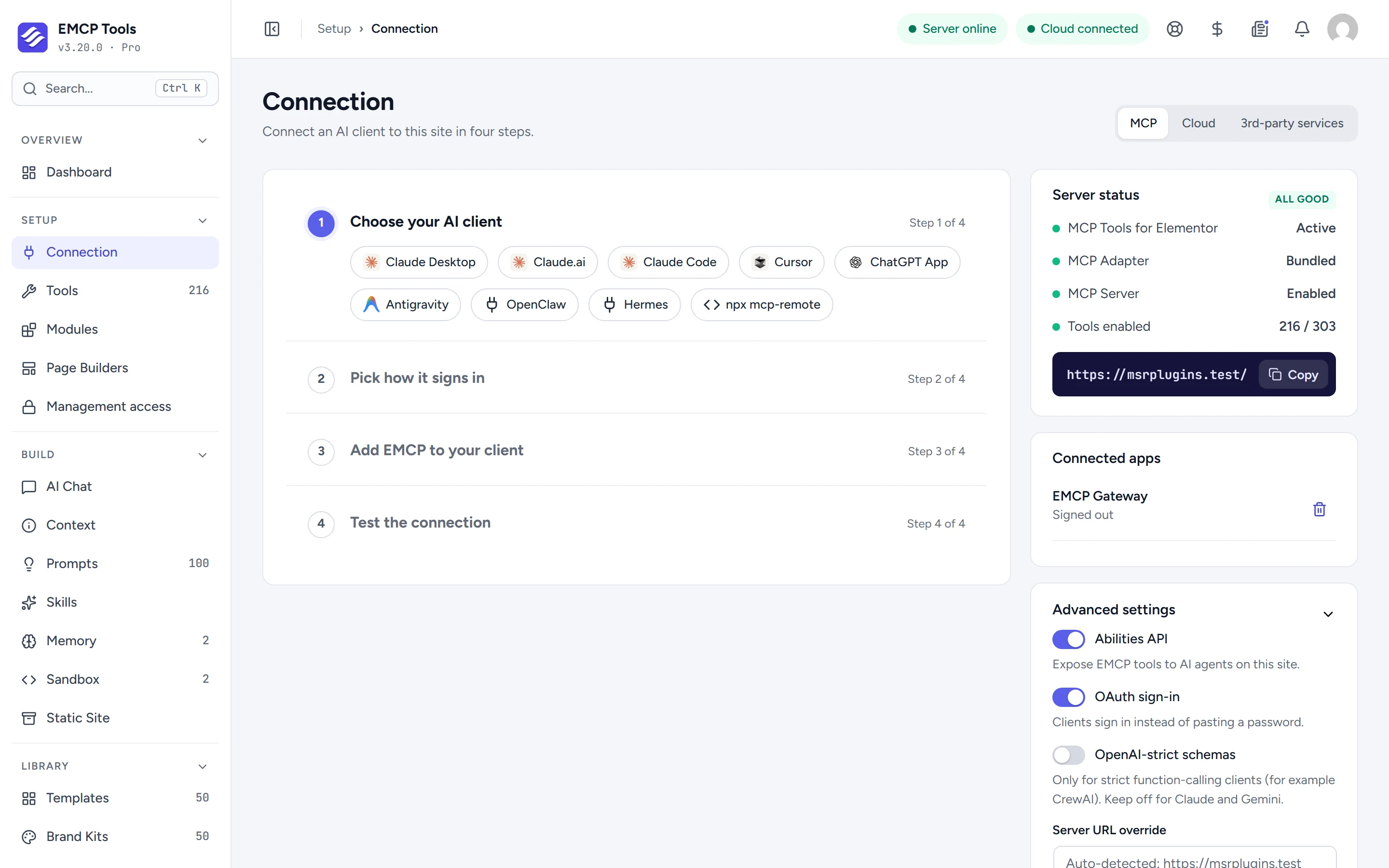
Pick your client, get its exact setup.
Guided setup covers Claude Desktop, Claude.ai, Claude Code, Cursor, ChatGPT, Antigravity, OpenClaw and Hermes, plus npx mcp-remote for any other MCP client. Claude Desktop can also install from a one-click bundle.
Sign in with OAuth, no password to paste.
With OAuth, the client opens your site in the browser and an administrator approves it. EMCP Tools implements OAuth 2.1 with PKCE and dynamic client registration. Access tokens last an hour, refresh tokens rotate each time they are used, and both are stored only as hashes.
You can also use an Application password, or WP-CLI on a local or development site for Claude Desktop, Claude Code, Cursor and Antigravity.
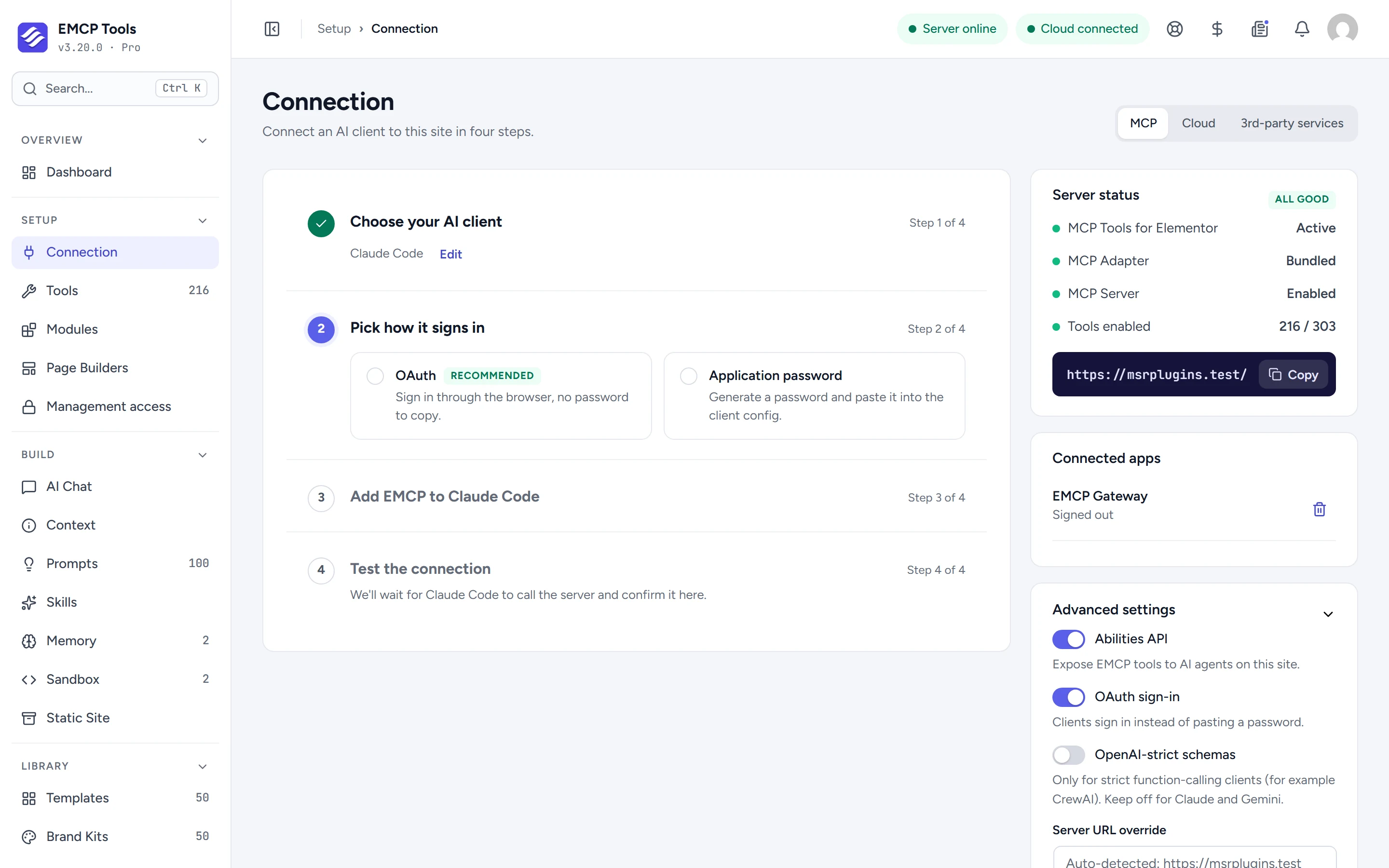
Copy the setup, then see the first call arrive.
Step 3 gives you the command, connector details or config snippet for your client. Step 4 waits for that client’s first successful call and confirms it, so you know the connection works before you start.
Connected apps and server settings.
Connected apps lists every OAuth client, with Sign out and Remove. Advanced settings switch the tools and OAuth sign-in on or off, turn on strict schemas for clients such as CrewAI, and override the server URL. A separate tab holds keys for stock photo and live data providers.
What a connection needs.
The MCP endpoint is /wp-json/mcp/emcp-tools-server on your site.
Questions, answered.
Still stuck? Drop a line at [email protected] or open an issue on GitHub. Most replies are under one business day; Pro tiers go to the front of the queue.
Open the full docsConnect your first AI client.
Install EMCP Tools free and open Setup → Connection.