
 A brief becomes a real page.
- Free
Decide which administrators can manage EMCP Tools.
By default every administrator can open EMCP Tools and change its settings. Management access narrows that to the administrators you list, on every EMCP screen and admin endpoint.
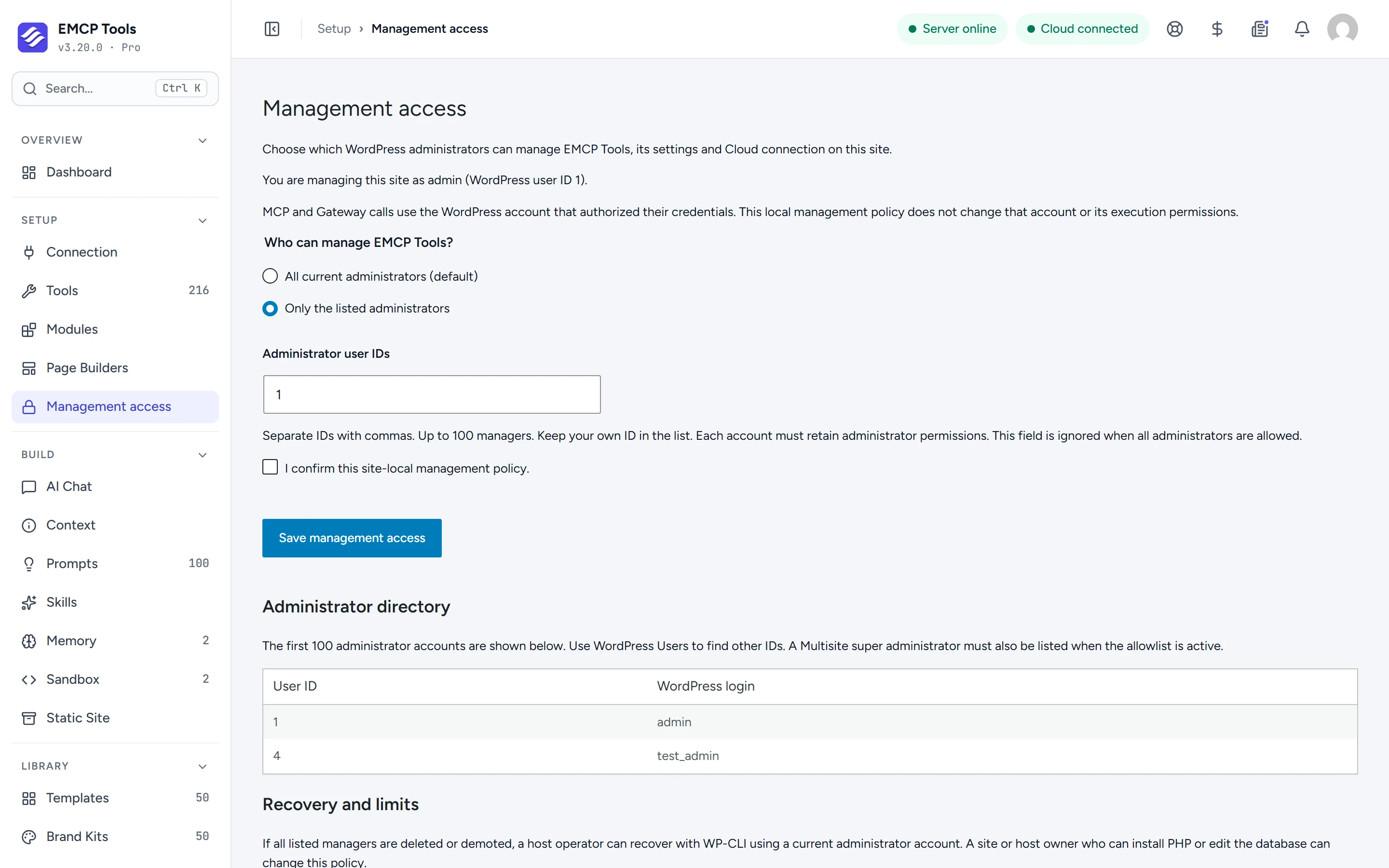
All administrators, or only the ones you name.
Choose Only the listed administrators, enter their user IDs (the Administrator directory on the same screen shows them), confirm and save. The list must include you, so you cannot lock yourself out, and everyone on it must stay an administrator.
One check, on every way in.
The same rule guards every EMCP Tools screen, its admin REST routes, and its form and AJAX actions. While a list is set, EMCP Themer templates follow it too, so an administrator who is not listed cannot edit them in the block editor or Elementor either.
Set the list in wp-config.php.
Define EMCP_TOOLS_MANAGEMENT_ADMINS as a list of IDs, such as '1,5', or as 'all'. While it is defined, the screen is read-only and the stored setting is left untouched. An invalid value keeps management closed rather than open. Settings sync between sites never changes this policy.
What it controls and what it does not.
Management access decides who manages the plugin. It is not a sandbox.
- It does not change what an AI client can do: MCP and Gateway calls run as the account that authorized them, with that account’s permissions.
- It does not protect against someone who can install PHP code or edit the database.
- On multisite, a super admin must also be on the list.
- If every listed manager is removed, a host operator can restore the default with
wp emcp management-access recover --user=ID --confirm.
Questions, answered.
Still stuck? Drop a line at [email protected] or open an issue on GitHub. Most replies are under one business day; Pro tiers go to the front of the queue.
Open the full docsKeep plugin settings in the right hands.
Install EMCP Tools free and open Setup → Management access.