
 A brief becomes a real page.
- Free
See what every AI client asked your site to do.
The MCP Log keeps one row for each request an AI client sends to your site, over HTTP or WP-CLI: which tool it called, whether it worked, how long it took, and which client and session sent it.
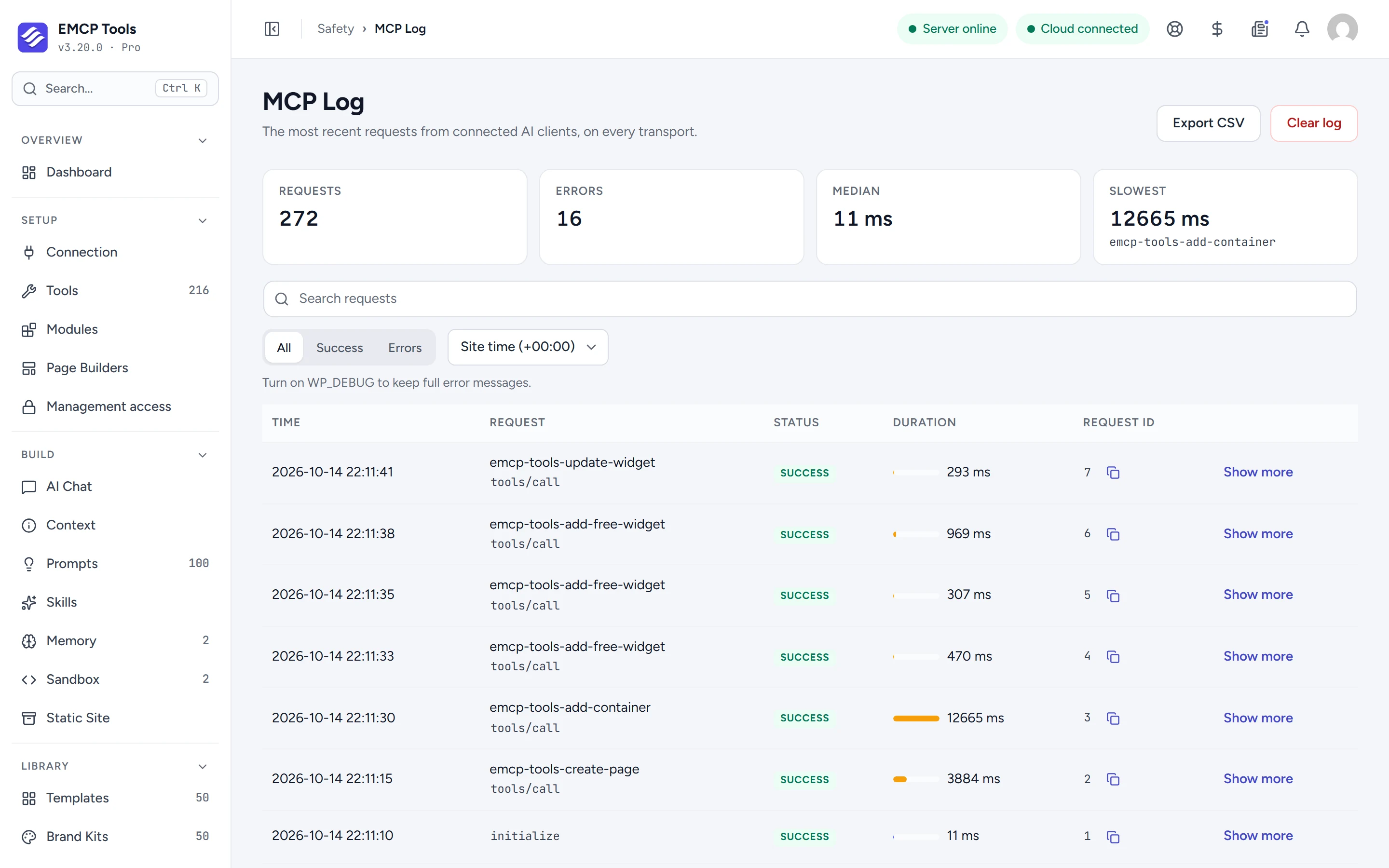
Requests, errors and slow calls.
The top of the screen counts requests and errors, and shows the median duration and the slowest request with its tool. Each row lists the time, the method and tool, the status, the duration and the request ID.
Filter by success or errors, search the requests, and show times in site time, UTC or your browser’s time.
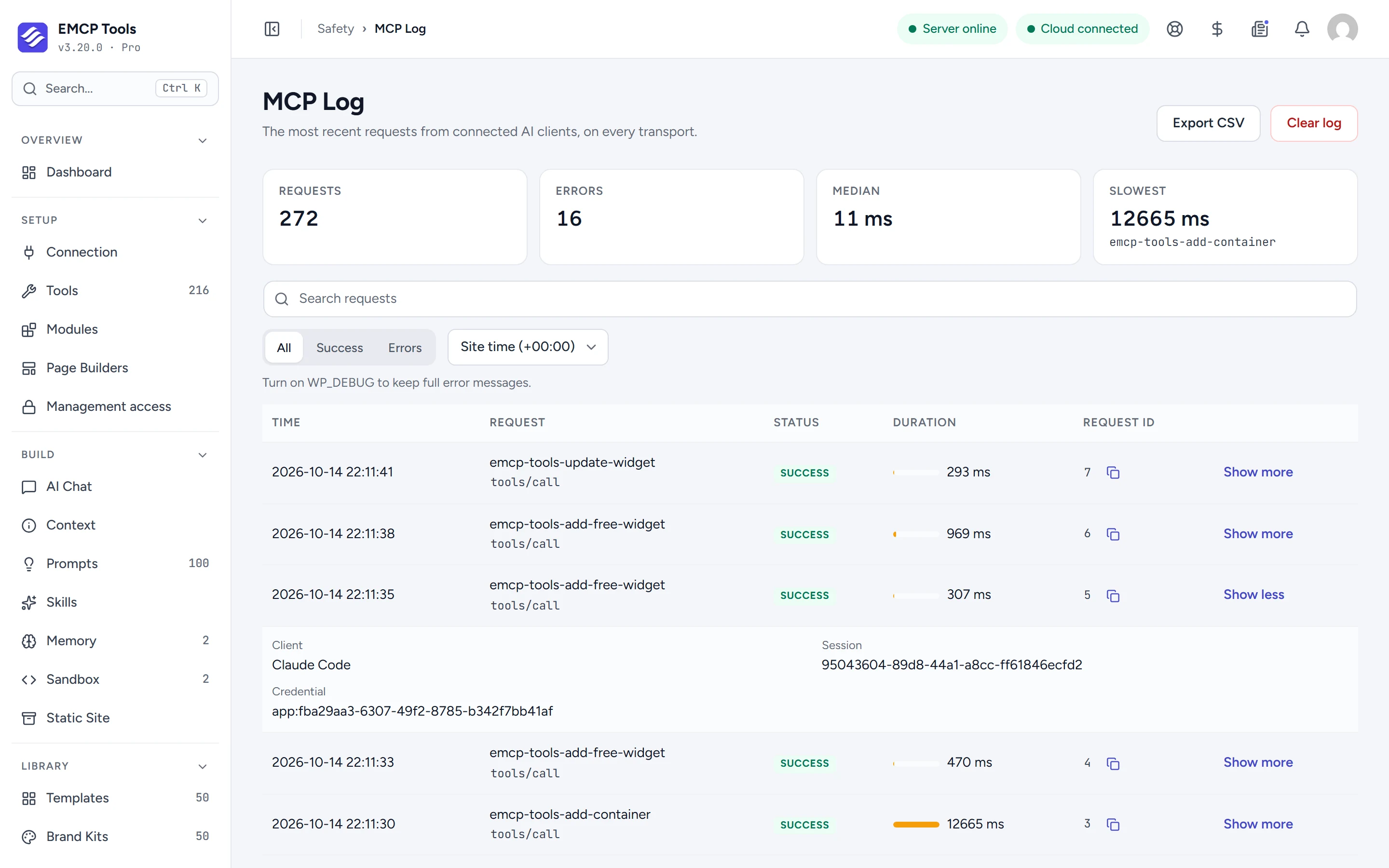
Which client, which session, which credential.
Show more on a row reveals the client name, the session, the credential (an application password or an OAuth client), and for errors the stage and reason it failed. When the request changed something, the row links to its History entry.
Take the log into a spreadsheet.
Export CSV downloads the filtered log. Cells that a spreadsheet could read as a formula are neutralised first. Clear log empties it after you confirm.
Metadata only, never your content.
The log records what happened, not what was sent.
- Tool arguments and results are never stored.
- The full error text is kept only while WP_DEBUG is on.
- Requests without a signed-in user are limited to one row per address every 30 seconds, so a scanner cannot flush the log.
- Only the newest 500 requests are kept.
Questions, answered.
Still stuck? Drop a line at [email protected] or open an issue on GitHub. Most replies are under one business day; Pro tiers go to the front of the queue.
Open the full docsKnow what your agents are doing.
Install EMCP Tools free, connect a client, and open Safety → MCP Log.