
Connection screen
New in v3.18.0. Free. EMCP Tools → Connection (admin.php?page=emcp-tools-connection) is where you connect an AI client to this site. It replaces the long 3.17 page with a four-step setup that waits for your client’s first MCP call and tells you when it arrives.
The switch at the top right has three sections, and the choice is kept in the URL (§ion=mcp, cloud or services):
- MCP: the setup steps and the server rail. This is the default.
- Cloud: your EMCP Cloud connection.
- 3rd-party services: API keys for stock images and live data, and the WP-CLI command.
This page describes the screen. For the exact config each client needs, see its guide: Claude Code, Claude Desktop (also covers Claude.ai), Cursor, ChatGPT App, Antigravity, OpenClaw, Hermes and VS Code. Sign-in methods are covered in OAuth sign-in and WP-CLI bridge.
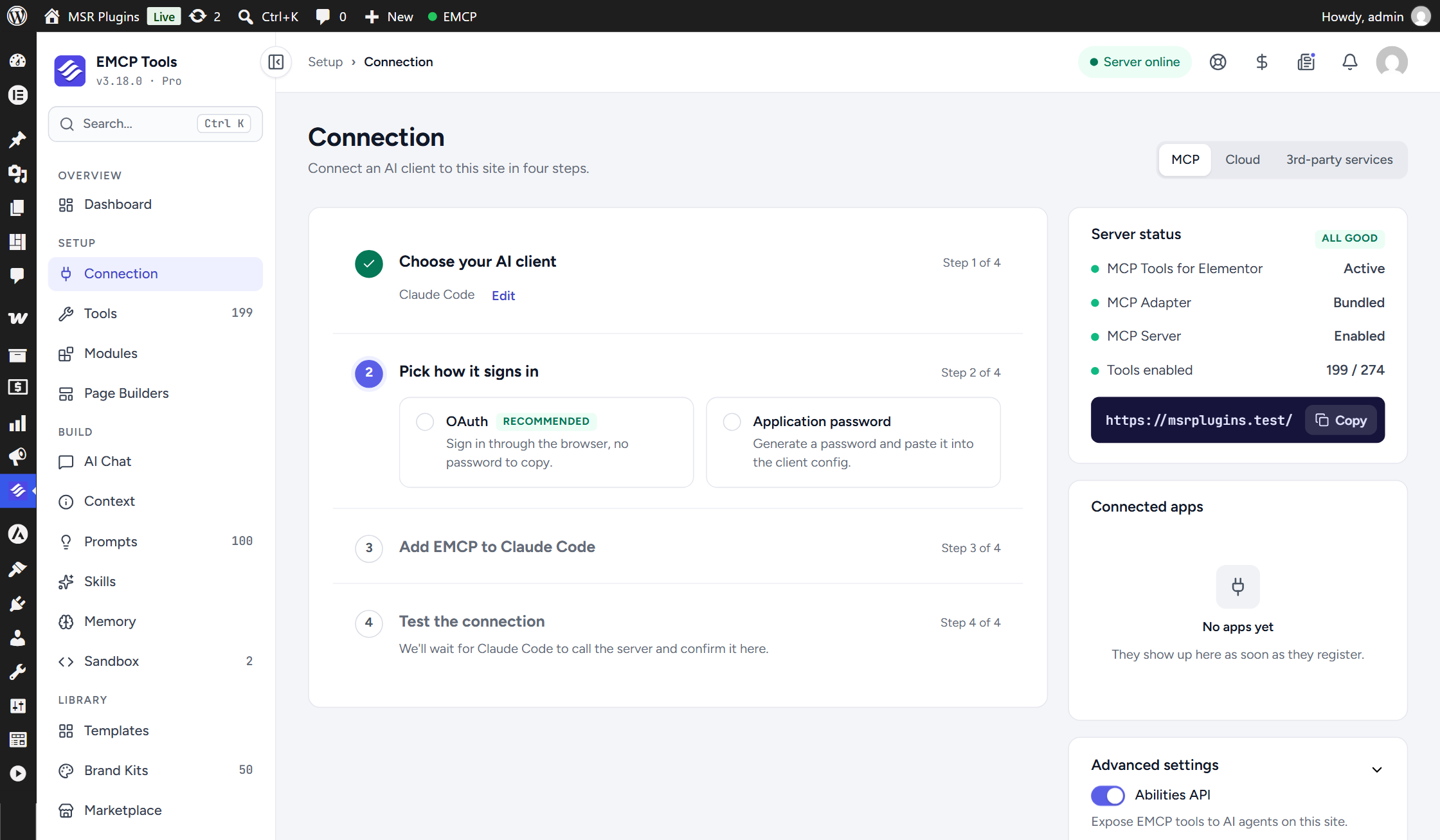
Connect an AI client
Section titled “Connect an AI client”Step 1: Choose your AI client
Section titled “Step 1: Choose your AI client”Pick one of: Claude Desktop, Claude.ai, Claude Code, Cursor, ChatGPT App, Antigravity, OpenClaw, Hermes or npx mcp-remote. The step then collapses to the client name; click Edit to pick another.
Step 2: Pick how it signs in
Section titled “Step 2: Pick how it signs in”Under Sign-in method:
- OAuth (Recommended): “Sign in through the browser, no password to copy.” It needs HTTPS and OAuth sign-in switched on under Advanced settings. When it is off the card reads “Turn on OAuth sign-in in Advanced settings.” and can’t be picked. See OAuth sign-in.
- Application password: “Generate a password and paste it into the client config.”
- WP-CLI on this computer: “The client starts WP-CLI directly. Local sites only.” It appears only when the site’s environment type is
localordevelopment, and only for Claude Desktop, Claude Code, Cursor and Antigravity. See WP-CLI bridge.
As soon as a client and a method are chosen, the screen opens a setup for you and moves on to step 3. The chosen client and method stay in the URL (&client= and &method=), so a reload keeps your place.
Step 3: Add EMCP to your client
Section titled “Step 3: Add EMCP to your client”The step is titled “Add EMCP to client” and shows that client’s own instructions, with each command or config in a block you can copy. The server name in the config is built from your site’s address.
- OAuth: the instructions add the server by URL only. If apps are already connected, a Reconnect an app that is already connected list lets you pick one, for a client that signed in once and won’t show the consent screen again. The default is A new app (default).
- Application password: choose the Administrator the client acts as, then click Create password. The new password is shown once (“Copy it now”) and the configs below already contain it. If that administrator already has application passwords, Use a password I already have lets you pick one (Which password) and type it (Its password); the typed password only fills the configs and is not sent to the server. Until there is a password the step reads “Create a password to see the config for this client.”
- Claude Desktop with an application password also offers Download .mcpb bundle: download it and double-click it to install in Claude Desktop, with no config file to edit. The bundle contains your application password, so treat it as a secret and delete it once Claude Desktop has imported it.
- WP-CLI on this computer: a ready-made command that includes an
EMCP_SETUPvalue. That value only lets step 4 recognise the first call.
Click I’ve added it, continue when the client is set up, or Back to change the sign-in method.
Changing the client or the method starts a new setup and replaces the old one, so an old setup’s token or OAuth consent no longer counts for step 4.
Step 4: Test the connection
Section titled “Step 4: Test the connection”“We’ll wait for client to call the server and confirm it here.” Restart or reload the client so it picks up the new config. The screen checks every few seconds for the first successful MCP call from the credential you set up (that application password, the OAuth app, or the WP-CLI command with its setup value).
- “Client is connected” with “First call: tool at time.” means the client reached the server and a call succeeded. You are done.
- “We saw a call from client, but it failed: reason” means a call from that credential arrived but was refused or errored. The reason is the failure the server recorded, for example an authentication problem.
- “No call yet” appears after about five minutes with no call. It lists three checks: restart the client after changing its config, check that the server URL is reachable from the computer running the client, and note that some hosts strip the
Authorizationheader. - Run a server test appears with “No call yet” or after a failed call, for OAuth and application passwords (not for WP-CLI). With an application password it runs a full MCP handshake test with that password, which also shows whether your host strips the
Authorizationheader. With OAuth it tests OAuth discovery, which shows whether your host blocks/.well-known/requests. See Auth errors and OAuth sign-in.
Setups expire. A setup lasts 30 minutes. After that step 4 shows “This setup expired” (“Setups last 30 minutes. Start again to get fresh instructions.”). Click Start again to open a new one; a password you created or chose for the old setup is carried over.
Server rail
Section titled “Server rail”The column on the right of the MCP section.
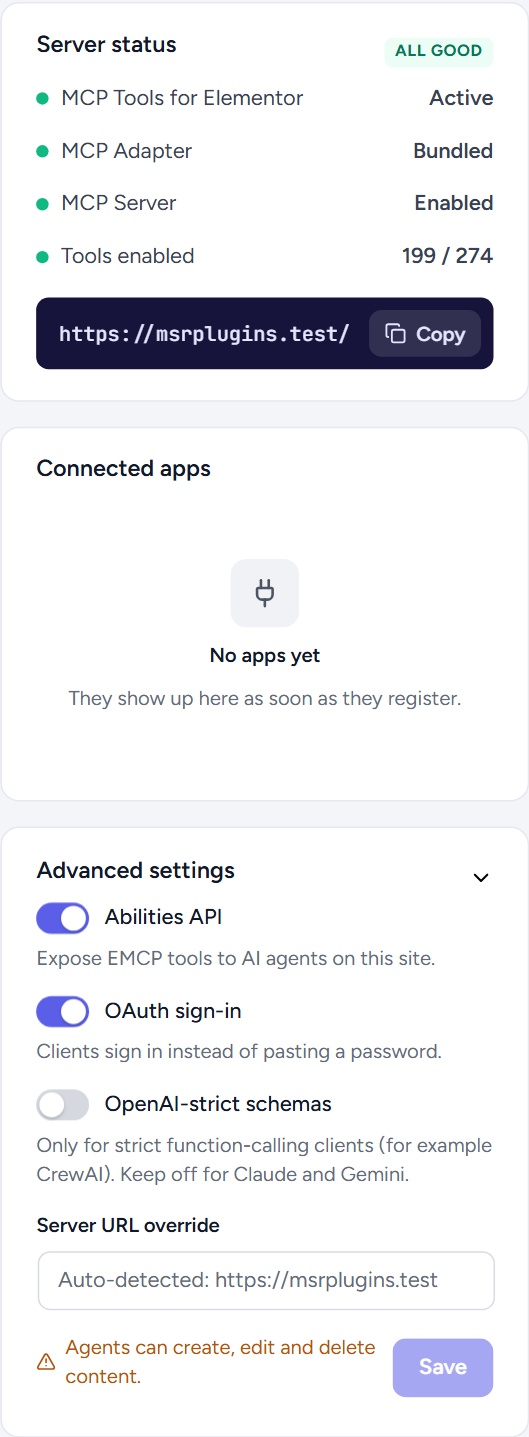
Server status
Section titled “Server status”Shows All good, or Needs attention when the server can’t take connections:
- MCP Tools for Elementor: Active.
- MCP Adapter: Bundled, External (another plugin’s copy is in use) or Missing.
- MCP Server: Enabled or Disabled (the switch in Advanced settings).
- Tools enabled: enabled tools out of the total.
- MCP endpoint: the server URL, with Copy.
Connected apps
Section titled “Connected apps”Every OAuth app that has registered with this site, with its state (Connected, Signed out or Never signed in) and the WordPress user it acts as. With none it reads “No apps yet”.
- Sign out (connected apps only) revokes the app’s tokens. It can sign in again.
- The trash button (Remove) deletes the app and its tokens. It must register again to connect.
Both ask for confirmation. More in OAuth sign-in.
Advanced settings
Section titled “Advanced settings”Open by default; click the heading to fold it.
| Setting | What it does |
|---|---|
| Abilities API | The server switch: “Expose EMCP tools to AI agents on this site.” Off turns the EMCP MCP server off, the top bar shows Server off and the Dashboard lists “The MCP server is off”. |
| OAuth sign-in | ”Clients sign in instead of pasting a password.” Needs HTTPS; on a site without it the switch is disabled and reads “Needs HTTPS on this site.” |
| OpenAI-strict schemas | ”Only for strict function-calling clients (for example CrewAI). Keep off for Claude and Gemini.” |
| Server URL override | Normally blank; the placeholder shows the auto-detected address. Set it only when the site is served on a different address than WordPress’s Site Address. The endpoint, the OAuth addresses and the .mcpb bundle all use it. |
The footer warns “Agents can create, edit and delete content.” Click Save (enabled once something changed). The saved message reminds you to reconnect your client to see the change.
The Cloud section connects this site to your EMCP Cloud account. If the EMCP Cloud module is off it reads “Turn on the EMCP Cloud module to connect this site.” (switch it on under EMCP Tools → Modules). What Cloud does is covered in EMCP Cloud & Marketplace and the Hosted multi-site gateway.
- Connect: before you connect, the Cloud account card shows the switch Let EMCP Cloud manage this site through the gateway (on by default) and Connect to EMCP Cloud, which takes you to EMCP Cloud to approve the connection and back.
- Account card: once connected, the card shows Connected (or Reconnect needed, with a Reconnect button), your account email, the Cloud address and “Connected date”. An older connection without an email offers “Reconnect to show the account email”. Disconnect asks “Disconnect EMCP Cloud?”: backups and sync stop until you connect again.
- Gateway access: “Let AI clients reach this site through the EMCP Cloud gateway, with no site password to paste.” Turning it off asks “Turn off gateway access?”, because clients connected through the gateway lose access to this site. Turning it back on, or clicking Re-issue credential, issues a fresh gateway credential.
- Settings sync: copies your EMCP settings between connected sites: tool toggles, active modules, compact tool mode and behaviour preferences. Secrets and API keys are never synced. Push settings to cloud saves this site’s settings; Pull settings from cloud overwrites this site’s settings after a confirmation. It is a paid Cloud feature; on a free Cloud plan the card shows Upgrade your Cloud plan.
3rd-party services
Section titled “3rd-party services”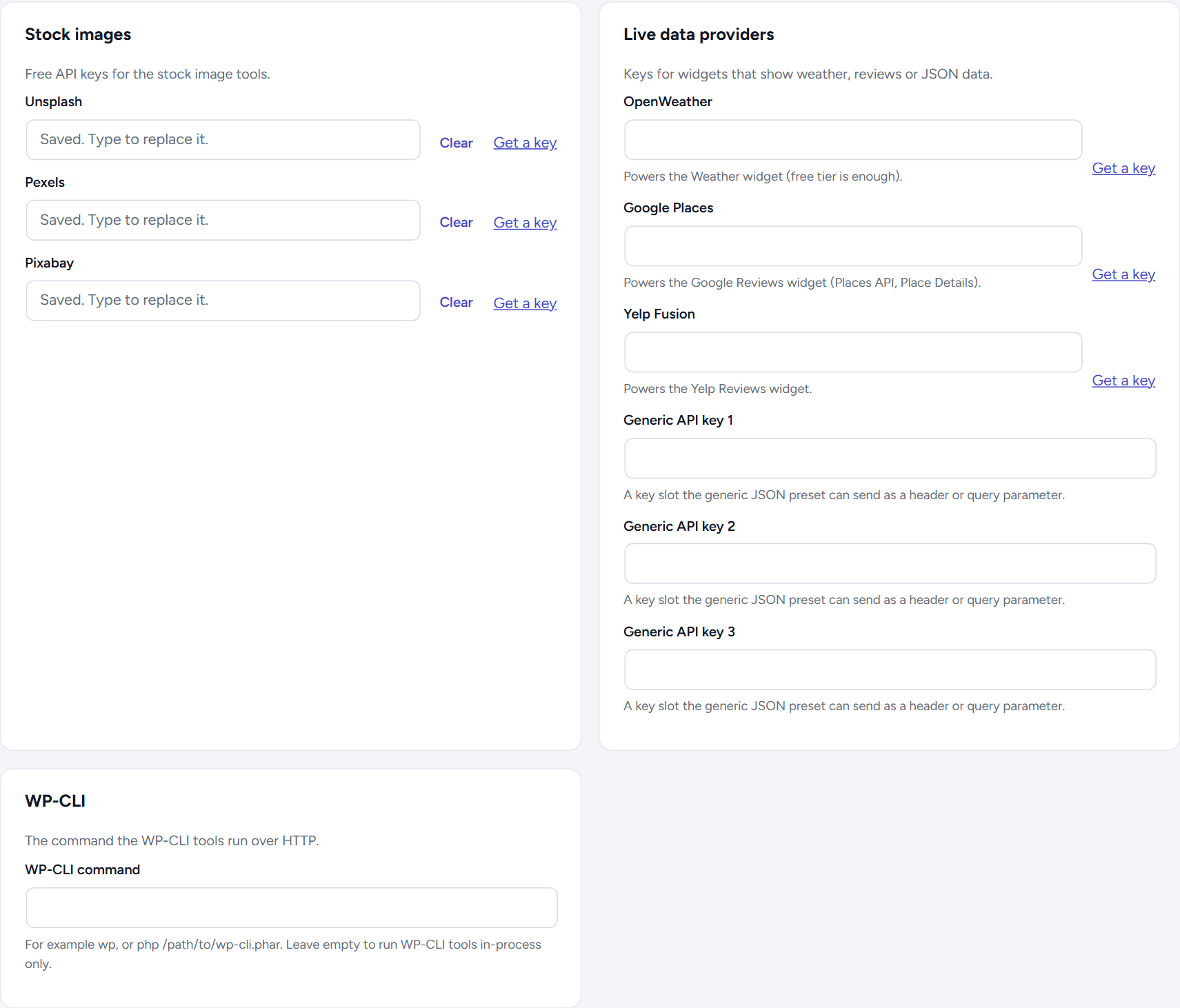
Three cards:
- Stock images: “Free API keys for the stock image tools.” One field each for Unsplash, Pexels and Pixabay, used by the Stock Images tools.
- Live data providers: “Keys for widgets that show weather, reviews or JSON data.” OpenWeather (the Weather widget), Google Places (the Google Reviews widget), Yelp Fusion (the Yelp Reviews widget) and Generic API key 1 to 3 (key slots the generic JSON preset can send as a header or query parameter). These feed Widget Builder data widgets.
- WP-CLI: “The command the WP-CLI tools run over HTTP.” The WP-CLI command field takes, for example,
wporphp /path/to/wp-cli.phar. Leave it empty to run the WP-CLI tools in-process only. See WP-CLI execution.
How the key fields behave:
- Get a key opens the provider’s page for creating a key.
- Keys are stored encrypted, and a saved key is never shown again: the field reads “Saved. Type to replace it.”
- Clear marks a saved key for removal (“Will be cleared”); it is removed when you save.
- A key defined in
wp-config.phpshows “Set in wp-config.php” and can’t be edited here. The constant wins over a saved value.
Changes show in the save bar at the bottom (“Keys are stored encrypted”); click Save changes, or Discard.
Permissions
Section titled “Permissions”The Connection screen requires manage_options. The screen’s own requests use your WordPress login only; application passwords and Bearer tokens are refused there.