
WordPress MCP Shows No Tools: Diagnose the Connection
Start with what your client actually reports. A successful connection does not prove that tool discovery or execution succeeded, and zero tools alone does not prove a tool-count limit.
- Connect
Unreachable? Check URL and network.
- Authenticate
Denied? Check identity and response.
- Discover
Empty? Check settings and dependencies.
- Inspect the list
Three dispatchers? Follow Compact mode.
Choose the matching symptom
Section titled “Choose the matching symptom”| What you see | Check next |
|---|---|
| Unreachable server, timeout, or HTML instead of JSON | Copy the endpoint from EMCP Tools → Connection; check HTTPS, network access and hosting/firewall rules. |
401 or 403 | Check the connected identity and authentication errors. A 403 can also come from a firewall; inspect the response. |
| Initialization succeeds, but listing fails | Check the session and protocol exchange below. |
| Zero tools | Check enabled tools, dependencies and discovery below. |
| Three dispatcher tools | Usually expected Compact mode, not an empty catalog. |
| Some tools are missing | Check the integration, tier, selected page builder, modules and tool settings; do not assume every site exposes the same catalog. |
| Listing succeeds, but one call is denied | Check that tool’s permissions and input; discovery is not permission to execute every tool. |
1. Check the WordPress side
Section titled “1. Check the WordPress side”Open EMCP Tools → Tools on the exact site your client should access.
- Confirm the server is on. The top bar of every EMCP screen shows Server online, Server off or Abilities API missing. If it is off, open EMCP Tools → Connection, expand Advanced settings in the right-hand panel, turn on Abilities API (“Expose EMCP tools to AI agents on this site.”) and click Save. Then confirm EMCP is active and your installation meets the current requirements. The Dashboard’s Needs your attention list also flags “The MCP server is off”.
- Inspect the enabled tools. The Tools screen shows an Enabled N / M counter; set the Status filter to Disabled or Unavailable to find what is switched off or cannot run. Tools that need a missing plugin or theme carry a “Needs X” badge. Enable only the tools needed for your task, then choose Save changes in the save bar. Tool controls affect the site across clients, not just this conversation.
- For missing integration tools, confirm the relevant plugin and supported version are installed and active. Elementor is needed for Elementor operations, not general WordPress tools. Pro-only operations also depend on your EMCP tier and any required third-party plugin.
- Check EMCP Tools → Page Builders. Only the standalone builder selected there (for example Elementor or Bricks) and the Gutenberg block plugins ticked there register tools, and each gets its own tab on Tools. With Use Gutenberg only, no Elementor tools register even when Elementor is active.
- Check EMCP Tools → Modules for module-gated tools. For example, the EMCP Themer tools appear only while the Themer module is on (off by default on new installs from 3.18.0), and the redirect tools only while Redirect Manager is on.
- The MCP Adapter is bundled with EMCP. Do not install a second Adapter plugin as a generic fix for an empty list. The Server status panel on Connection reports whether the adapter is Bundled, External or Missing.
- If registration fails despite a valid installation, inspect the WordPress/PHP error log. Keep debug output off the public page and share only a redacted excerpt.
An enabled count in admin is useful evidence, but it does not prove that this client authenticated, discovered the catalog or can execute a particular tool. After saving tool, page builder or module changes, reconnect your client so it reads the new catalog.

2. Test the REST endpoint directly
Section titled “2. Test the REST endpoint directly”Use the complete URL shown in Connection, normally ending in /wp-json/mcp/emcp-tools-server. Use the same authentication method and WordPress identity as the failing client where possible. A successful test with another administrator does not validate the original user’s permissions.
For a read-only discovery test, use an MCP-aware client such as the official MCP Inspector. Select Streamable HTTP, enter the endpoint, authenticate, connect, and request the tool list. Do not run write tools as a connection test. Keep Inspector local and do not share authorization headers or session values.
If inspecting raw HTTP traffic, check this sequence rather than sending an isolated tools/list request:
- Send
initializeand inspect the JSON-RPC result, including the negotiated protocol version. An HTTP200alone is not enough: the body may contain an error. - Preserve
Mcp-Session-Idif the server returns it, then sendnotifications/initialized. - Send
tools/listwith the session header when issued and the negotiatedMCP-Protocol-Version. Streamable HTTP clients advertise acceptance of bothapplication/jsonandtext/event-stream. - If the result includes
nextCursor, request subsequent pages before treating the list as complete.
These are protocol checks, not a claim that every plugin version implements every optional transport feature. See the MCP transport specification and tool listing specification.
A non-empty list proves discovery worked for that test session. It does not verify writes, every integration, or the original client’s configuration. For expired or missing sessions, reconnect and consult session errors.
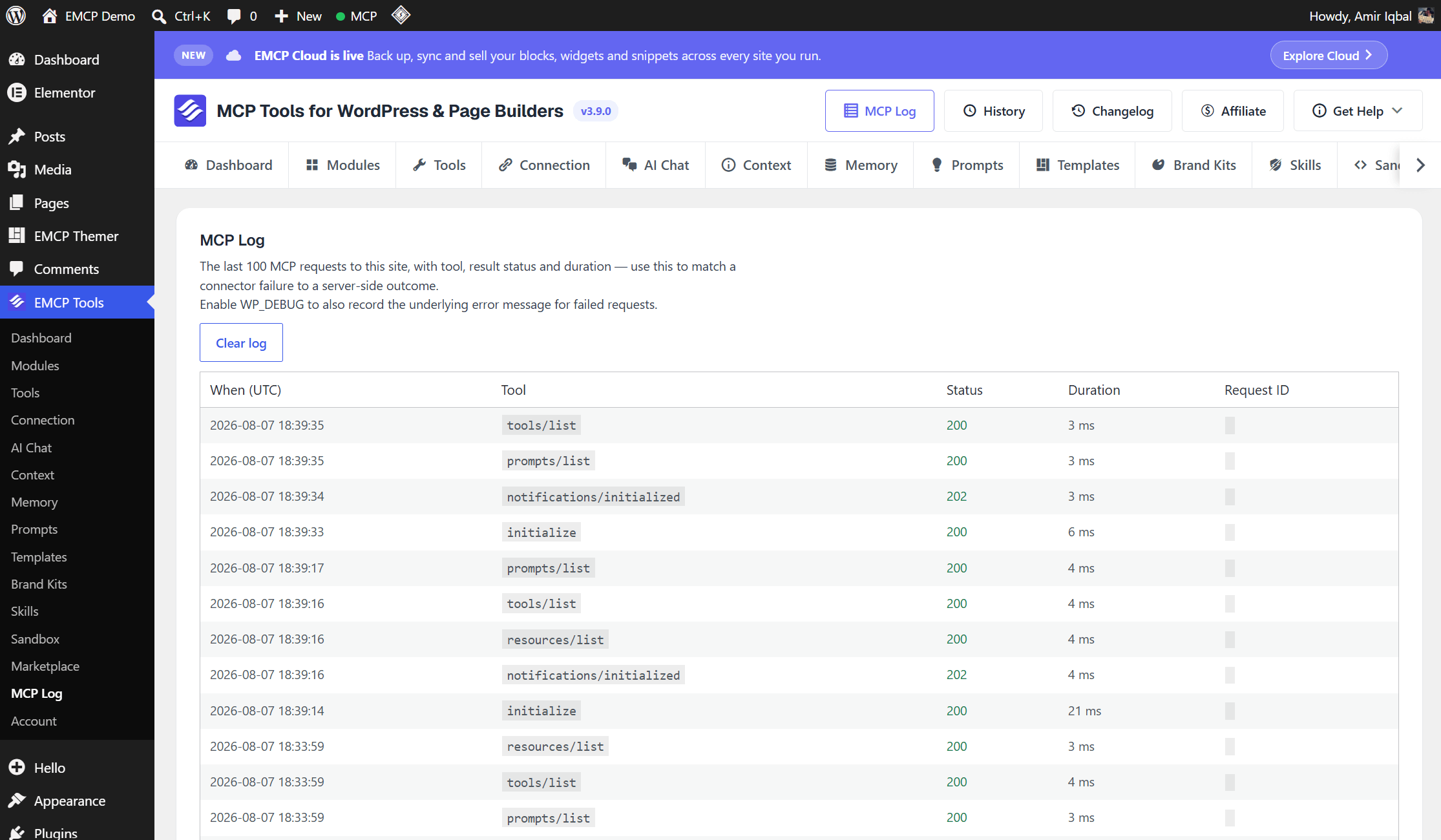
3. Match requests to the MCP Log
Section titled “3. Match requests to the MCP Log”Open EMCP Tools → MCP Log (under Safety in the EMCP sidebar) and reproduce the failure once. The log keeps up to 500 requests from every transport, HTTP and WP-CLI, 50 per page. Compare timestamps, method/tool names and status with your client’s error: filter by Errors, search for the tool or method, and set Time zone to match your client’s clock (Site time, UTC or Browser time). Show more on a row adds the client, session, credential, stage and failure reason; full error messages are kept only while WP_DEBUG is on.
If nothing relevant appears, check the destination URL and whether the request reached WordPress; absence from this log alone does not identify where it failed. When sharing a row, Copy request ID gives support something to match without exposing credentials. See MCP Log for every field and how to read a failed call.
Compact tool mode
Section titled “Compact tool mode”Compact mode exposes three EMCP dispatcher tools: list-tools, get-tool-schema and call-tool. Your client may show a server prefix on their names. A multi-site proxy can add its own routing tools, so the total shown across a connection need not be exactly three.
Ask the agent to discover the needed operation with list-tools, retrieve its schema, then use it only within your requested scope. Disabled tools and permission checks still apply. See Compact mode.
If no dispatcher tools appear, return to authentication, registration and discovery. Do not conclude that a catalog-size limit caused the failure.
Client-side issues
Section titled “Client-side issues”When discovery works in an independent test but not your usual client:
- Compare the actual endpoint, identity and transport, including any proxy or gateway. A direct test does not validate the gateway path.
- Check whether the server or relevant tools are disabled in the client, or blocked by an organization policy.
- Reconnect after changing EMCP tool settings; start a fresh conversation if the client retains the earlier catalog.
- Inspect the client’s error/log before testing a smaller catalog. Follow tool-cap diagnosis for that controlled comparison.
- If the client cannot maintain HTTP sessions, use a supported configuration from its connection guide or the Node proxy setup.
Still stuck? Send a redacted report
Section titled “Still stuck? Send a redacted report”Include the EMCP, WordPress and relevant integration versions; client/version and model; direct/proxy/gateway route; authentication method (not credentials); Compact mode setting; observed tool count; and the failing method, timestamp and error code. Include whether an independent tool-list test succeeded and whether it used the same identity.
Remove passwords, tokens, cookies, authorization headers, session IDs, private content and personal data from screenshots and logs before opening a support issue.