
Antigravity
Antigravity caps MCP servers at 100 tools total across all configured servers. EMCP Tools registers well over 100 tools when Elementor Pro is active, over the cap. Flip on Compact tool mode before connecting or Antigravity will refuse to load the server with no error message.
Step 1: Enable Compact tool mode (critical)
Section titled “Step 1: Enable Compact tool mode (critical)”- In WordPress admin, go to EMCP Tools → Setup → Tools.
- At the top of the screen, switch on the Compact tool mode card (“For clients with tool limits”).
- Click Save changes in the bar that appears at the bottom of the screen.
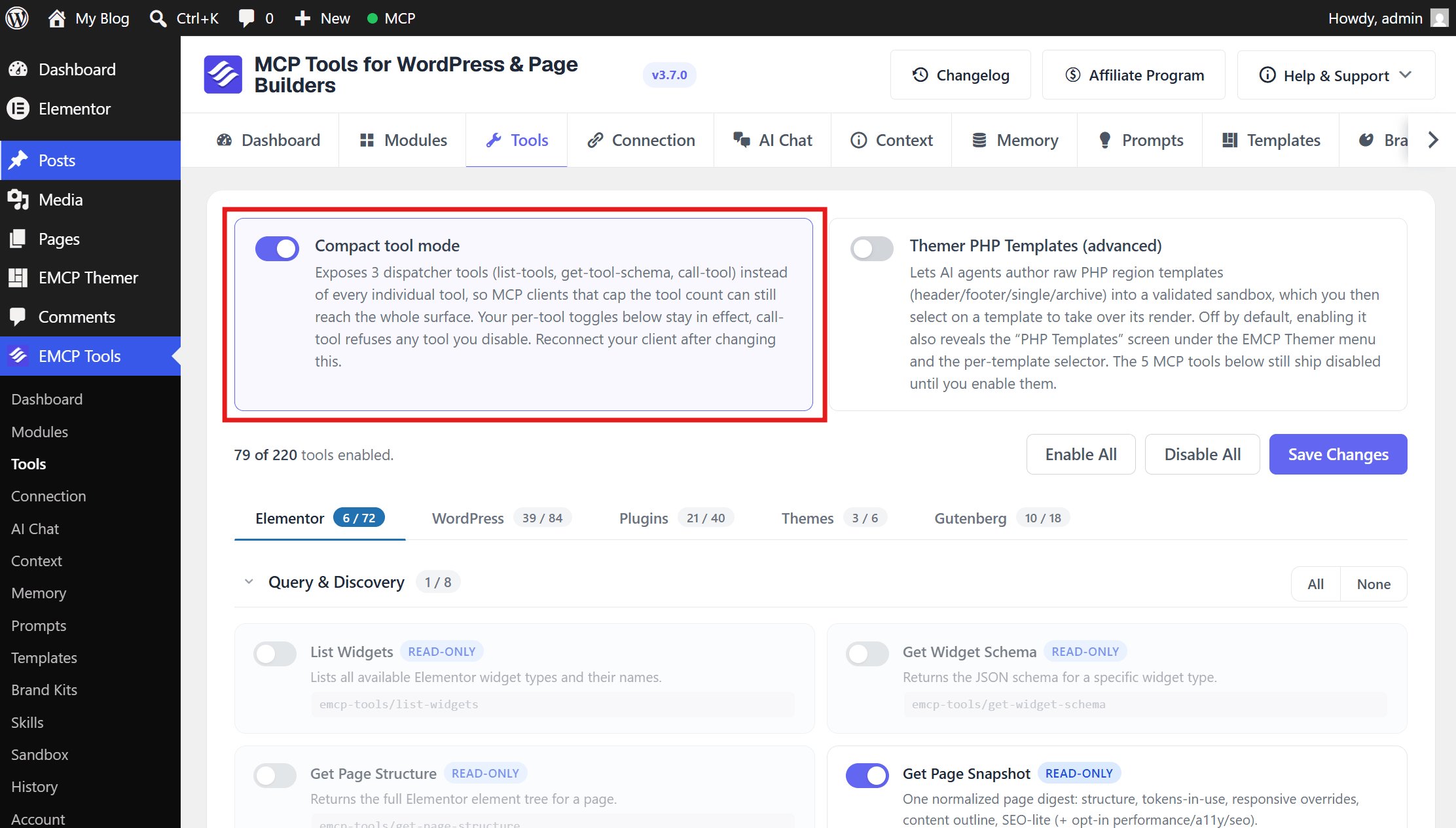
This collapses the whole surface to just 3 dispatcher meta-tools (list-tools, get-tool-schema, and call-tool), well under the 100-tool cap. Every other tool stays reachable through call-tool: the agent discovers a tool with list-tools, fetches its inputs with get-tool-schema, then runs it with call-tool. Your per-tool enable/disable toggles on the Tools screen still apply. call-tool refuses anything you’ve disabled. See Compact tool mode for the full flow.
Step 2: Configure Antigravity
Section titled “Step 2: Configure Antigravity”The EMCP Tools → Connection screen walks you through this in four steps and fills in your site’s exact URL:
- Choose your AI client: pick Antigravity.
- Pick how it signs in: OAuth (recommended), Application password, or, on a local or development site, WP-CLI on this computer.
- Add EMCP to Antigravity: the screen lists the config file (
~/.gemini/antigravity/mcp_config.jsonon macOS and Linux,%USERPROFILE%\.gemini\antigravity\mcp_config.jsonon Windows) and a Config block to copy into it. Click I’ve added it, continue. - Test the connection: restart Antigravity. The screen waits for its first MCP call and confirms it.
The generated config names the server after your site (for example emcp-your-site-com); the examples below use emcp-tools.
Option A, OAuth via mcp-remote (recommended)
Section titled “Option A, OAuth via mcp-remote (recommended)”Antigravity connects over stdio, so OAuth runs through the mcp-remote bridge, which handles the browser sign-in and token refresh:
{ "mcpServers": { "emcp-tools": { "command": "npx", "args": ["-y", "mcp-remote", "https://your-site.test/wp-json/mcp/emcp-tools-server"] } }}The first run opens your browser to approve access from your WordPress login. Requires Node 18+ and an HTTPS site with OAuth sign-in on (EMCP Tools → Connection → Advanced settings, on by default on HTTPS). Sign the app out or remove it any time under EMCP Tools → Connection → Connected apps.
Option B, Application Password
Section titled “Option B, Application Password”{ "mcpServers": { "emcp-tools": { "url": "https://your-site.test/wp-json/mcp/emcp-tools-server", "headers": { "Authorization": "Basic BASE64_ENCODED_CREDENTIALS" } } }}Generate the base64 credentials:
echo -n "admin:xxxx xxxx xxxx xxxx xxxx xxxx" | base64In the wizard, choose Application password in step 2, then click Create password in step 3: the configs it shows already contain the new password, which is shown only once. You can also pick Use a password I already have, or create one yourself under Users → Profile → Application Passwords.
Step 3: Verify
Section titled “Step 3: Verify”Step 4 of the Connection wizard shows “Antigravity is connected” as soon as the first call arrives. Then open Antigravity and ask it to list MCP tools. You should see exactly 3 emcp-tools-* tools (list-tools, get-tool-schema, call-tool). That’s expected in Compact tool mode; the agent reaches everything else through call-tool. If you see zero, the server hit the cap. Double-check Compact tool mode is on in WordPress admin, then restart Antigravity.
Why this happens
Section titled “Why this happens”Antigravity treats the 100-tool ceiling as a hard limit and silently drops servers that exceed it. There’s no error in the UI. The server just won’t appear. Compact tool mode sidesteps the cap entirely by exposing only 3 dispatcher tools regardless of how many tools you have enabled.
If you need to restrict which tools the agent can run through call-tool, disable them on EMCP Tools → Setup → Tools. call-tool refuses any disabled or unknown tool (and enforces each tool’s own capability check), so your toggles remain the source of truth even in Compact tool mode.
Connection and discovery help
Section titled “Connection and discovery help”If the server is unreachable, returns no tools, or lists fewer tools than expected, follow missing-tool diagnosis. Check the failing stage before changing the enabled catalog.