
Backup & Restore
The Backup and Restore sections of EMCP Tools → Safety → Backup & Migrate package your site into a single portable .emcp archive and restore it. Both run from your browser in short, resumable slices, so large sites finish reliably on modest hosts. Keep the tab open while a manual backup or restore runs. You can switch to another section of the screen meanwhile; the job keeps going.
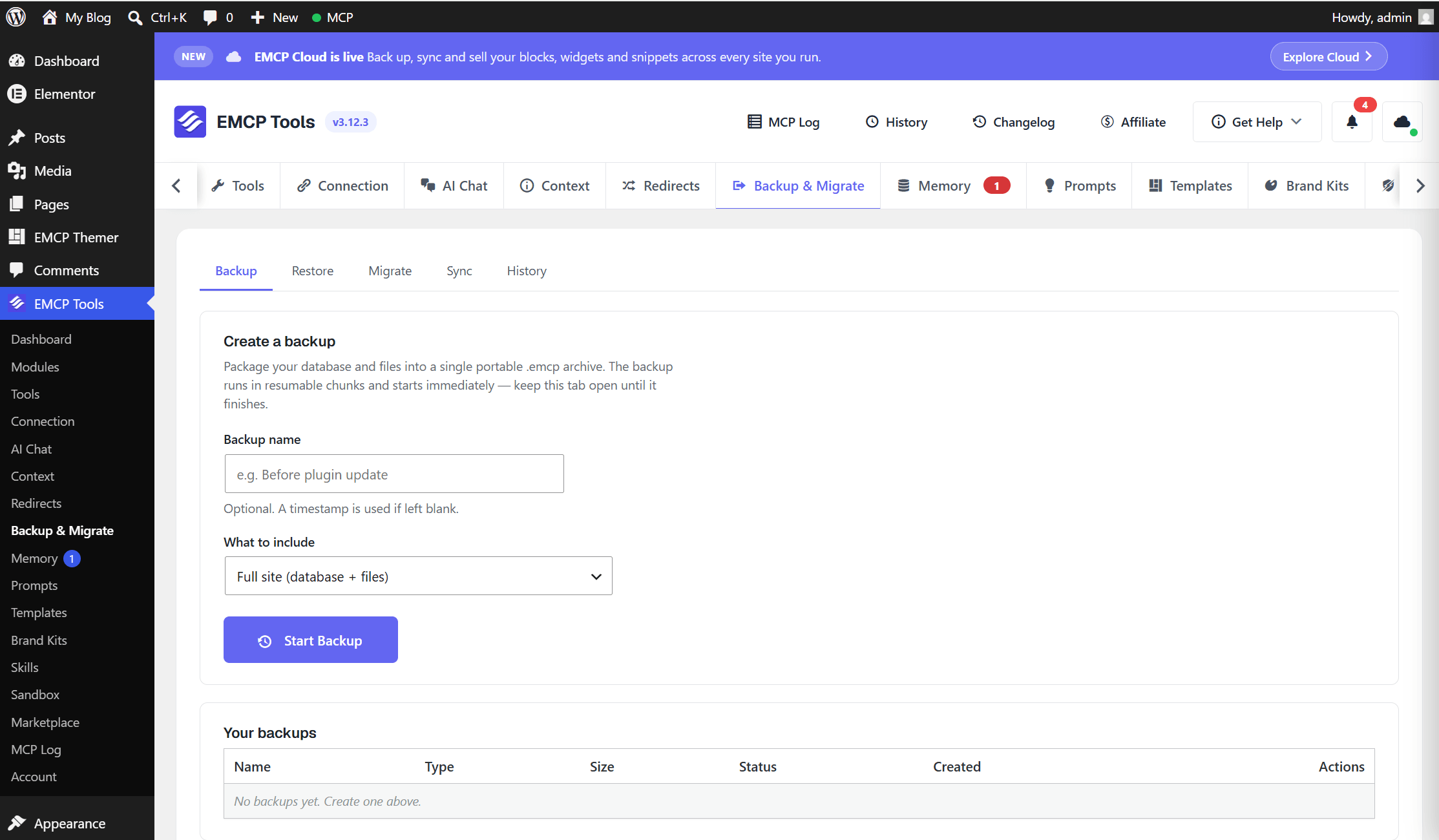
Create a backup
Section titled “Create a backup”- Open EMCP Tools → Safety → Backup & Migrate. The Backup section opens by default (
&view=backup). - Under What to include, choose:
- Full site: database and all files (uploads, themes and plugins).
- Database only: posts, pages, settings and users, no files.
- Files only: uploads, themes and plugins, no database.
- Optionally give it a Backup name (for example “Before plugin update”). A timestamp is used if you leave it blank.
- Click Start backup. Progress is shown live, with a Cancel button while it runs.
- The finished archive appears in Your backups (the newest six) and in the History section (all of them), with its type, size, status and date. Use Download to save the
.emcpoff-site.
Scheduled backups
Section titled “Scheduled backups”New in 3.18.0. The Backup health card on the Backup section shows the date of the Last backup (or “Never”), the current Schedule, and a warning when there is no backup yet or none in the last 14 days.
- Click Set up (or Edit once a schedule exists) next to Schedule. The Scheduled backups drawer opens.
- Turn on Run scheduled backups.
- Choose the Frequency (Daily or Weekly) and the Time, in the site’s time zone.
- Choose What to include: Full site (database and files), Database only, or Files only.
- Set Keep the newest (1 to 30, default 7). Older scheduled backups are deleted when a new one finishes. Manual backups are never deleted.
- Click Save schedule.
Scheduled backups run through WP-Cron in short ticks, so they need some site traffic (or a system cron) to keep moving. The Backup health card warns “Scheduled backups aren’t running” when DISABLE_WP_CRON is set and no scheduled backup ran recently, and flags a scheduled backup that has not moved for two hours. On a site with DISABLE_WP_CRON, call wp-cron.php from a system cron every few minutes. A failed scheduled backup is retried a few times before it is marked failed, and the Dashboard’s Needs your attention list then shows “The last scheduled backup failed”.
Continue a scheduled backup in this tab
Section titled “Continue a scheduled backup in this tab”When you open the Backup section while a scheduled backup is running, the notice “A scheduled backup is running.” shows its progress, read-only. If the backup has stopped moving (usually because WP-Cron has not run), the notice says so and offers Continue in this tab: click it to drive the rest of the backup from your browser, like a manual one. Only one process works on a backup at a time, so a backup you continue here is never processed twice.
Restore a backup
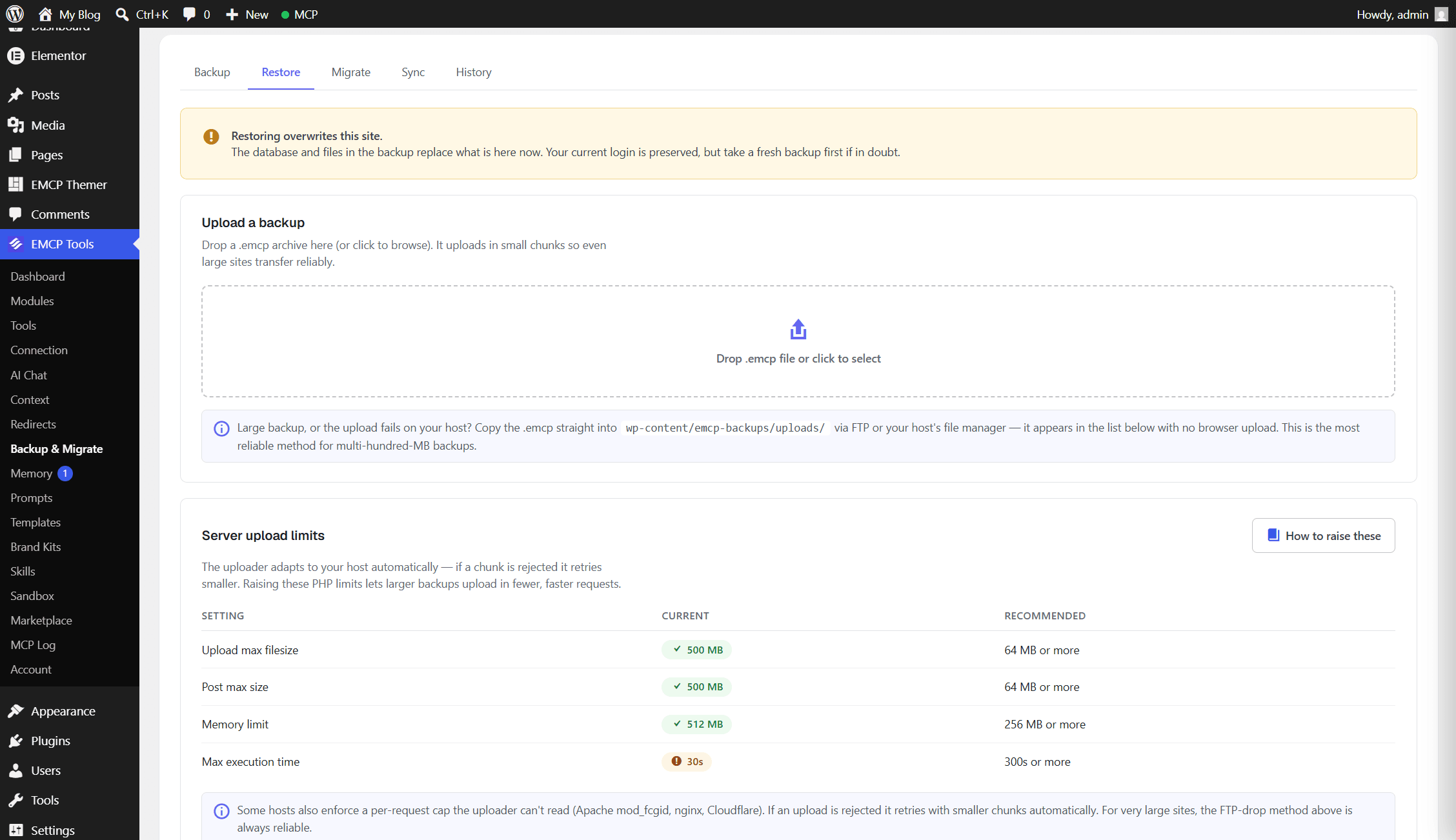
Section titled “Restore a backup”The Restore section (&view=restore) restores archives that are in the upload folder, wp-content/emcp-backups/uploads/. There are two ways to get an archive there: upload it in the browser, or copy it in by FTP. To restore one of this site’s own backups, download it from Your backups first, then upload it here.
By uploading an .emcp
Section titled “By uploading an .emcp”- On the Restore section, click Drop an .emcp file or choose one (or drag the file onto the drop zone).
- The uploader sends it in chunks and adapts to your host. If a chunk is rejected it automatically retries with a smaller one, so it works even behind a firewall or a strict request-size cap. Real progress drives the bar, and an interrupted upload resumes.
- When the upload finishes the archive appears in Available to restore.
Run the restore
Section titled “Run the restore”- In Available to restore, choose the archive (the radio button in the first column).
- Tick Restore database, Restore files, or both.
- Click Restore selected, type
RESTOREto confirm, and keep the tab open. The plugin imports the database, extracts files, and rewrites URLs to this site.
Remove uploaded files deletes every archive in the upload folder once you no longer need them.
The reliable method for very large sites: FTP drop
Section titled “The reliable method for very large sites: FTP drop”For very large archives, or any host that fights browser uploads, skip the uploader:
- Copy the
.emcpfile intowp-content/emcp-backups/uploads/via FTP/SFTP or your host’s file manager. - It appears in Available to restore on the Restore section with no browser upload at all.
This has no size limit and bypasses every request-size cap. See Server upload limits for the details.
What a restore does, and does not, change
Section titled “What a restore does, and does not, change”A restore:
- Imports the database and rewrites the site address and Elementor page-data URLs to this site (a serialization-safe search-replace, so serialized data and Elementor JSON stay valid).
- Extracts the archived files into place.
A restore never:
- Modifies
wp-config.phpor your security salts. - Logs you out. Your current session is preserved even though the database is replaced mid-restore.
Driving it with an AI agent
Section titled “Driving it with an AI agent”A connected agent can create and list backups with the create-backup and list-backups MCP tools (both on by default). Backups it creates are stored on this server like any other. See the module overview.