
Migrate local to live
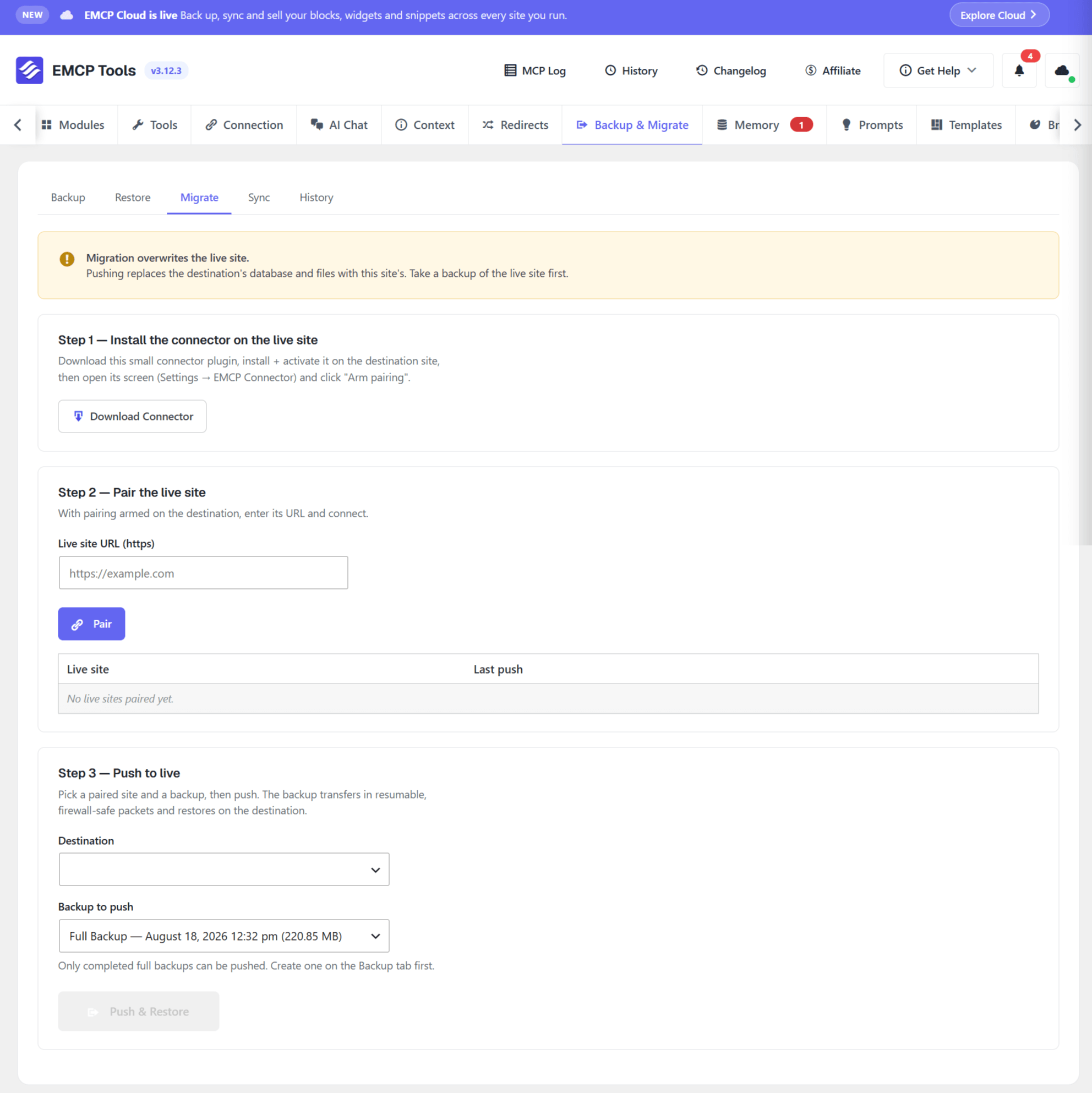
Migrate pushes this whole site to a live server without a manual backup upload. The source (this Pro site) streams an .emcp archive directly to a tiny connector plugin on the destination, which reassembles and restores it. It is the Migrate section of EMCP Tools → Safety → Backup & Migrate (&view=migrate).
Before you start
Section titled “Before you start”- You need admin access to the destination site to install the connector.
- The destination should be a working WordPress install. It can be empty/fresh, or an existing site you are replacing.
- Migration replaces the destination’s database and files with this site’s. Take a backup of the destination first if you might need it.
- You need a completed Full site backup of this site. Create one on the Backup section first: the push sends an existing full backup.
Step 1: Install the connector on the destination
Section titled “Step 1: Install the connector on the destination”- On this site, open EMCP Tools → Safety → Backup & Migrate → Migrate and, under “Step 1: Install the connector on the live site”, click Download the connector. You get a small
.zip. - On the destination, go to Plugins → Add New → Upload Plugin, upload the zip, and activate EMCP Migrate Connector.
Step 2: Arm pairing and pair the sites
Section titled “Step 2: Arm pairing and pair the sites”- On the destination, open Settings → EMCP Connector, choose how long to keep the pairing window open (5, 10 or 15 minutes), and click Arm pairing. It shows a one-time pairing code and the site’s URL.
- Back on the source’s Migrate section, under “Step 2: Pair the live site”, enter the Live site URL (https) and the Pairing code (eight groups of four characters,
XXXX-XXXX-XXXX-XXXX-XXXX-XXXX-XXXX-XXXX), and click Pair site. The site then appears in the Paired live sites table with its last push.
Once paired, the site stays paired until you unpair or remove the connector. The pairing window only limits how long a new pairing can be started, and it closes automatically after the first successful pairing.
Step 3: Push to live
Section titled “Step 3: Push to live”- Under “Step 3: Push to live”, choose the Destination (a paired site) and the Backup to push. Only completed full backups are listed.
- Click Push to live and confirm.
- The archive transfers in resumable, firewall-safe packets (base64-encoded so it clears a destination WAF; HMAC-signed; offset-based resume). The push is driven in short slices, so no single request runs long enough to be killed by a host timeout, and a transient failure resumes from the last confirmed byte.
- The connector restores past a client disconnect and reports progress the source polls. When it finishes, open the live site to confirm.
Remove the connector (zero residue)
Section titled “Remove the connector (zero residue)”When a migration completes, a Remove the connector from the live site button appears, and each row of Paired live sites has a Remove connector button too. Both ask for confirmation. It sends a signed request asking the connector to unpair, purge any staged transfer data, deactivate itself, and delete its own plugin files from the live site, leaving no trace. Only the paired source can trigger it. If the connector can’t be reached, the target is still forgotten locally, with a note to remove the plugin manually.
Troubleshooting
Section titled “Troubleshooting”- “Pairing failed”: make sure pairing is armed and the window hasn’t expired, and that the destination URL is reachable. The plugin tries both
/wp-json/and the permalink-independent?rest_route=form automatically. - Push stalls or errors mid-transfer: it resumes from the last confirmed offset on retry; large transfers are expected to take several slices. See Server upload limits for host caps that affect speed.
- Can’t re-pair after a migration: the migrated site regenerates its permalink rewrite rules after a restore so
/wp-json/works again; if you replaced the connector, re-arm pairing on the destination.
Driving it with an AI agent
Section titled “Driving it with an AI agent”A connected agent can migrate with the migrate-site MCP tool. Unlike the screen, the tool can build a fresh full backup itself when you pass no backup_id. It is destructive, disabled by default, and requires confirm: true. See the module overview.