
Dashboard and admin frame
New in v3.18.0. Free. The Dashboard is the first screen under EMCP Tools in the WordPress menu (admin.php?page=emcp-tools). It answers one question: what has your AI done on this site lately, and does anything need you? This page also describes the admin frame (sidebar, top bar, command palette) that every EMCP screen shares.
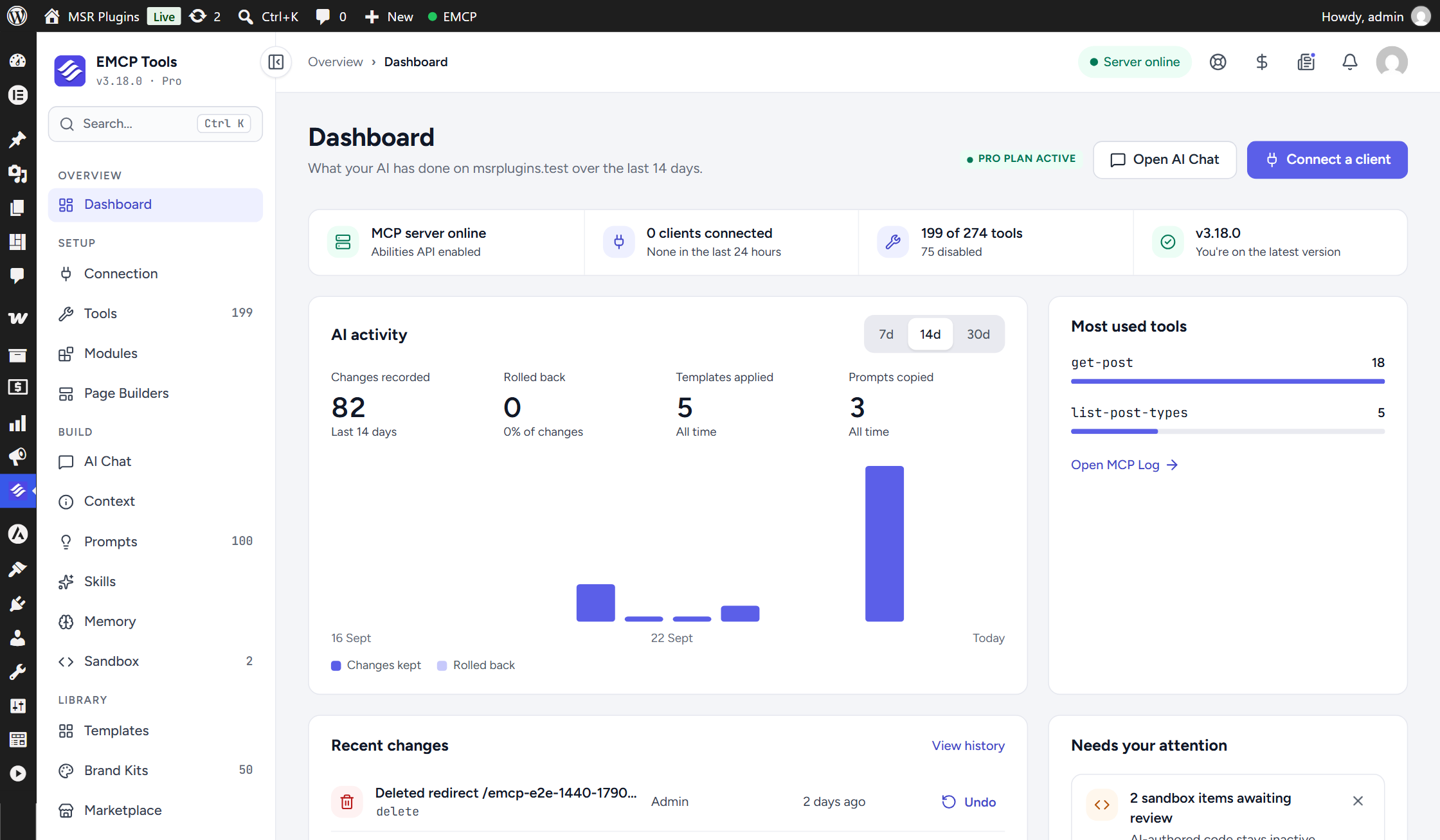
The admin frame
Section titled “The admin frame”Every EMCP screen opens inside the same frame. The WordPress submenu under EMCP Tools is replaced by the frame’s own sidebar, and old admin URLs, including ?view= deep links, keep working.
Sidebar
Section titled “Sidebar”The top of the sidebar shows the plugin version and tier (for example “v3.18.0 · Pro” or ”· Free”) and a Search… button that opens the command palette. Entries are grouped:
| Group | Entries |
|---|---|
| Overview | Dashboard |
| Setup | Connection, Tools, Modules, Page Builders |
| Build | AI Chat, Context, Prompts, Skills, Memory, Sandbox |
| Library | Templates, Brand Kits, Marketplace |
| Safety | History, Backup & Migrate, Redirects, MCP Log |
Some entries show a count badge: enabled tools on Tools, the prompt and kit counts on Prompts and Brand Kits, proposals waiting for review on Memory, and flagged items on Sandbox. Entries tied to a module (Prompts, Brand Kits, Templates, Marketplace, Memory, Redirects, Backup & Migrate, AI Chat) show only while that module is on. Pro entries on a free build or an unlicensed site open a locked screen with Upgrade to Pro and Compare plans. Free and unlicensed sites also get an Upgrade to Pro link at the bottom of the sidebar.
Collapse sidebar (the first button in the top bar) shrinks the sidebar to an icon rail; hover an icon to see its name. Click Expand sidebar to bring it back. The choice is saved for your user. Below 1200 px wide the icon rail is used automatically.
Top bar
Section titled “Top bar”From left to right:
- Collapse sidebar / Expand sidebar.
- A breadcrumb with the group and screen, for example “Overview > Dashboard” or “Setup > Connection”.
- The server status pill, which links to Connection: Server online (green), Server off (grey) or Abilities API missing (red).
- A help icon that opens the documentation in a new tab.
- An affiliate icon, only when the affiliate page is available.
- The changelog icon, which opens the in-plugin Changelog screen. The Changelog is not in the sidebar.
- The bell, which opens the Notifications drawer: announcement posts, each with its own link. Opening the drawer marks them as read.
- Your avatar, which links to your account page.
Promo bar
Section titled “Promo bar”A thin bar above each screen rotates through announcements, with previous and next arrows and dots: EMCP Cloud, “What’s new” in this release, and on sites without a Pro licence the Pro upgrade and lifetime deal. It cannot be dismissed. It stops rotating while you hover or focus it, and never rotates when your system asks for reduced motion.
Command palette
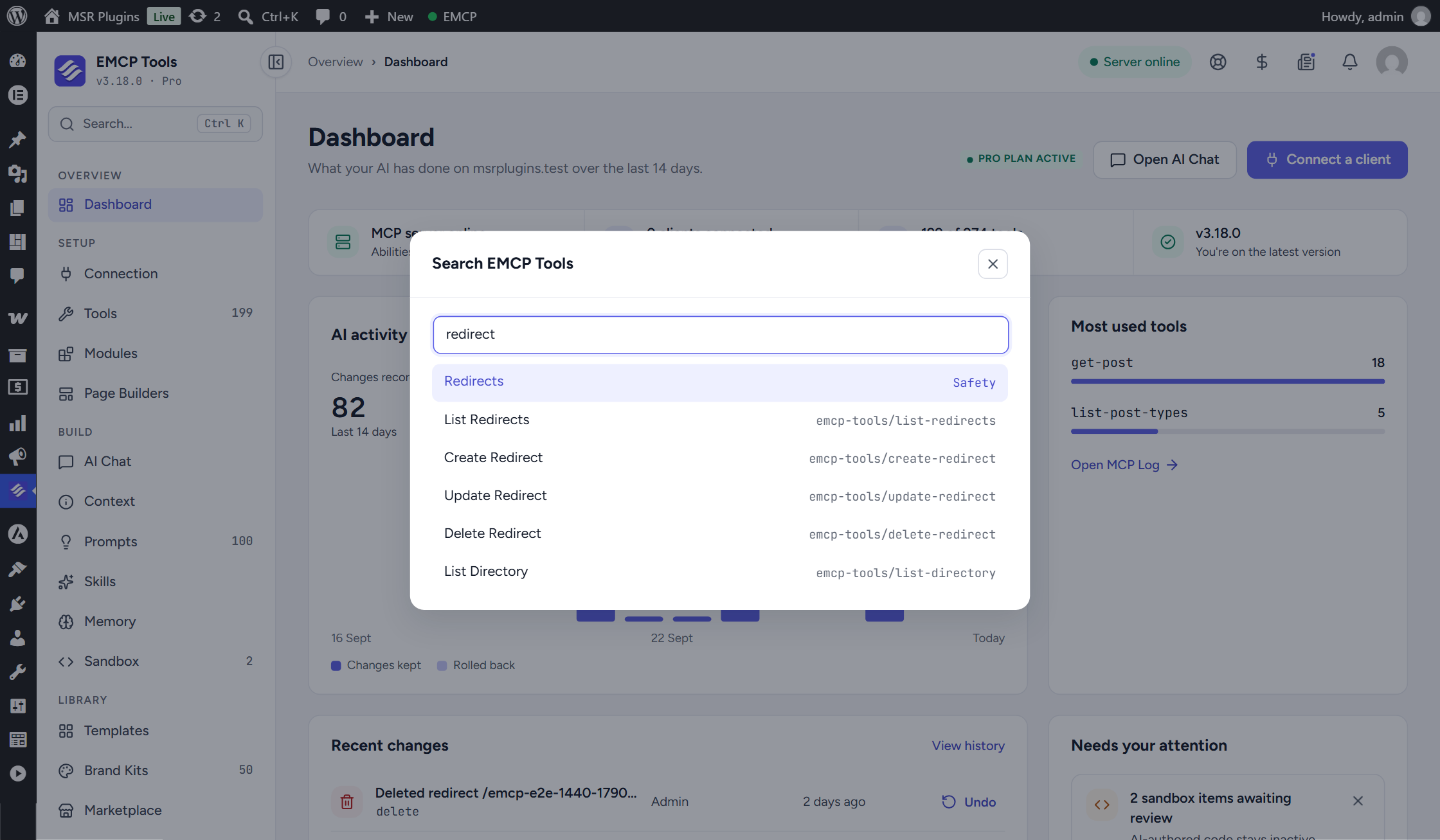
Section titled “Command palette”Press Ctrl+K (Cmd+K on Mac), or click Search… in the sidebar, to open Search EMCP Tools. Before you type it lists the screens you can open, with their group. As you type it also searches tools (by name and ability, such as emcp-tools/list-redirects), settings, prompt titles and template titles. Use the arrow keys and Enter, or click a result.
On EMCP screens this shortcut opens the EMCP palette instead of the WordPress 7.1 command palette.
Unsaved changes
Section titled “Unsaved changes”Screens with a form (Tools, Modules, Page Builders, Context and others) show a save bar at the bottom once you change something. If you click a sidebar link with unsaved changes, the frame asks “Leave without saving?” with Leave and Stay.
Header
Section titled “Header”The Dashboard title reads “What your AI has done on your site over the last N days”, where N follows the activity range. On the right: a Pro plan active badge on licensed sites, Open AI Chat (when AI Chat is available) and Connect a client, which opens Connection.
Health strip
Section titled “Health strip”Four tiles under the header:
| Tile | What it shows |
|---|---|
| Server | MCP server online or MCP server off, with Abilities API enabled or Abilities API missing underneath. |
| Clients | ”N clients connected”: distinct clients that made a successful MCP call in the last 24 hours, with the latest one and its sign-in method (OAuth, Application password or WP-CLI). With none it reads “None in the last 24 hours”. |
| Tools | ”N of M tools” enabled, with the number disabled. |
| Version | Your version and “You’re on the latest version”, or “vX is ready to install”. When an update is ready the tile links to it. |
AI activity
Section titled “AI activity”The AI activity card has a range switch, 7d, 14d or 30d (14 days by default). Changing it reloads the chart, the KPIs, Recent changes and the attention list.
The four KPIs:
- Changes recorded: changes written to History in the range.
- Rolled back: how many of those were undone, with the percentage.
- Templates applied and Prompts copied (all time), on the Pro build.
- On the free build these two are replaced by Tool calls and Errors for the range, with errors as a percentage of calls.
The Changes per day bar chart stacks Changes kept and Rolled back for each day, with today on the right.
Most used tools
Section titled “Most used tools”The five tools called most often in the range, with their call counts, from the MCP request log. With no calls it reads “No tool calls yet”. Open MCP Log opens the full request log.
Recent changes
Section titled “Recent changes”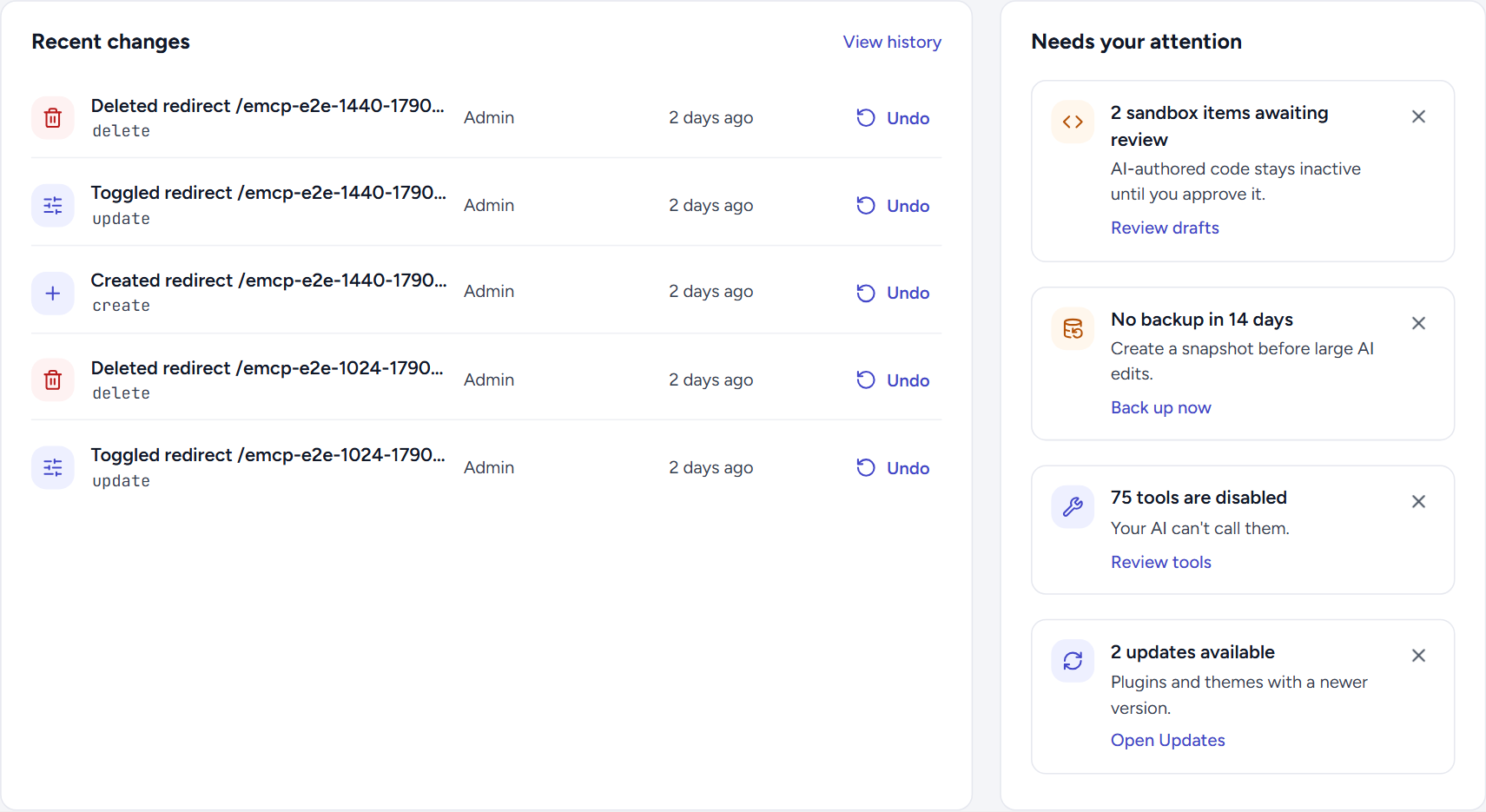
The five newest changes from the change ledger, each with its title, the action, the client that made it (for example Admin, WP-CLI, AI Chat or an OAuth app name) and how long ago. View history opens the History screen.
- Undo reverts that one change, the same as on History.
- If the item changed again after it was recorded, you are asked “This changed since” with Undo anyway.
- Undone changes show Rolled back. Changes that cannot be reverted show Can’t undo; hover it for the reason.
- With nothing recorded it reads “No changes recorded yet”.
See Change History and rollback for how undo works.
Needs your attention
Section titled “Needs your attention”A short list of things that are worth a look, most serious first. Each item has an action link and a close button (Dismiss). With nothing to show it reads “Nothing needs your attention”.
| Item | Shows when | Action |
|---|---|---|
| The MCP server is off | The EMCP MCP server is switched off, so AI clients can’t connect. | Open Connection |
| Some AI changes weren’t recorded | History could not record some changes, an old AI client process is still writing the old way, or the History upgrade is stuck. History can’t undo those changes. | Open History |
| N sandbox items awaiting review | Inactive Sandbox drafts whose review flagged something. AI-authored code stays inactive until you approve it. | Review drafts |
| N tools are disabled | Some visible tools are switched off, so your AI can’t call them. | Review tools (opens Tools filtered to disabled) |
| N updates available | WordPress reports plugin or theme updates. | Open Updates |
| EMCP Cloud is disconnected | The site is not connected to EMCP Cloud but has Marketplace installs, which can’t get updates until you reconnect. | Reconnect |
| No backup in 14 days (Pro) | No backup has finished in the last 14 days, or none ever. Shown while the Backup & Migrate module is on. | Back up now |
| The last scheduled backup failed (Pro) | The newest scheduled backup failed. | Open Backup & Migrate |
How Dismiss works. Dismissing hides an item for your user only, and only for the situation you saw. When the situation changes (for example the disabled tool count goes from 75 to 76, or a new update arrives) the item comes back. If the item goes away on its own and later returns, it shows again too. The list is cached for up to ten minutes, so a fix can take a few minutes to clear its item.
The rest of the Dashboard
Section titled “The rest of the Dashboard”- EMCP Cloud: a card about backing up, syncing and publishing your blocks, widgets and snippets, with Open EMCP Cloud when connected or Explore EMCP Cloud when not. See EMCP Cloud & Marketplace.
- Jump to a feature: tiles for MCP Tools, Connection, Modules, History, AI Chat, EMCP Themer, Prompts, Templates, Skills and PHP Sandbox. Tiles for switched-off modules are hidden.
- Video guides: three featured videos and All tutorials.
- Help & resources: Documentation, Ticket support, Community and Changelog.
Permissions
Section titled “Permissions”The EMCP screens require manage_options. Pro screens also need an active Pro licence; without one they open the locked screen.