
Safe WordPress updates
Open Account → Safe updates to review updates for a connected WordPress site. Cloud takes a file and database snapshot before each update group, checks selected pages, and stops and restores the current group if checks fail. Earlier successful groups remain installed.
This workflow uses a maintenance window on the existing site. It does not create a separate staging website. Visitors, checkout submissions, admin writes, and WordPress cron requests are paused while the window is active.
Where to manage Safe Updates
Section titled “Where to manage Safe Updates”| Page | What you do there |
|---|---|
| WordPress → EMCP Tools → Connection → Cloud | Connect this installation to your Cloud account and review Gateway access. |
| WordPress → EMCP Tools → Tools → EMCP Modules → EMCP Cloud | Check that the Cloud Safe Updates tool is available and enabled. |
| Cloud account → Safe updates | Browse connected websites, check readiness, and see recent update activity. |
| A website’s Safe updates detail page | Select updates, review the queue, accept maintenance, and follow recovery. |
The plugin supplies update information and performs local snapshot, installation, and recovery work. Your Cloud account coordinates the queue and checks the website. There is no separate update queue screen inside the plugin.
Select any screenshot to open it at full size. Screenshots below show a local demonstration installation and Cloud account. The review-dialog screenshot uses sample update data; names, versions, and counts will differ on your websites.
Set up the WordPress plugin
Section titled “Set up the WordPress plugin”- Open EMCP Tools → Connection, then the Cloud section. Connect the site to the intended Cloud workspace. Follow Hosted Gateway setup to review and approve Gateway access as a WordPress administrator.
- Open EMCP Tools → Tools and choose the EMCP Modules tab.
- Search for
safe. Under EMCP Cloud, verify that Cloud Safe Updates is enabled. Its identifier isemcp-tools/cloud-safe-updates. - Open your Cloud account to plan updates. Enabling the tool does not start an update or accept a maintenance window.
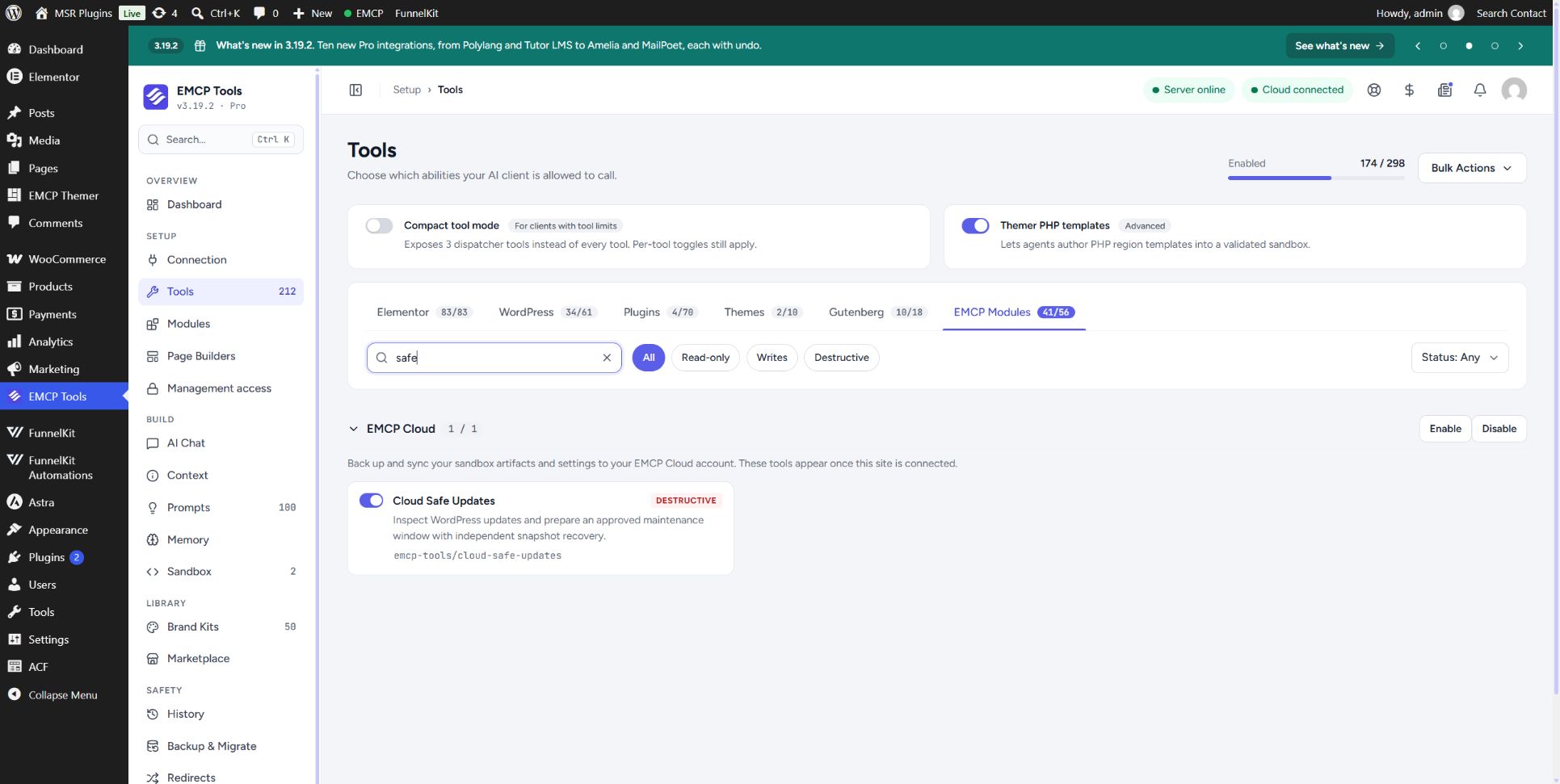
The tool is marked Destructive because an approved run changes installed software and recovery can replace files and database data.
If the tool is absent, check the installed EMCP version, the EMCP Cloud module, and the site’s Cloud connection. A connected badge alone does not establish that the site supports Safe Updates. WordPress permissions and Cloud access requirements still apply.
Requirements
Section titled “Requirements”- A workspace owner with Cloud Gateway access, an active site connection, and Gateway consent from a WordPress administrator.
- A plugin build that exposes Cloud Safe Updates under EMCP Tools → Tools → EMCP Modules → EMCP Cloud. Having Cloud connectivity alone does not provide this tool. If it is missing, the site cannot use safe updates until a compatible plugin build is installed.
- Single-site WordPress over HTTPS, matching home and site URLs, standard content/plugin directories, writable root files and
wp-config.php, direct filesystem access, and mysqli. - InnoDB WordPress tables, sufficient storage for recovery snapshots, and a host that permits the independent PHP recovery runner.
The supported scope excludes multisite, symlinks, drop-ins, external object caches, custom content or MU-plugin paths, and pre-existing database views, triggers, or generated columns. The plugin also refuses a detected second WordPress installation whose database prefix extends this site’s prefix, such as wp_shop_ beneath wp_. Do not use this workflow for installations with overlapping database ownership.
EMCP Tools 3.19.3 adds hosted-site compatibility for writable MU plugins in the standard wp-content/mu-plugins folder. Their files are included in snapshots and rollback; recovery runs without loading WordPress or those plugins. WP Launcher’s root .wp-launcher-ready provisioning marker is preserved, rather than overwritten or deleted. Other unwritable WordPress files still block updates. Sites running 3.19.2 need this patch before these checks can pass.
Database ownership checks compare table structure as well as names. Plugin history tables, such as Hostinger AI’s hostinger_ai_version_options and hostinger_ai_version_posts tables, remain included in snapshots and rollback without being mistaken for a separate WordPress installation. An overlapping set of WordPress core tables still blocks the operation, and unreadable table metadata prevents the check from passing.
Blocked means inspection succeeded but a recovery requirement was not met. The website list displays the specific reasons below the badge, and the detail page includes any paths needing write access. A named drop-in or external cache still needs a hosting-supported recovery workflow. Do not delete host integrations or loosen permissions merely to bypass a blocker.
Compatibility checks run during inspection and snapshot preparation. A successful connection check is not a completed recovery-readiness check. Plugin-only recovery cannot repair an unavailable hosting server or a PHP service that cannot run the recovery script. Keep an independent, tested backup and choose a maintenance window appropriate for your site.
Browse websites in your Cloud account
Section titled “Browse websites in your Cloud account”Open Account → Safe updates. The overview shows connected websites, available updates from checks made on this page, running queues, and recovery needing attention.
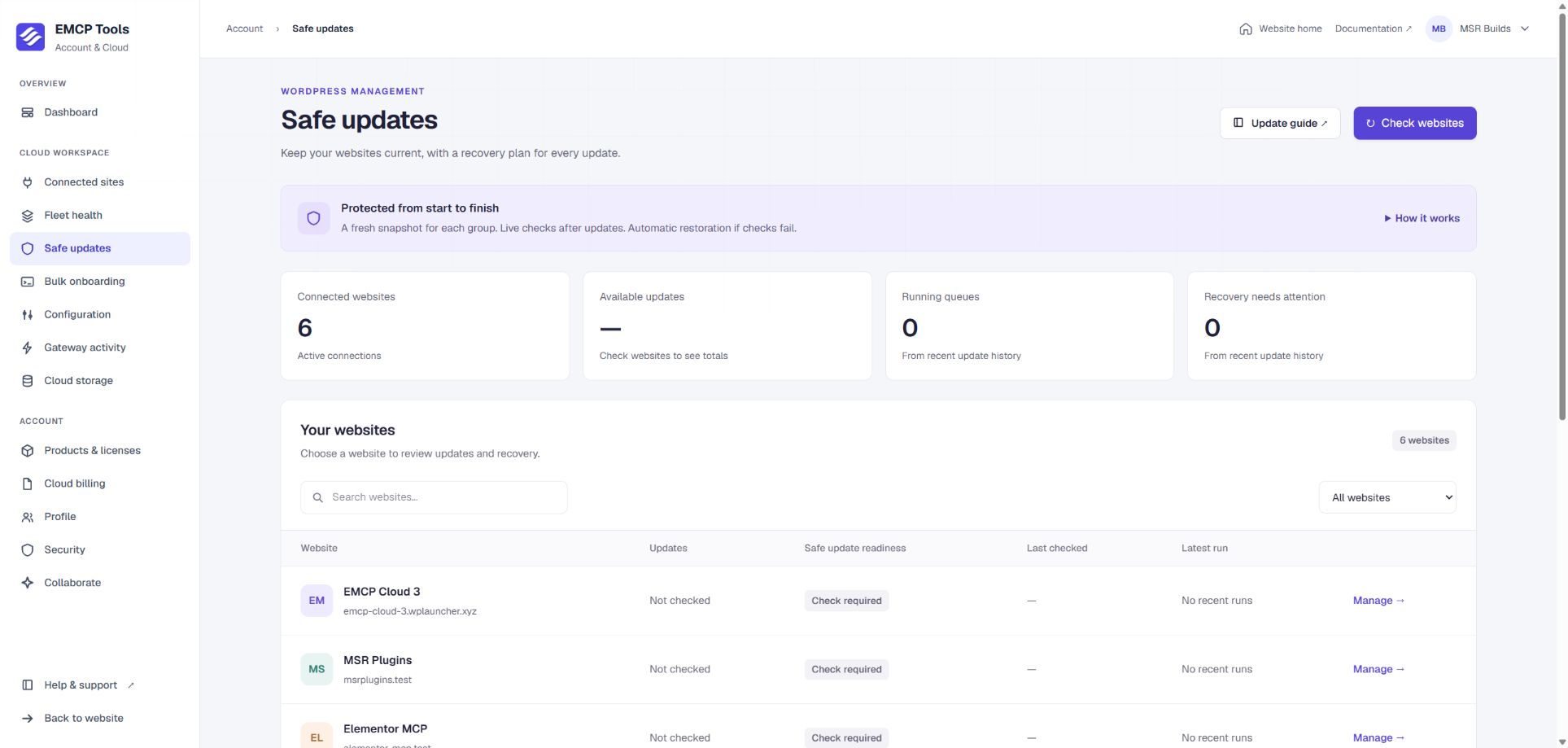
- Choose Check websites to inspect connected sites. This checks availability; it does not install updates.
- Use Search websites and Filter websites to find sites with available updates, sites that are up to date, or sites that need checking.
- Read Safe update readiness, Last checked, and Latest run together. Not checked means no result has been collected in this view, not that the site is up to date.
- Open a website’s name or its manage-updates action to see the dedicated detail page.
Recent update activity shows the latest 50 workspace runs. An empty history means no recent runs are available in that list, not that a health check has passed.
Review a website’s updates
Section titled “Review a website’s updates”The detail page brings together available updates, recovery readiness, the last check, and Update history & recovery for the selected site.
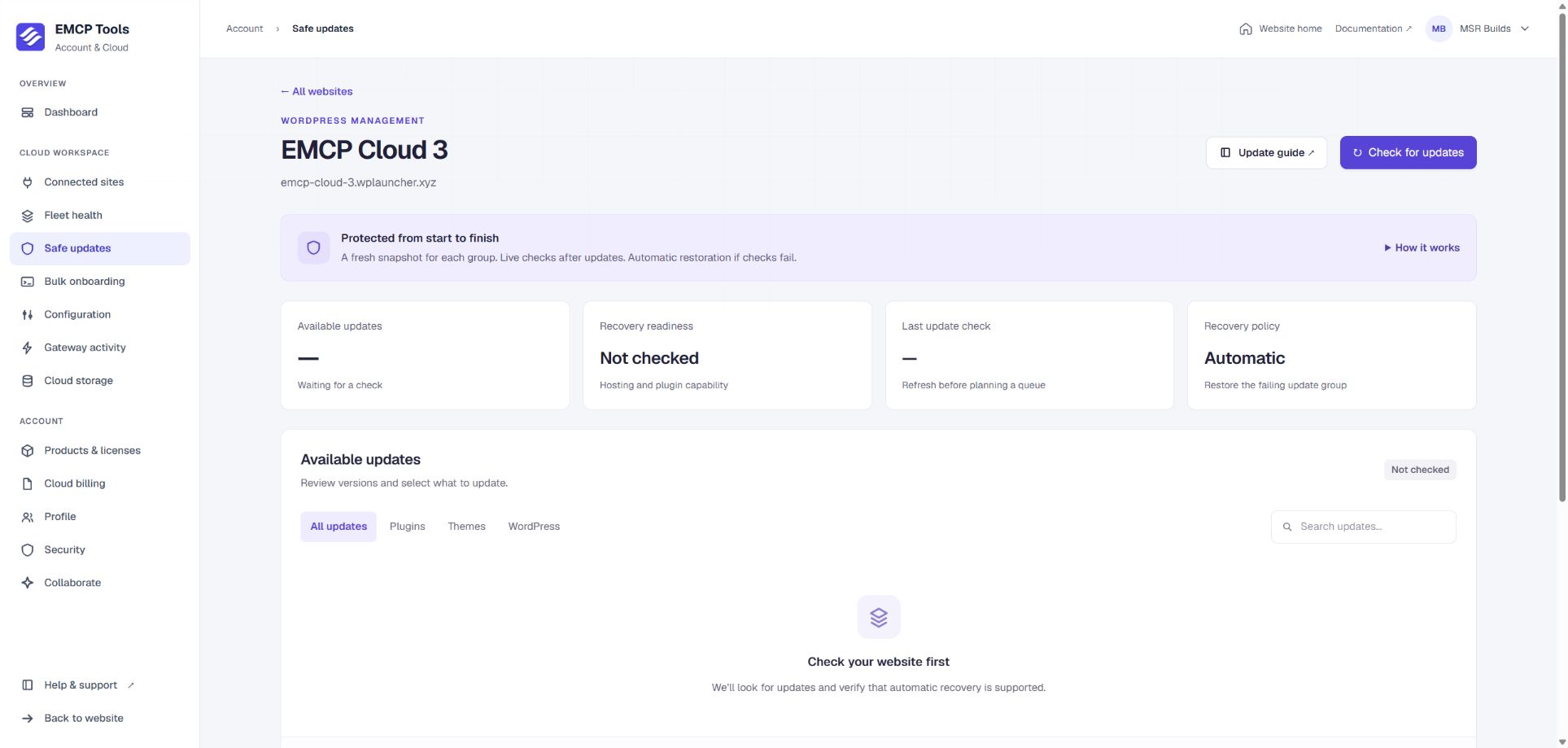
Choose Check for updates. Once inspection succeeds, use All updates, Plugins, Themes, or WordPress, and Search updates, to narrow the list. Review installed and available versions before selecting items. Resolve any readiness blocker before starting a queue.
Start an update queue
Section titled “Start an update queue”- Open a website and choose Check for updates. Review versions and any compatibility message.
- Select the plugins, themes, or WordPress update you want to install.
- Choose Review selected updates to open Plan your safe update.
- Add up to five Additional pages to check, one public path per line, such as
/shop/or/contact/. The home page and login page are always checked. Use pages that return HTML successfully without logging in or redirecting. Review the versions and linked groups; choose Refresh plan after changing the options if prompted. - Select the maintenance consent and choose Start safe updates. The background worker continues if you leave the page.
An initial health baseline must pass before installation. The site then drains earlier WordPress requests before creating its snapshot. Each group advances only after repeated successful health samples.
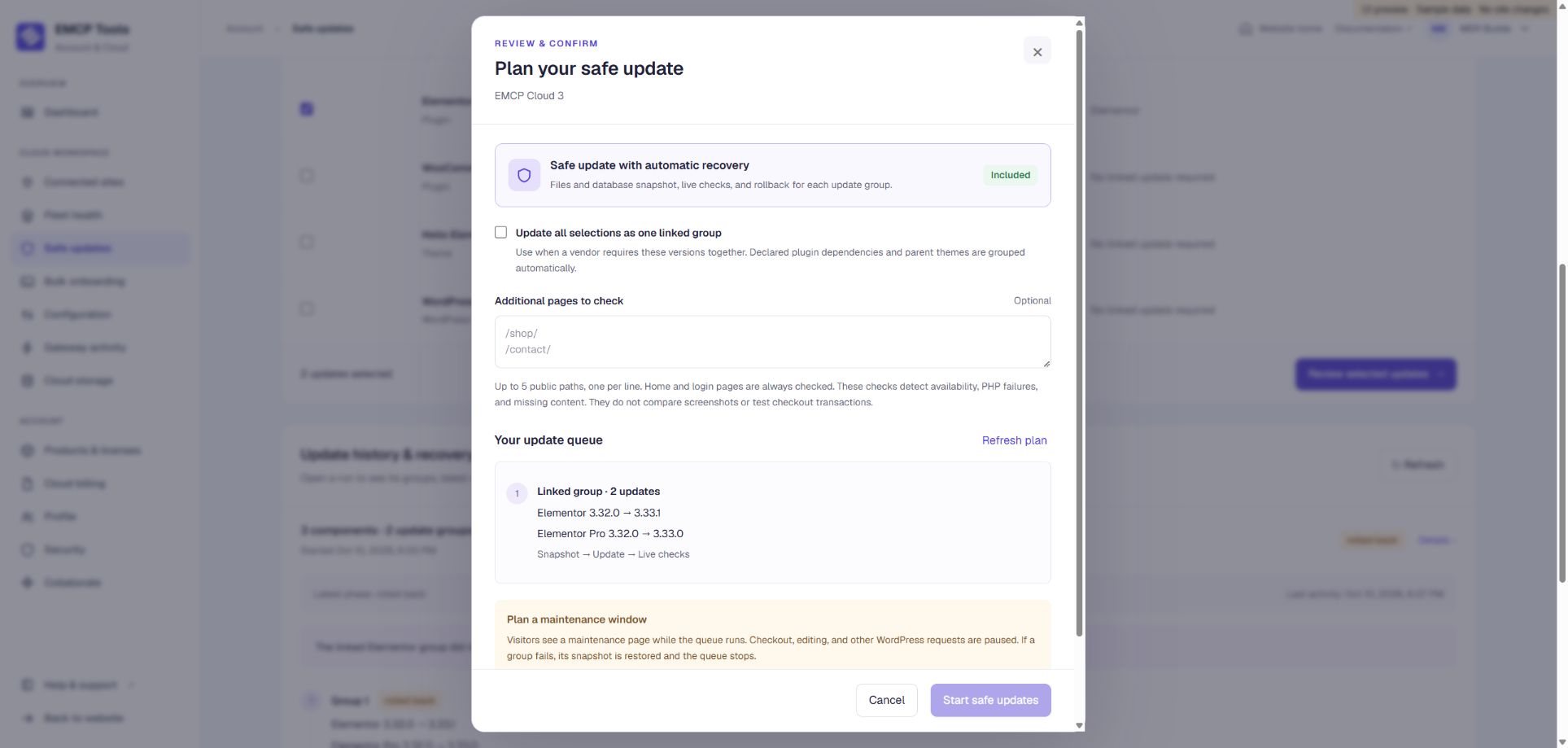
Sample review dialog. Scroll to the maintenance consent before starting. Opening the dialog or choosing Cancel does not install updates.
The sequence is baseline checks → maintenance drain → snapshot → install group → live checks. A passing group allows the next group to begin with a new snapshot. A failing group stops the queue and starts recovery.
Linked plugins and themes
Section titled “Linked plugins and themes”Declared plugin dependencies and parent themes are grouped together when both have available updates. Include the related update when prompted. If a vendor requires updates to be installed together but does not declare the dependency, select them and enable Update all selections as one linked group.
Cloud finishes installing a linked group before judging its health. This allows a temporary mismatch between two versions to resolve once both are installed. A failed group is restored as a unit, and history names every member and version. It does not guess which member alone caused the break. Unrelated updates stay separate unless you explicitly link them.
What the checks detect
Section titled “What the checks detect”Checks use fresh requests and require a successful PHP shutdown marker. HTTP failures, WordPress critical errors, missing health evidence, unexpected output, and substantial missing page content fail the check. Three consecutive successful samples are required, with a bounded retry window for temporary failures.
These checks do not compare screenshots, prove JavaScript behavior, test payment transactions, or guarantee that every page looks unchanged. Add representative paths and review important workflows after completion. Fleet health checks are separate: they check the Gateway connection and tool list rather than testing an update.
Following progress
Section titled “Following progress”Open a running job to see its latest site confirmation and progress. Draining waits two minutes for earlier requests to finish before snapshotting. A countdown reaching zero means the waiting period has elapsed; Cloud still waits for the site to confirm the next phase.
With a plugin build that reports detailed progress, Snapshot shows files scanned, files and bytes checkpointed, reused file snapshots, and database tables completed. File and table progress are separate because they represent different amounts of work. Older plugin builds show phase information without detailed counters. Live checking shows the number of consecutive healthy samples.
Snapshots process files in resumable batches and can export several small database tables in one request. Later groups can reuse verified, unchanged file snapshots when the host supports hard links; otherwise files are copied normally. Every group still takes a fresh database checkpoint. Reuse never links a snapshot to a live WordPress file or reduces rollback coverage.
Cloud can process different sites concurrently, while each site keeps one unresolved update queue. Elapsed time depends on file sizes, database size, hosting speed, and health checks; progress is not a promised completion time.
Stop, restore, and recover
Section titled “Stop, restore, and recover”Stop queue and restore current group stops further updates and requests restoration if the current group has started. It preserves previous successful groups. Failed updates trigger this recovery automatically.
Recovery restores files and WordPress-prefix database tables, including removal of files and tables created by the failed group. An independent runner works outside WordPress so a plugin fatal error does not prevent recovery. Maintenance is removed only after the restored site passes health checks.
History shows affected versions, the latest checks, and the outcome. If it shows Attention, the job remains unresolved and another queue cannot start. Read the message and use Retry recovery and stop queue after resolving the cause. An unreachable runner, configuration conflict, or failed restore can require help from your host. Account notices surface stopped jobs and recovery problems; no email is sent by this workflow.
Do not delete the .emcp-update-* recovery directory or its snapshot while a job is unresolved. In the current hardened plugin, terminal-job cleanup removes snapshots, the original configuration copy, and database credentials after the maintenance configuration has been released. A status receipt remains. Active or manual-recovery jobs retain the material needed for recovery. These temporary snapshots are not a browsable backup archive or a later undo option for a completed queue.
| What you see | What to do |
|---|---|
| Queue still running | Open its history entry to follow groups and checks. You can leave the page while Cloud continues. |
| Restoring | Allow recovery to finish. Do not start another update or remove recovery files. |
| Rolled back | Review the affected group and versions. Investigate compatibility before trying again. |
| Attention | Read the recovery message, resolve the cause with support or your host, then use Retry recovery and stop queue. |
| Completed | Check important pages and workflows manually, especially forms, checkout, and JavaScript interactions. |
Limits and concurrent activity
Section titled “Limits and concurrent activity”Each queue accepts up to 100 selected updates. The current snapshot limits are 50,000 files, 2 GiB total file data, 64 MiB per file, 300 tables, and 50,000 rows or 20 MiB encoded data per table. Reaching a limit prevents the update group from being installed; it is not a reason to bypass the check.
The installation deadline is one hour. In the current hardened plugin, if Cloud stops responding before any update has run, an incoming gated request can release an untouched maintenance window after that deadline. Once an update may have run, the website stays in maintenance until recovery can safely proceed. The deadline does not guarantee that an interrupted site reopens within one hour; restoration can continue beyond it.
The maintenance gate blocks requests that load WordPress configuration. It cannot pause direct database clients, external file writers, standalone scripts, or indefinitely running earlier requests. Avoid simultaneous deployments, restores, host updates, and external database writes during the window.
Troubleshooting
Section titled “Troubleshooting”| Message or problem | Explanation and next step |
|---|---|
| Safe update creation is not enabled on this deployment | Cloud has not enabled new queues on that deployment. Installing or enabling the plugin tool cannot change this setting. Existing recovery jobs remain accessible; contact Cloud support. |
| Safe updates unavailable or update inspection unavailable | Check the site connection, Gateway consent, workspace access, plugin version, and tool availability. Retry inspection after resolving the cause. |
| Unsupported installation or recovery-readiness blocker | Read the specific reason. Hosting layout, database tables, MU plugins, drop-ins, filesystem permissions, or size limits can prevent plugin-only recovery. Use a hosting-supported update workflow if the requirement cannot be met. |
| A premium update is missing or fails to download | Confirm the vendor license and update availability in WordPress. Some vendors require their plugin to load to authorize downloads, which may be incompatible with the isolated update process. |
| The website remains in maintenance | Check the Cloud job’s recovery state. Contact support or your host if the runner cannot respond. Do not remove the gate or snapshot to force an uncertain update online. |
| The page looks different despite successful checks | Screenshot comparison is not part of this feature. Review the affected templates, styles, and scripts manually and use your independent backup workflow if needed. |
For connection setup, see Hosted Gateway. For routine monitoring, see Fleet health. To distribute EMCP settings rather than software updates, use Configuration profiles.
Email, Slack and SMS alerts
Section titled “Email, Slack and SMS alerts”Choose Set up alerts to receive notifications when a Cloud Safe Updates run completes, fails, rolls back, or needs recovery attention. Each destination has its own event selection and website scope. Alert setup guide.