
History
History lists every change EMCP recorded on this site, from connected AI clients, AI Chat, WP-CLI and your own actions in the EMCP admin, and lets you undo them. Open EMCP Tools → Safety → History (admin.php?page=emcp-tools-history). It is free.
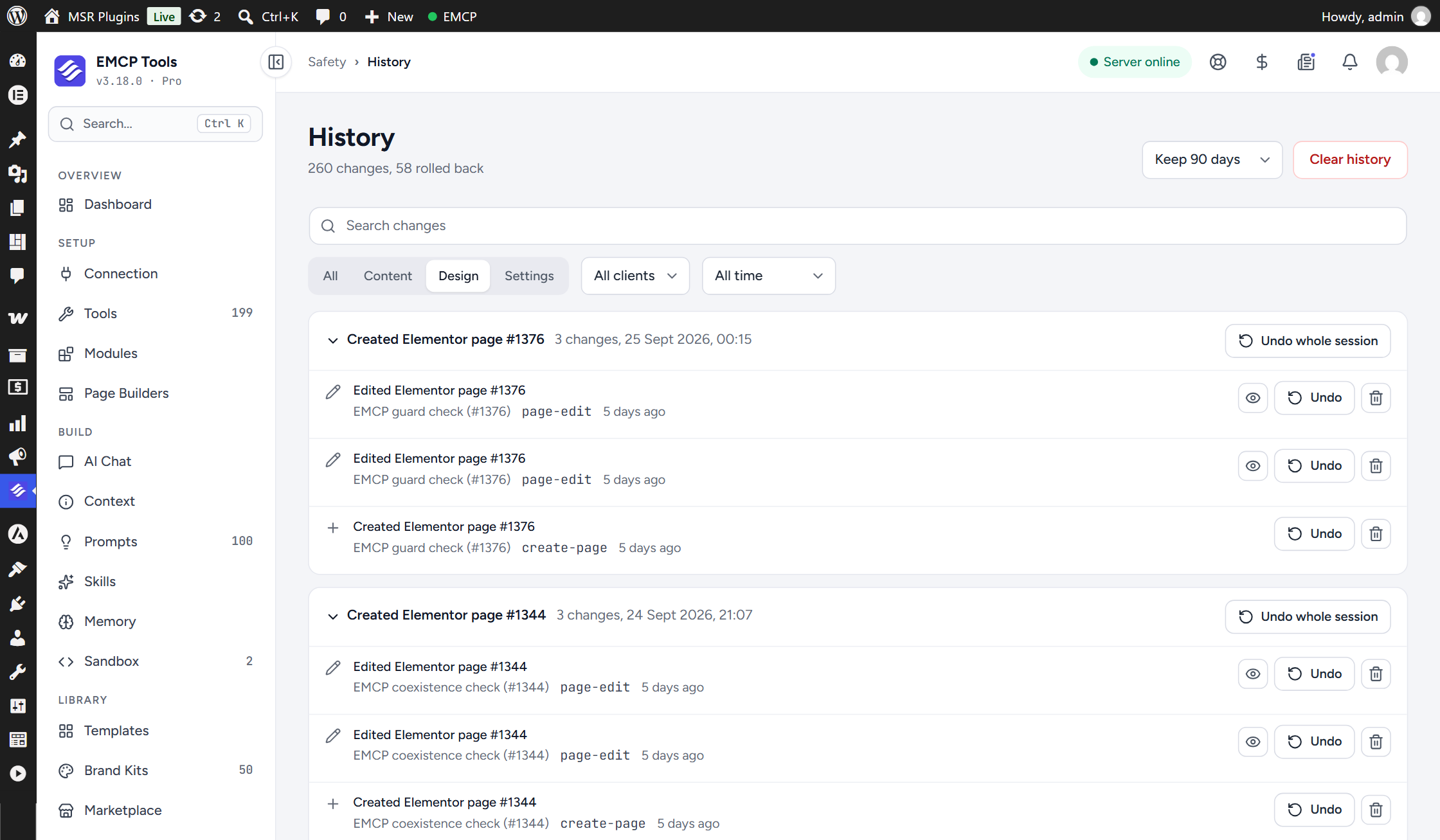
The header counts the recorded changes and how many were rolled back (“260 changes, 58 rolled back”). Version 3.18.0 rebuilt the screen around sessions, moved the ledger to its own database table and added the difference view.
The MCP tools that read and undo the same ledger (list-changes, get-change, rollback-change) and the rules for what can be undone are on Change History and rollback.
Sessions
Section titled “Sessions”Changes are grouped into sessions, newest first. What makes a session depends on where the change came from:
| Source | One session is |
|---|---|
| An MCP client over HTTP | One MCP session (the client’s Mcp-Session-Id) |
| AI Chat | One conversation |
| WP-CLI (the stdio MCP server) | One WP-CLI process |
| Older changes with no session recorded | The changes one user made from one client with no gap longer than 30 minutes |
| A change you made in the EMCP admin (for example a redirect) | That change alone |
An AI Chat call that carries no conversation is also its own group.
Each session header shows the title of its first change, a client badge when the client is known (for example ADMIN, WP-CLI, AI Chat or an OAuth app name), “N changes” and the date and time it started. Click the header to collapse or expand the session.
Each row is one change: an icon, its title, the target, the tool or action that made it (for example page-edit or create-page) and a relative time. Hover the time for the exact date. The icon tells you the kind of change:
| Icon | Meaning |
|---|---|
| Pencil | An edit |
| Plus | Something created, added, uploaded or installed |
| Bin | Something deleted, trashed or removed |
| Sliders | A settings change |
| Circular arrow | An undo |
A row that was undone carries a Rolled back badge.
Loading more
Section titled “Loading more”A session shows up to 200 of its changes. Show more changes at the end of a large session loads the next 200. Load older sessions at the end of the list loads the next 20 sessions.
Undo a change
Section titled “Undo a change”Undo on a row restores that one change. The button is greyed out when the change cannot be undone automatically; hover it to see why.
If the target changed after the change was recorded (someone edited the page again, for example), the screen does not overwrite it silently. It asks This changed since, explains the difference, and offers Undo anyway. Undo anyway is the same as force: true on rollback-change: it replaces the later edit with the recorded state. Entries without a complete recovery record are still refused, even with Undo anyway.
The undo itself is recorded, so History always shows what happened.
Undo a whole session
Section titled “Undo a whole session”Undo whole session undoes every change in the session after you confirm “Undo this whole session?”:
- It works newest first, so later changes are reversed before the earlier ones they depend on.
- It skips rows that were already rolled back, and the audit rows that an earlier undo recorded (they have nothing to undo).
- It stops at the first change it cannot undo. The message then reads “Undid X of Y changes; stopped at ’…’” with the reason. Changes undone before that point stay undone; fix the blocker and run it again, or undo the rest one by one.
- When it finishes it reads “Undid N changes.”
The button is greyed out when nothing in the session can be undone.
Delete from History
Section titled “Delete from History”The bin button (Delete from History) removes one entry from the list after you confirm “Delete this change from History?”. It does not change the site. Its undo record is deleted too, so that change can no longer be undone.
View the difference
Section titled “View the difference”The eye button (View difference) opens a panel titled with the change. It compares the value saved before the change with the target’s current value, as a line diff: removed lines start with -, added lines with +, and long unchanged stretches collapse to “N unchanged lines”, keeping three lines of context around each change. If nothing differs the panel says “The current value matches the saved one.”
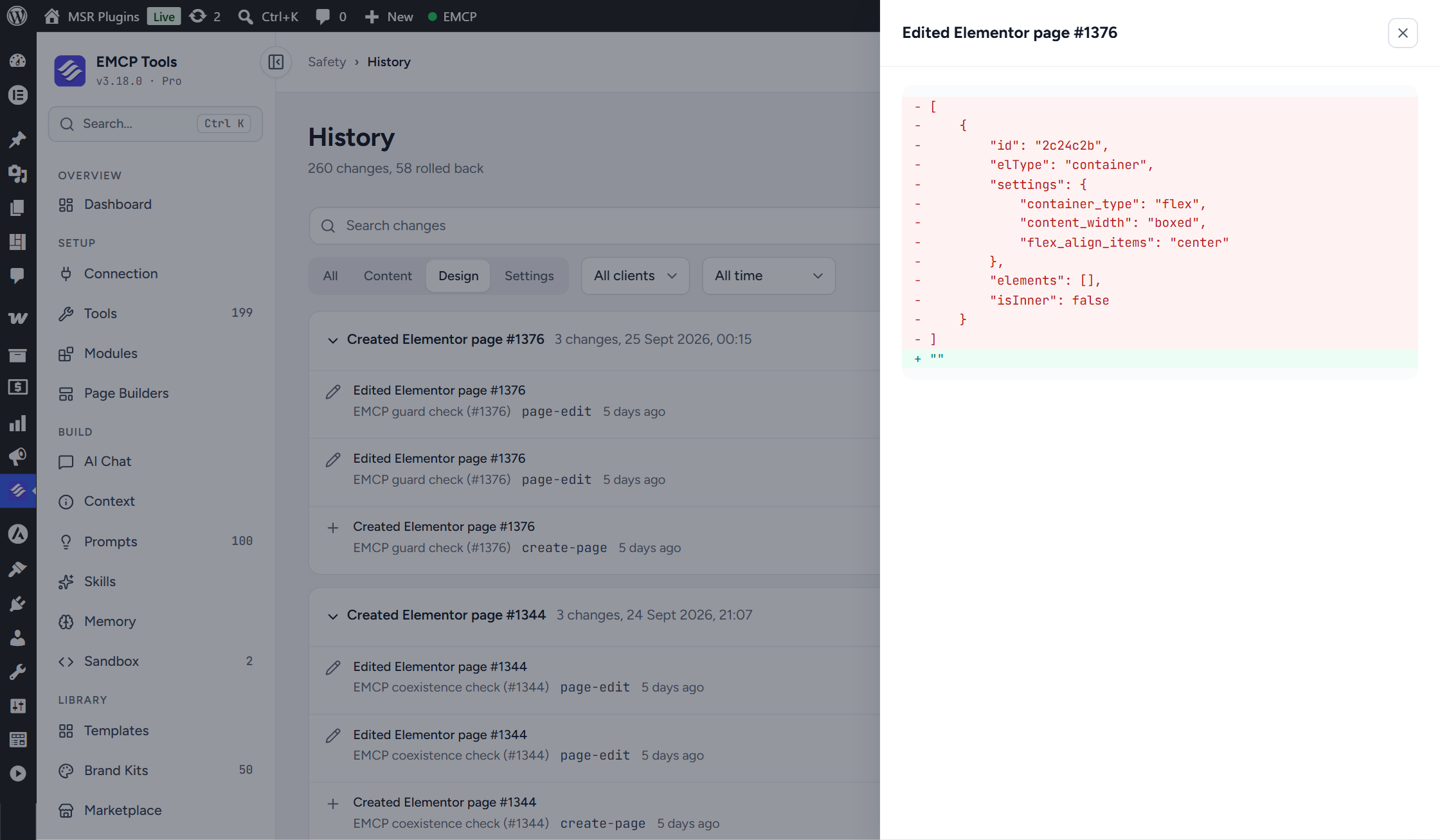
Elementor data and options show as formatted JSON, post fields and meta as text sections headed with the field name, and files as text. The eye button appears only on changes that can have a preview. When the panel still cannot show one, it says why:
| Message | Why |
|---|---|
| ”This kind of change has no preview.” | The change type has no stored before-state to compare |
| ”The saved snapshot is no longer available.” | The stored snapshot was removed |
| ”The content is larger than 256 KB.” | Either side is over the 256 KB preview limit |
| ”This file is binary.” | A file change on a non-text file |
| ”The file is outside this WordPress install.” | Files are only read inside the WordPress directory |
| ”This change no longer exists.” | The entry was deleted or pruned |
Filters
Section titled “Filters”The toolbar filters rows, and hides sessions with no matching row:
- Search changes matches the change title and target.
- All / Content / Design / Settings: Content covers posts, meta, ACF, media, menus and SEO; Design covers Elementor, global styles, blocks, atomic elements and Themer; everything else is Settings.
- Client: All clients, or one client seen in History (for example Admin, WP-CLI, AI Chat or an OAuth app).
- Time range: All time, Last 24 hours, Last 7 days, Last 14 days or Last 30 days.
When nothing matches, the list reads “No changes match these filters.”
Retention
Section titled “Retention”The retention menu in the header keeps changes for 30, 90, 180 or 365 days (“Keep 90 days” is the default). Choosing a value saves it straight away. Older entries are pruned once a day, and a pruned change can no longer be undone.
Clear history
Section titled “Clear history”Clear history deletes every entry and its undo record. You must type CLEAR to confirm, and it cannot be undone. The button is disabled when History is empty.
History is not a backup. For full-site recovery use Backup & Migrate.
Banners
Section titled “Banners”A banner at the top of the screen explains anything that affects what History contains:
| Banner | What it means | What to do |
|---|---|---|
| ”Some changes are missing from History” | Some changes could not be added to History (it says how many) and cannot be undone from here. | Check those changes by hand, then dismiss the banner. Dismissing resets the count. |
| ”Reconnect your AI client” | An AI connection is still running the code from before 3.18.0, so its changes are not recorded. | Restart the client or reload its MCP server. Open MCP Log helps you find which client it is. Dismiss once reconnected. |
| ”History is using its compatibility store” | The database does not allow creating tables, or does not support named locks, so History keeps the last 500 changes in an option. Sessions, undo and retention still work. | Nothing is required. Ask your host about table creation if you want the full store. This banner cannot be dismissed. |
| ”History could not finish its upgrade” | Copying History to its own table did not complete. It retries automatically and keeps working from its previous store meanwhile. | Wait for the retry. This banner cannot be dismissed and clears itself when the upgrade finishes. |
After upgrading to 3.18.0 a one-time notice also asks you to reconnect every AI client, so each one starts recording to the new table.
Related
Section titled “Related”- Change History and rollback: the
list-changes,get-changeandrollback-changetools and what each kind of change can restore. - MCP Log: every request a client sent, with the ID of the History entry each call recorded.
- The Dashboard’s Recent changes card shows the five newest changes with the same Undo button and a View history link.