
Context screen
New in v3.18.0 (it replaces the 3.17 Site Context page). Free. EMCP Tools → Context (admin.php?page=emcp-tools-context, in the Build group of the sidebar) sets what your AI knows about this site before it starts. Connected agents and AI Chat read it at the start of every session, as the MCP server’s instructions. See How MCP works for where this fits in the protocol.

Site profile
Section titled “Site profile”The Site profile card (“Written by you”) describes the business in a few fields:
- Business name (up to 120 characters).
- Industry: Choose an industry, then one of Automotive, Education, Food & Dining, Health & Wellness, Home Services, Lifestyle & Entertainment, Nonprofit, Pets, Professional Services, Real Estate, Retail, Software & SaaS, Weddings or Other.
- What the site is for (up to 1,000 characters).
- Brand voice: click chips to pick up to 8 from Clear, Friendly, Technical, Playful, Formal, Warm, Bold and Concise. To add your own, type it in the Add your own field and click Add voice (or press Enter). Click a chosen chip again to remove it. Once 8 are chosen, the field is disabled.
The profile is sent as a ## Site profile block, and only while Send context to connected agents is on. It describes this one site, so Settings sync does not copy it to other sites.
Detected automatically
Section titled “Detected automatically”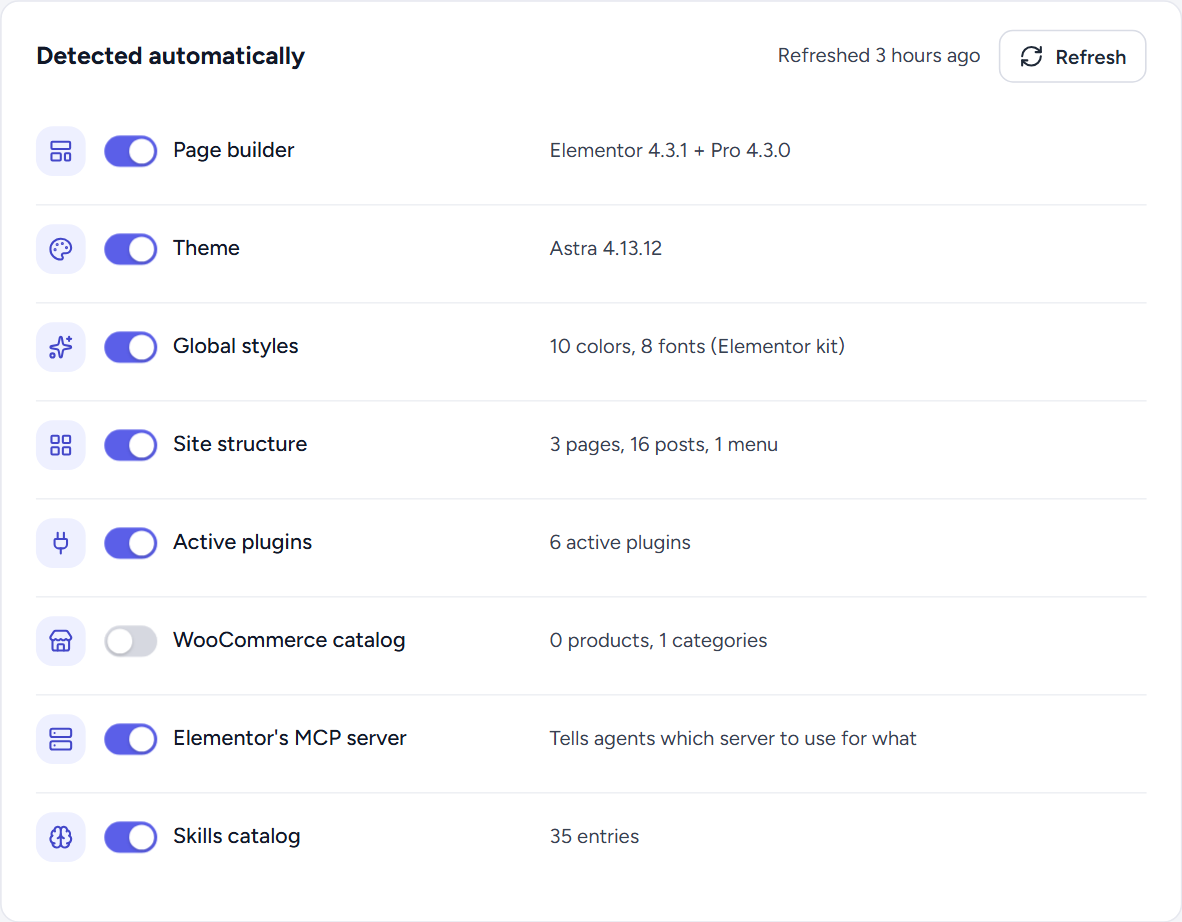
What EMCP finds on its own, one row per section with a switch and a one-line summary of what it found. Switch off anything the AI doesn’t need; it is left out of the instructions. Sections that don’t apply to your site are not listed.
| Section | Default | What it adds |
|---|---|---|
| Page builder | On | The Elementor line in ## Environment, for example “Elementor 4.3.1 + Pro 4.3.0 (atomic elements supported)”, or a note that Elementor is not active. |
| Theme | On | ”Theme:” with the active theme and version, and its parent for a child theme. |
| Global styles | On | ”Global styles:” with the number of colors and fonts in the Elementor kit (Elementor only). |
| Site structure | On | ”Site structure:” with the number of published pages, posts and menus. |
| Active plugins | On | ”Active plugins of note:” such as WooCommerce and ACF. |
| WooCommerce catalog | Off | ”WooCommerce:” with the number of products and categories. Listed only while WooCommerce is active. |
| Elementor’s MCP server | On | A block that tells agents connected to both servers which one to use for what. Listed only while Elementor’s own MCP server (Elementor 4.3+) is on. |
| Skills catalog (Pro) | On | The ## Skills catalog of Agent Skills. Listed only while the catalog is available. |
| Project memory (Pro) | On | The ## Project memory block. Listed only while there is approved guidance on Project Memory. |
The WordPress and PHP version line, and the compact tool mode notes when Compact tool mode is on, are always sent; they have no switch.
The detected values are cached for 12 hours. “Refreshed time” shows their age. Click Refresh to read them again now. They also refresh when you switch theme or activate or deactivate a plugin.
Extra instructions
Section titled “Extra instructions”“Plain-language rules added to every session.” Write them in Markdown, up to 20,000 characters: business identity, content rules, technical limits, things the AI must never touch. For rules agents learn over time, use Project Memory instead.
Below the field, Send context to connected agents controls whether the site profile and the extra instructions are sent at all. When it is off, agents still get the detected sections you left on.
Context size
Section titled “Context size”The Context size card shows Estimated tokens as “N of 8k tokens”. The estimate is about four characters per token. 8k is a guide, not a limit: nothing is cut off when you go over, but the meter turns to a warning. “Smaller context leaves more room for the actual task. Turn off detected items the AI does not need.”
Under the meter, Preview shows the first lines of the instructions. It updates as you type or flip a switch, before you save.
Preview what the AI sees
Section titled “Preview what the AI sees”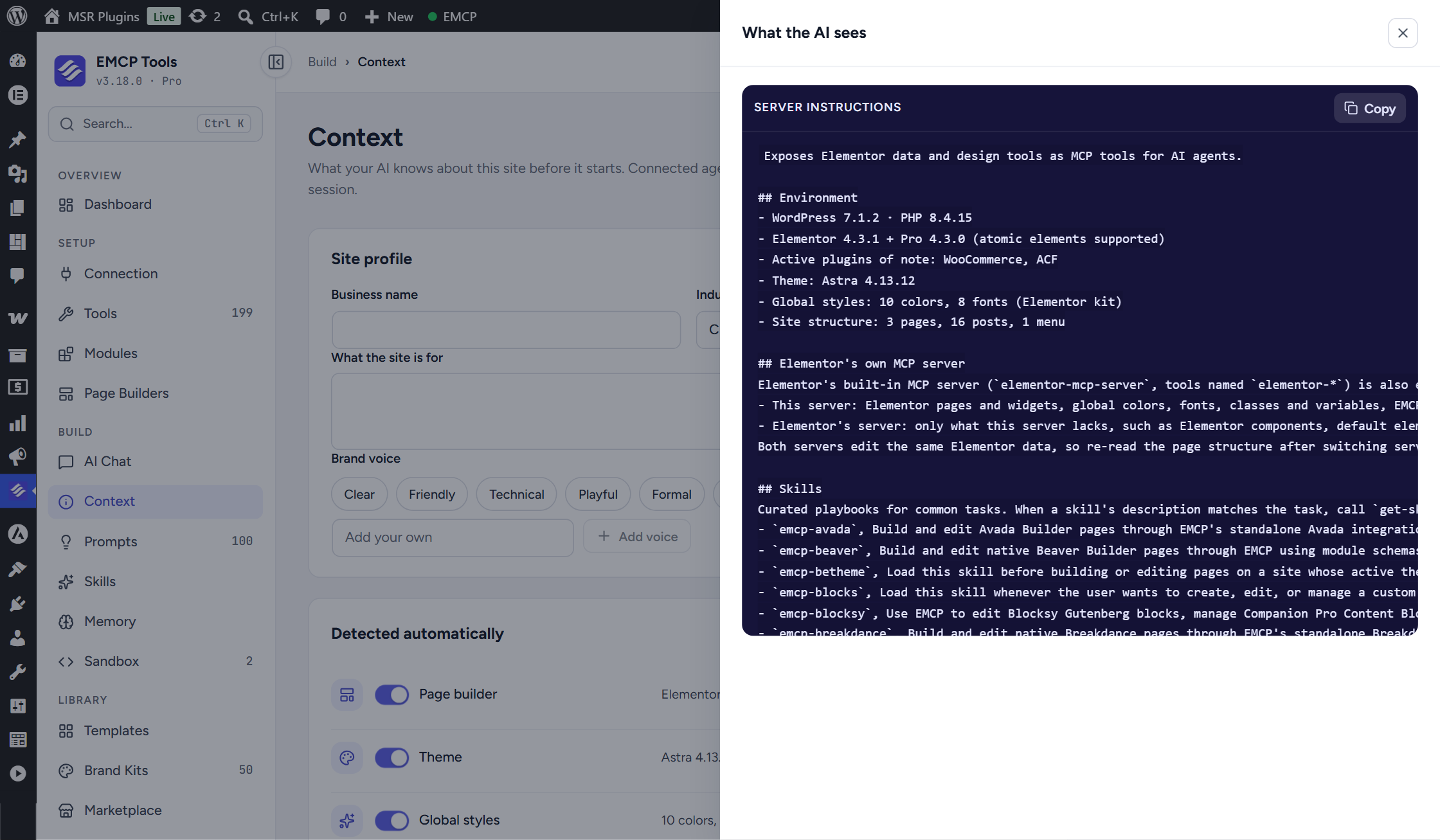
Preview what the AI sees, at the top of the screen, opens the drawer What the AI sees with the full Server instructions, exactly as an agent would receive them, including your unsaved changes. Copy copies the text. Opening the preview saves nothing.
Save context
Section titled “Save context”Click Save context (under the preview), or Save changes in the save bar that appears at the bottom once you change something. Discard drops your edits. Both save the same form.
Agents see changes only after they reconnect. The instructions are sent when a client connects, so a session that is already open keeps the old ones. Restart or reconnect your AI client after saving. A WP-CLI stdio server started before the change also keeps the old instructions until it restarts.
Settings sync through EMCP Cloud carries the section switches, the extra instructions and the Send context to connected agents switch, but not the site profile.
Permissions
Section titled “Permissions”The Context screen requires manage_options.