
Using prompts
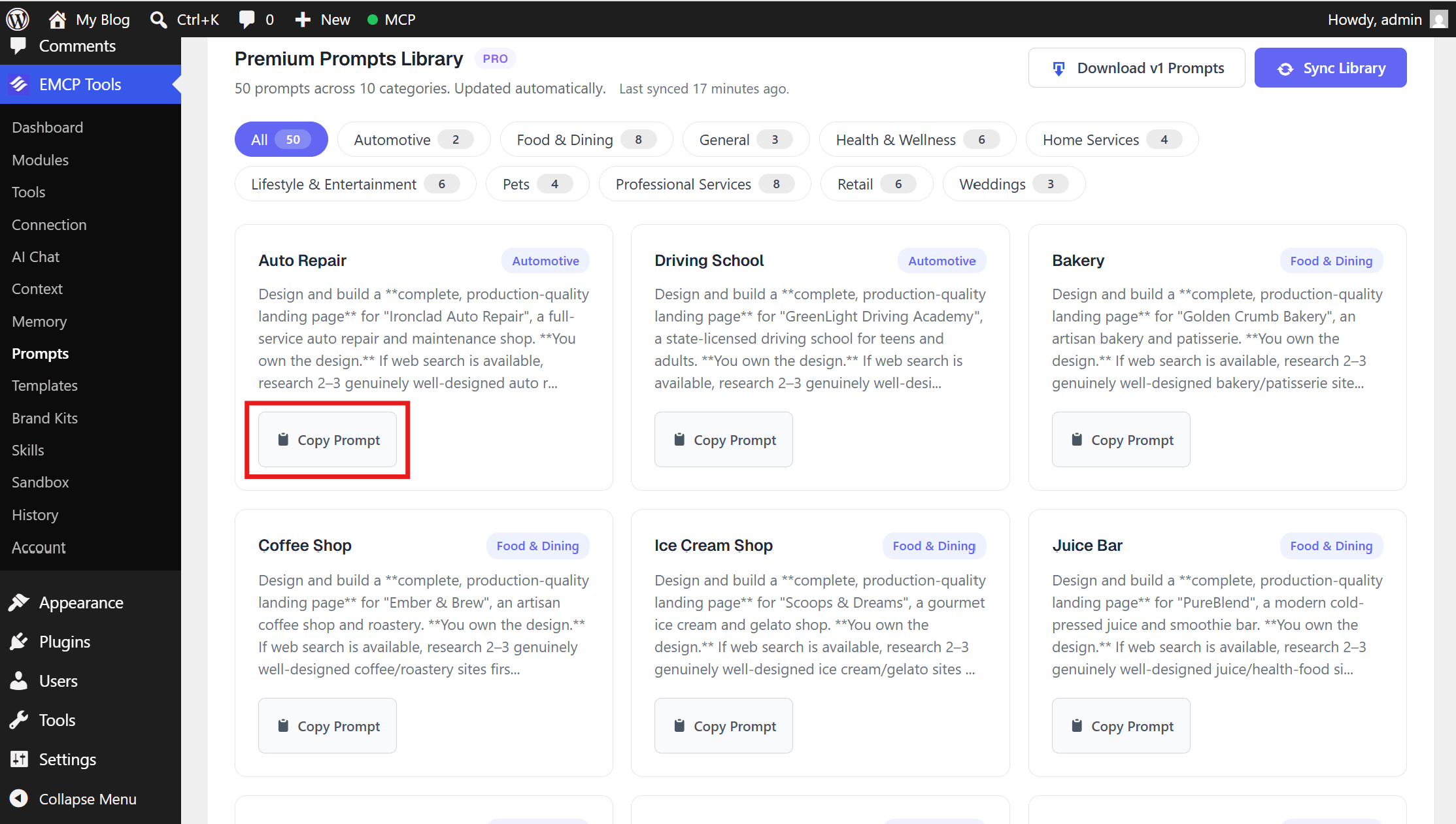
The plugin ships 5 sample prompts bundled inside the zip, all free, no license required. They’re in the prompts/ folder of the plugin and shown on EMCP Tools → Prompts (under Build in the EMCP sidebar), where each card has Copy prompt, Preview and Customize. The Prompts screen belongs to the Prompts module, which is on by default; if it is missing from the sidebar, switch the module on under EMCP Tools → Modules.
The five samples
Section titled “The five samples”| Prompt | Category | What it builds |
|---|---|---|
| Local Business | General | Multi-purpose small-business page: hero, services, testimonials, contact. |
| Dental Clinic | Health & Wellness | Dental practice: services grid, team profiles, insurance info, booking. |
| Web Developer Portfolio | Professional Services | Dev portfolio: projects, tech stack, GitHub stats, contact form. |
| Hair Salon | Lifestyle | Salon: services menu, stylist profiles, gallery, booking. |
| Car Wash | Lifestyle | Car wash: packages, add-ons, membership plans, booking. |
Each prompt hands the AI a design direction rather than a fixed layout, then lets it design the page. Feed one to Claude (or any other MCP client) and you get a finished, fully-populated page.
Pick your page builder
Section titled “Pick your page builder”Every prompt opens with a single line:
**Page builder:** ElementorThat is the only builder-specific thing in the file. Change the word to Gutenberg, Bricks, or plain HTML/CSS and the rest of the prompt still applies. The style guide, the content, and the standards are all builder-agnostic.
You don’t have to edit the text by hand: Customize on a prompt card lets you pick the page builder from a list. See Customize a prompt below.
How to use one
Section titled “How to use one”-
In WordPress admin, go to EMCP Tools → Prompts.
-
Find the prompt you want: search the library or pick a category chip. Preview shows the whole prompt; Copy prompt copies it.
-
(Optional) Use Customize to switch the page builder or adapt the details, or change the first line by hand after pasting.
-
Paste into your AI client’s chat.
-
Add one line of context, like:
Build this page on my WordPress site. Create a new draft page first, then build the structure into it.
-
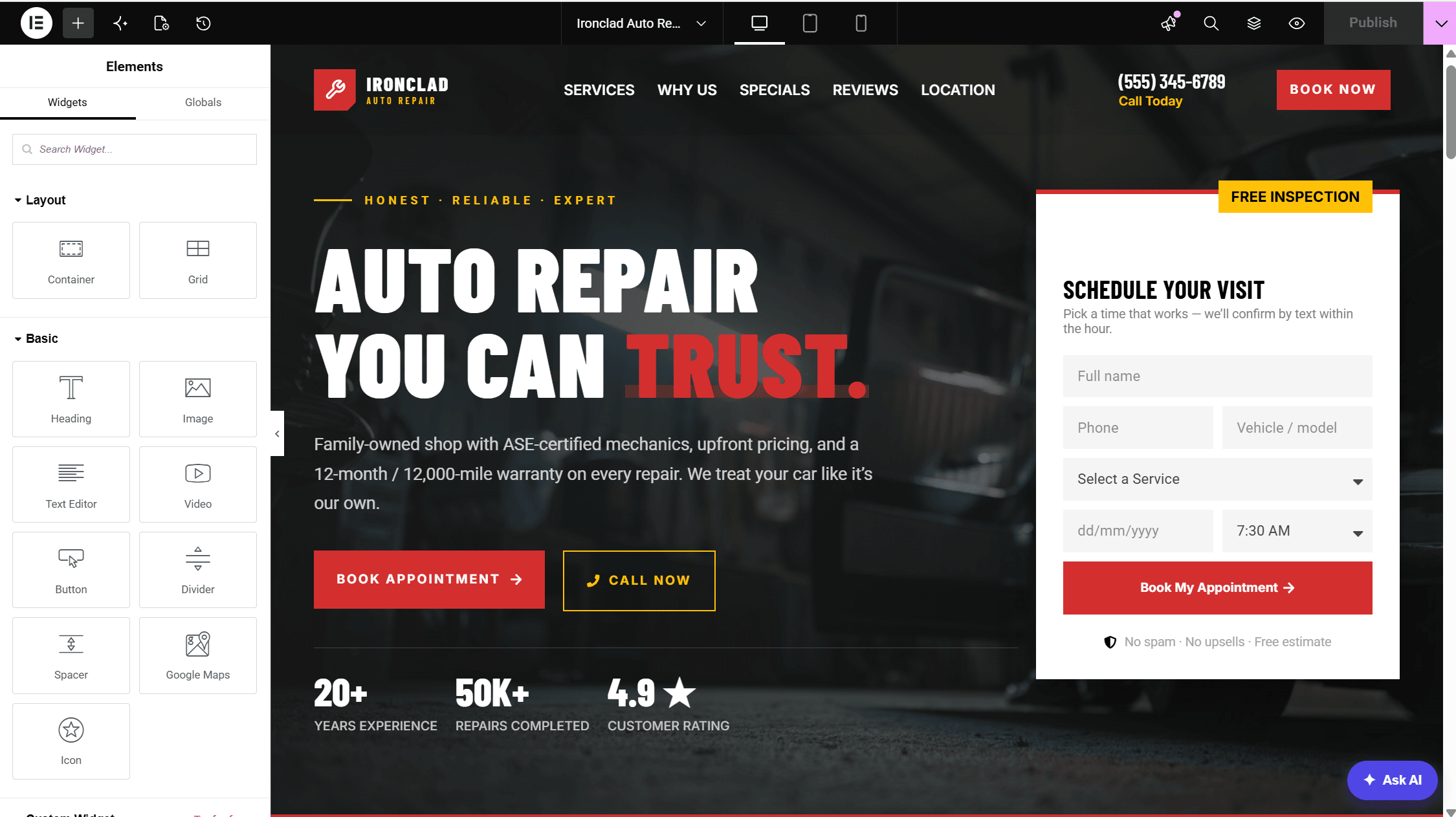
Send. The AI researches the design, sideloads real photography, generates an icon set, and builds the page section by section.
What makes them work
Section titled “What makes them work”A prompt does not tell the AI where to put things. It gives it:
- A style guide: the exact color palette (hex values, by role), typography, the feel, and how restrained the motion should be.
- A design signature: compositional direction, not layout. “An asymmetric, photography-led hero”; “compose the menu as a row-numbered editorial price list.” Enough to make the page distinctive; never a column count or a padding value.
- Section intents: what each section must communicate, not how it must look.
- Content facts: every price, name, address and stat, verbatim, so nothing is invented or left blank.
- Non-negotiable standards: WCAG 2.1 AA contrast and heading structure, real photography from Unsplash/Pexels/Pixabay in every image slot, one consistent SVG icon set, builder-native construction (no raw HTML dumped into a visual builder), a working lead-capture form, and a completeness rule that forbids empty cards and placeholder text.
That split is the whole trick. Prescribing a layout fights the model and produces the same page every time; constraining the taste and handing over the layout produces pages that differ from each other and still hit the brand.
To learn the pattern, read one sample in full, then see Writing your own prompts.
Customize a prompt
Section titled “Customize a prompt”Customize on a prompt card opens a drawer that edits a copy of the prompt, never the library:
- Basics: the Page builder (Elementor, Gutenberg, Bricks, Beaver Builder, Divi, Breakdance, Oxygen, Avada, WPBakery, Thrive Architect, Kirki, Visual Composer, BeBuilder or plain HTML/CSS) and the Business name.
- Colours: one colour picker per palette colour in the prompt.
- Typography: the Display font and Body font.
- Content: the prompt’s content facts (prices, names, addresses and so on).
Preview the prompt shows the result, Reset puts the original values back, and Copy prompt copies your version.
Send a prompt to AI Chat (Pro)
Section titled “Send a prompt to AI Chat (Pro)”With EMCP Pro and the AI Chat module on, prompt cards and the Customize drawer also have Use in AI Chat. It opens AI Chat in a new tab with the prompt already in the message box, so you can review it and send it without leaving WordPress.
Building a complete website
Section titled “Building a complete website”For a website prompt, ask the AI to create the complete site as drafts, including every page and detail entry listed in the Pages field. Replace the fictional contact information and supplied example facts with your own. Integrations and any booking or store destination fields control which functional routes are available. Enter None for an optional feature to omit; empty fields retain their original values.
The AI should finish the pages, connect navigation, check the visitor journey, and return preview links plus any unresolved asset or integration requirements. A full-site prompt does not require publishing or replacing your live homepage.
Want more
Section titled “Want more”The Pro library includes 100 prompts across 20 categories: 50 landing-page briefs and 50 complete website briefs. Search for Website to find multi-page builds such as a hotel, course academy, product catalog, or news publication. In Customize, edit Pages to change the sitemap and edit the content facts to adapt the site. See Premium library for categories and examples.