
Monitoring and Update Alerts
Open Account → Alerts, or choose Set up alerts from Monitoring or Safe Updates. The workspace owner manages destinations. An active Cloud plan with Gateway access is required.
Choose your events
Section titled “Choose your events”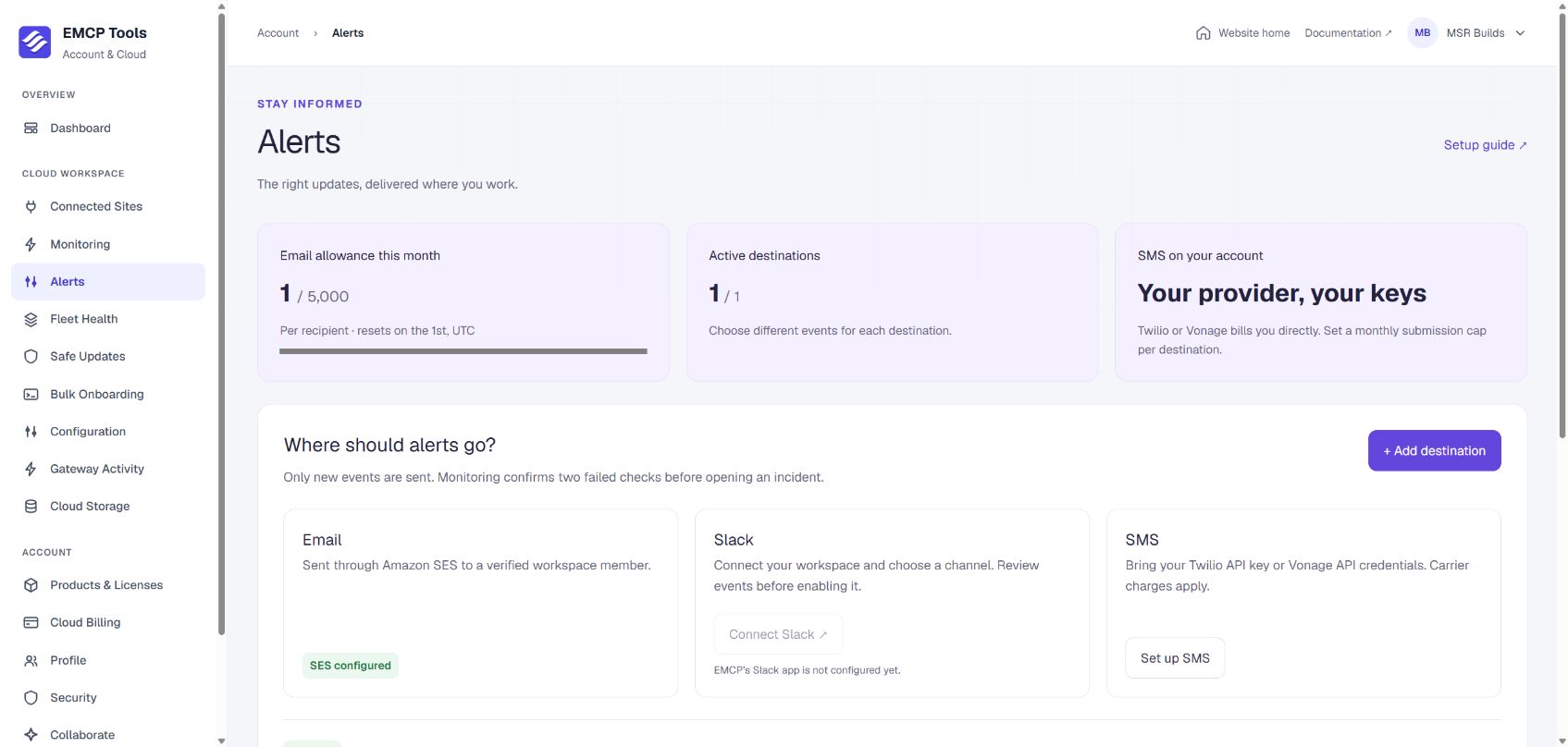
Review your allowance and available delivery channels before adding a destination. Slack is disabled in this example because the operator has not configured the Slack app. Select any screenshot to enlarge it.
Each destination has its own event selection and can cover all connected websites, including future connections, or selected websites.
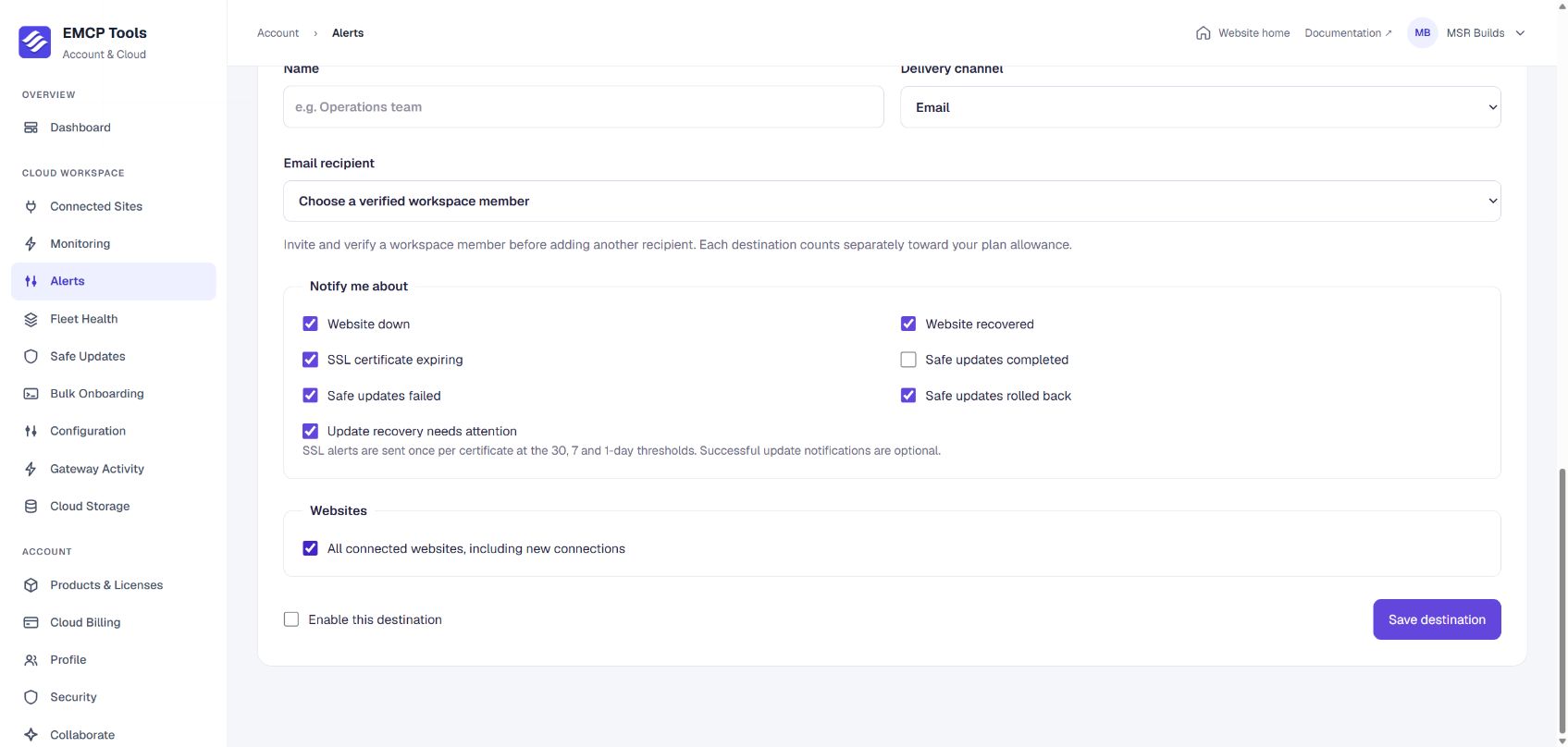
Choose a delivery channel and recipient, select events and websites, then enable and save the destination. This screenshot shows an unsaved form; successful-update notifications are optional and unchecked by default.
| Event | When it is sent |
|---|---|
| Website down | Two consecutive monitoring checks failed and a new incident opens |
| Website recovered | A successful check closes an open incident |
| SSL certificate expiring | Once per certificate at the 30, 7 and 1-day thresholds |
| Safe updates completed | The update queue finishes successfully |
| Safe updates failed | The queue reports failure |
| Safe updates rolled back | The queue reports a verified rollback |
| Update recovery needs attention | Automatic progress or recovery cannot be confirmed |
Alerts describe Cloud monitoring and Cloud Safe Updates runs. Updates performed independently in WordPress are not covered. Safe Updates maintenance checks do not create downtime incidents. Alerts are sent for new events; configuring a destination does not replay past incidents. Successful-update alerts are off by default.
Email through EMCP
Section titled “Email through EMCP”Add an Email destination, select a verified workspace member, choose events and enable it. To notify someone else, invite them to the workspace and have them verify their email. Credentials for Amazon SES are managed by the operator; users never need to supply email credentials.
Default monthly workspace allowances:
| Cloud plan | Email notifications |
|---|---|
| Freelancer | 1,000 |
| Agency | 5,000 |
| Enterprise | 15,000 |
The allowance is shared by all email destinations and resets on the first day of each month at 00:00 UTC. Each recipient and test notification counts once when delivery is reserved. Safe retries do not count again. Quota exhaustion is visible in delivery history; queued emails are not carried forward into the next month. Slack and SMS are unaffected by the email allowance. Account, security and billing emails are separate.
Choose Connect Slack, authorize the EMCP Slack app and select a channel. The new destination is paused until you edit its event selection and enable it. EMCP sends notifications through the channel’s incoming webhook; it does not request permission to read Slack conversations.
Choose Connect Slack again to add another channel. Remove the destination in EMCP to stop future sends, and revoke the app in Slack if you also want to remove Slack authorization. Each new connection uses a separate destination slot.
SMS with your own provider
Section titled “SMS with your own provider”Choose Set up SMS, select Twilio or Vonage, and supply:
- Twilio: Account SID, API key SID, API key secret and an SMS-capable sender number. Use a key permitted to create messages for that account.
- Vonage: API key, API secret and an approved sender name or number.
- Recipient: A phone number in international format, such as
+14155552671. - Monthly submission cap: Between 1 and 10,000 per destination; the initial value is 100.
The provider bills your account directly. A notification can contain multiple billable SMS segments. The cap counts submission attempts, including safe retries, and is not a currency or segment limit. Configure billing limits and destination-country restrictions with your provider as well. Confirm the recipient has agreed to receive these alerts. Sender registration and geographic restrictions depend on your provider and destination country.
Credentials are encrypted at rest and never returned to the browser. Leave all credential fields blank when editing to retain existing credentials; fill every field to replace them. Rotate exposed credentials with the provider before replacing them in EMCP.
Testing and delivery history
Section titled “Testing and delivery history”Save and enable a destination, then choose Send test. Tests use the same queue, quota and provider as actual alerts; the workspace can request five tests per hour.
Accepted by provider confirms SMTP or API acceptance, not inbox or handset delivery. Delivery unconfirmed means the provider might have received the request but EMCP could not confirm the result. Such sends are not automatically repeated, avoiding duplicate alerts or SMS charges. Definite temporary rejections are retried up to three attempts, five minutes apart.
Pausing or editing a destination skips its queued notifications. An already in-flight message can still finish. Notifications older than 24 hours expire instead of sending stale alerts. Removing a destination removes its delivery history. History is retained for 90 days. Slack has a protective ceiling of 100,000 submissions per workspace per month.
Operator setup
Section titled “Operator setup”Deploy migration 0049_cloud_alerts with the Website and Fleet Health Worker. Set CLOUD_ALERTS_ENABLED=true in both services after deployment. The existing fleet worker processes alerts; no browser tab needs to stay open.
Email uses Amazon SES through SES_REGION, SES_ACCESS_KEY_ID, SES_SECRET_ACCESS_KEY and SES_FROM_EMAIL. Optional settings are SES_REPLY_TO_EMAIL and SES_CONFIGURATION_SET. Configure these on both the Website and Fleet Health Worker. Monthly plan allowances still apply. SES throttling is retried by the alert queue; uncertain deliveries are not automatically repeated. CRM campaigns keep their separate Spaceship SMTP configuration and mailbox allowance.
Adjust plan defaults with CLOUD_ALERT_EMAIL_FREELANCER, CLOUD_ALERT_EMAIL_AGENCY and CLOUD_ALERT_EMAIL_ENTERPRISE. A subscription’s limits.alertEmailsMonthly can override its default. The Alerts screen displays the effective allowance.
Create an EMCP Slack app with the incoming-webhook scope and enable distribution for customer workspaces. Configure its OAuth redirect as https://emcptools.com/api/account/alerts/slack, then set SLACK_ALERT_CLIENT_ID and SLACK_ALERT_CLIENT_SECRET on the Website. The Connect Slack button remains disabled until these are configured. Slack authorization is performed by each customer. Slack setup documentation.
Website and worker must share a strong BETTER_AUTH_SECRET of at least 32 characters. Alert credentials are encrypted with a purpose-specific derived key. Rotating that secret requires reconnecting Slack and replacing SMS credentials.