
 A brief becomes a real page.
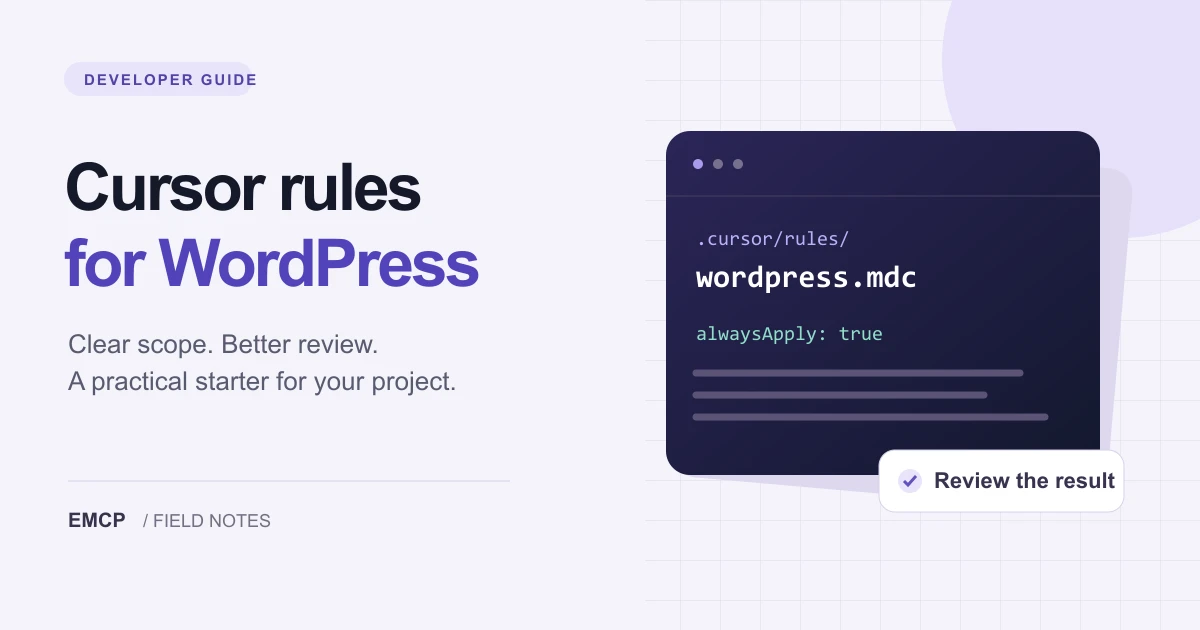
Cursor rules for WordPress should tell the agent where it can work, which project conventions to follow, and how to prove a change is correct. A useful starter fits the repository and the connected site. It does not need a long list of imagined tools or a promise that every change is safe.
This guide includes two editable downloads. Start with one, fill in your project details, and check how it behaves on a read-only task before asking for edits.
These are project instruction templates, not a Cursor extension or a WordPress plugin. They do not install EMCP, grant access, or enforce permissions. The examples below are a suggested acceptance exercise, not a claim that this template has passed an end-to-end Cursor session on your stack.
Choose AGENTS.md or a Cursor project rule
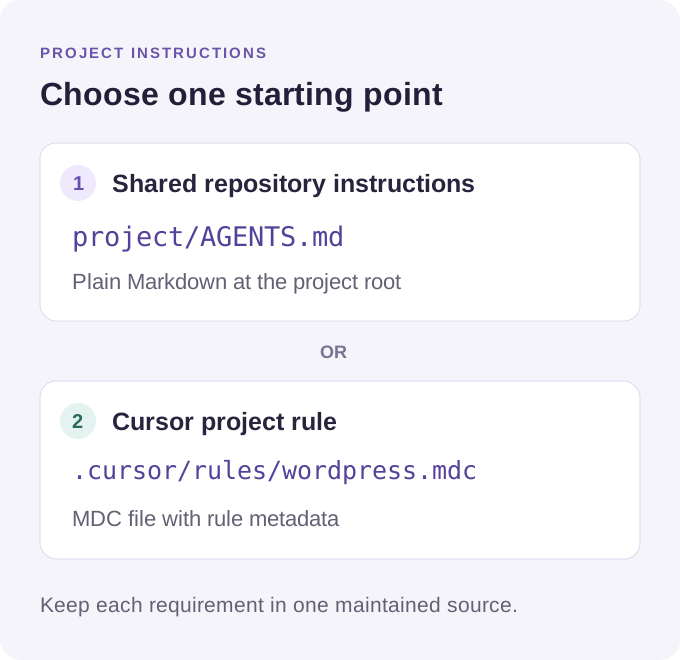
Cursor’s rules documentation describes project rules as .mdc files in .cursor/rules/. AGENTS.md is the plain-Markdown alternative. A .md file placed inside .cursor/rules/ is not a substitute for a project rule.
| Your situation | Start with | Where it goes |
|---|---|---|
| One shared set of repository instructions | AGENTS.md | The project root |
| Cursor-specific instructions | wordpress.mdc | .cursor/rules/wordpress.mdc |
| Existing team instructions | A small addition to the maintained file | The location your project already uses |
The downloadable .mdc rule uses alwaysApply: true so its small set of review boundaries applies throughout the project. As the project grows, use Cursor’s documented scoping controls for specialized rules. Avoid copying the same large instructions into several files that can drift apart.
What about .cursorrules?
Many older examples use a root .cursorrules file. For a new setup, use the currently documented project-rule format or AGENTS.md. Before migrating an existing setup, inventory its instructions and check the behavior of your installed Cursor version. Keep one maintained source for each requirement instead of leaving contradictory old and new rules.
Fill in the facts the agent cannot infer
Put the rule in the repository you actually open in Cursor. A plugin repository, a child theme, and a full local WordPress installation have different boundaries. An agent in a plugin checkout may have no local database or browser preview available.
Complete the project-details section with:
- The local or staging site URL and the plugin or child-theme directory in scope.
- Supported WordPress and PHP versions, plus the installed builder when relevant.
- The actual lint, build and test commands from the repository.
- The reviewer, deployment process, and backup or restore procedure.
Do not paste production credentials or a database export into an instruction file. Refer to your team’s approved credential mechanism instead. If you do not know a check command, ask the agent to inspect the project scripts; do not invent npm test or composer test and assume it exists.
Keep the rules about observable behavior
The starter asks the agent to establish the target, preserve unrelated work, inspect schemas before site writes, and report what it verified. Here is the core pattern:
Read the project documentation and existing code before changing files.Confirm the connected site URL and environment before changing WordPress.Preserve unrelated files, page content and global settings.Use native builder elements or registered blocks for editable page work.Run the relevant existing checks and inspect the rendered result.Report what changed, what passed, and what remains unverified.For PHP development, follow the project’s WordPress coding standards. Review capability checks, input validation and output escaping where the change introduces those boundaries. Formatting compliance alone does not establish that a feature behaves correctly.
Rules should also distinguish repository work from site work. A clean Git diff does not prove that a WordPress page was saved correctly. A good-looking preview does not prove that its content remains editable in Gutenberg or a page builder.
Add MCP only when the task needs the site
Cursor can help edit plugin or theme code in the repository. To inspect or change an existing site’s content through EMCP, follow the Cursor connection guide and verify the connection with a read-only request first.
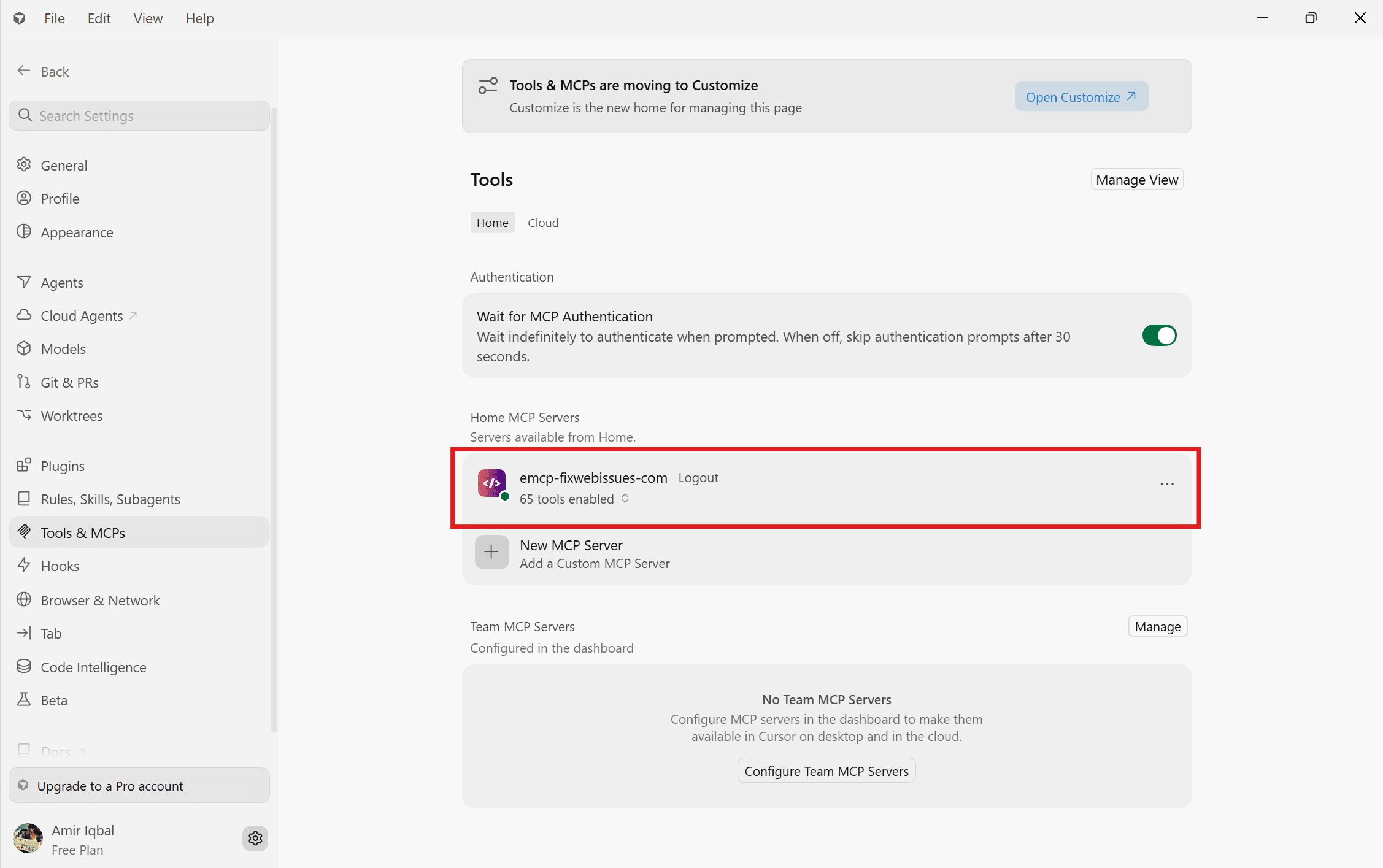
Inspect the connected WordPress site without changing it.Report the site URL, active theme, relevant builder, and available toolsfor reading the target page. Identify missing access or prerequisites.Do not install plugins, enable tools, or edit content.Match the requested workflow to the installed edition and enabled tools. EMCP Lite on WordPress.org supports WordPress content and supported page-building tasks; the wider tool catalog also includes capabilities from other editions. Do not assume that a tool listed in a tutorial exists on every connection.
Instruction files are guidance. The connected WordPress identity, tool availability and server-side capability checks determine access. See the WordPress MCP permissions guide before choosing a live-site workflow.
Run a small acceptance exercise
Start a fresh task after saving the file and check the applicable instructions in Cursor. Ask the agent to inspect a single existing file without editing it:
Read the project instructions and summarize the allowed change scope,the supported versions, and the available verification commands.Then inspect one relevant source file and propose a small improvement.Do not modify files or contact a WordPress site yet.Compare the response with your repository. If it invents commands, misses the target directory, or proposes editing a vendor file, correct the instruction or missing context before proceeding. An accurate summary is an initial check, not proof that every later action will follow the rules.
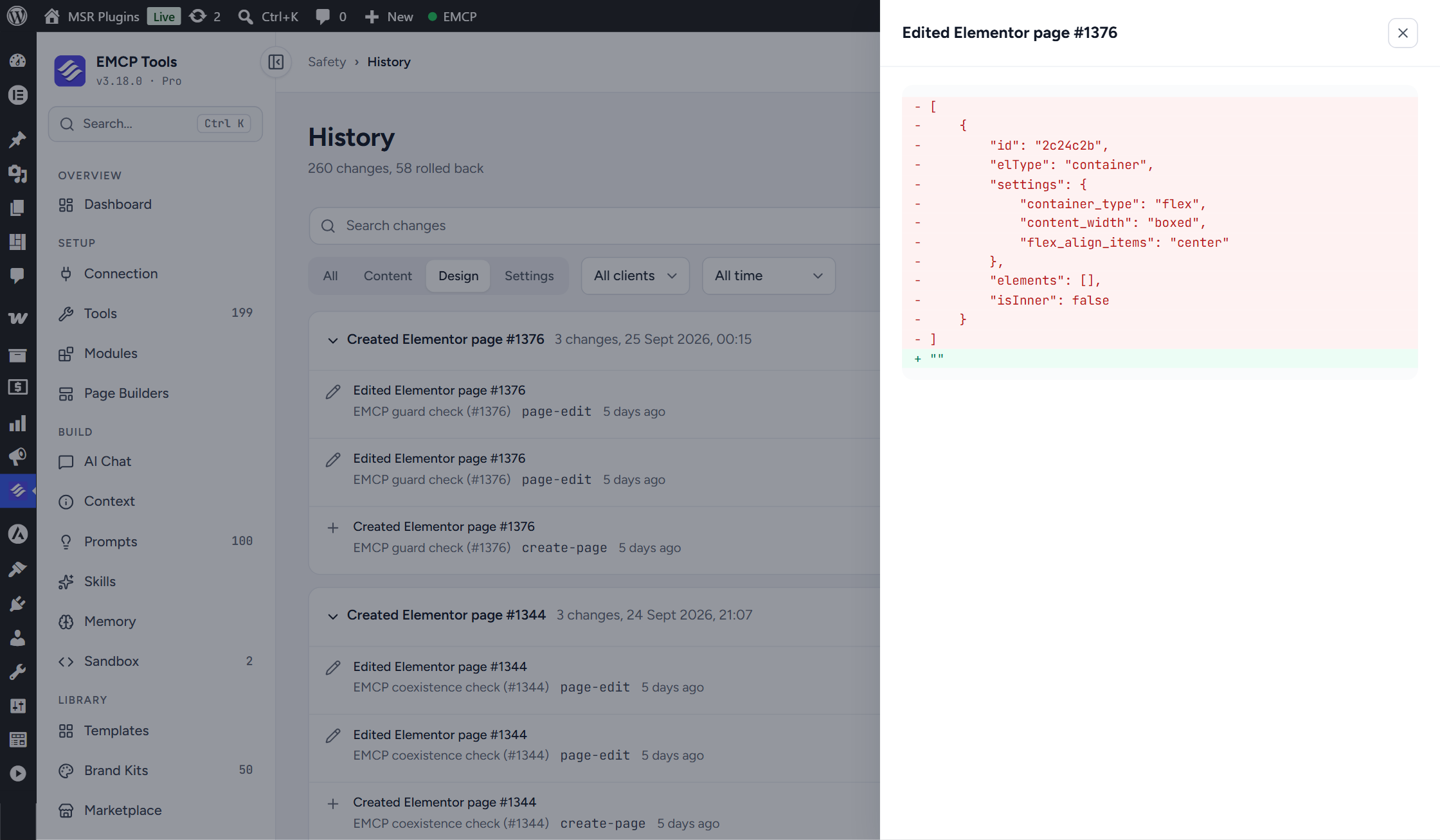
Next, authorize one small local change and review the diff and relevant check output. For a connected-site exercise, use a practice draft: record its existing state, change one heading, read the saved heading back, then inspect the editor and browser preview. Confirm the page is still a draft and that the rest of the page is unchanged. Use an appropriate backup if the operation lacks supported undo.
| Check | Evidence to keep |
|---|---|
| Correct target | Repository path or site URL plus page ID |
| Bounded change | Git diff or a saved-content before/after comparison |
| Working result | Relevant check output and browser/editor inspection |
| Publication status | Draft status or an explicitly approved release |
| Remaining uncertainty | Checks that were unavailable, skipped or failed |
Troubleshoot the setup before adding more rules
If a rule appears to be ignored, check its location, extension, scope and the instructions already supplied by your team. If MCP tools are missing, inspect the connection and tool enablement; adding a tool name to AGENTS.md cannot create that capability. If the agent changes too much, reduce the task to one named file or page element and define its acceptance checks.
Keep rules short enough to review when the project changes. Record tested conventions, remove stale paths and commands, and update supported versions deliberately. For the complete sequence from brief to reviewed result, continue with the AI WordPress development guide.
Ready to try a connected-site task? Get EMCP Lite, follow the client setup, and begin with a read-only inspection. Choose the edition and integrations needed for the next step before requesting writes.