
 A brief becomes a real page.
1. Turn the client brief into acceptance checks
“Build a professional landing page” leaves the agent to invent the business, content and definition of done. Agree those decisions before it edits the site. Use a small first deliverable with an explicit publication status.
The Northline Studio brief
Northline is a fictional independent design studio. Its page should introduce the studio, explain three services and invite a project enquiry. The direction is quiet and editorial: sage backgrounds, dark green text, generous spacing and native Elementor widgets. Create one draft with hero, services and contact sections. Do not invent clients, testimonials or performance claims.
| Requirement | What the reviewer checks |
|---|---|
| Clear offer | Hero identifies the studio; three service cards explain the work. |
| Useful primary action | The services button reaches the services section, and the contact action has an approved destination. |
| Editable result | Containers and native heading, text and button widgets; no page-sized HTML widget. |
| Responsive layout | Desktop and phone views retain readable text, stacked cards and reachable actions. |
| Controlled scope | One named draft; no global-kit or unrelated-page changes; publication requires a separate decision. |
Evidence scope: this is the same original sample used in our first-page walkthrough, created on 22 September 2026. That guide covers execution prompts; this playbook covers acceptance, QA and delivery. The sample was built through EMCP controllers using WP-CLI, not an end-to-end AI-client session. No real client endorsement or measured time saving is implied.
2. Inspect the destination before choosing tools
Record the staging URL, connected identity, editor version and target document type. Read existing brand styles, reusable sections and relevant page content. Confirm ownership of copy, imagery and contact details. A page ID identifies a page only together with its site URL.
Inspect this staging site without changing it. Report the site URL, relevant editor and plugin versions, existing brand styles and the page we will use as a reference. List missing content and assumptions. Propose a three-section draft matching the agreed brief. Do not create or publish anything yet.
Keep a copy of the agreed brief and the before-state. If a requirement needs a form, paid widget or dynamic field, verify that dependency now. This sample uses core Elementor widgets; Elementor Pro was active in the test environment but no Pro widget was used. Check EMCP tier access for optional tools and workflows rather than assuming one license includes another.
Use the access checklist and a supported client setup such as Cursor. If discovery fails, resolve missing tools before asking the agent to improvise another editing route.
3. Build one draft and read the saved structure
Request the agreed sections with a draft status and a clear page title. EMCP's build-page operation creates a new page from its title and structure. Do not create a blank page first and assume build-page will fill it. If a request times out, check for an existing result before retrying.
Create one new draft for the approved Northline brief. Use native containers, headings, text and buttons. Preserve the site's existing global styles. Return the site URL, page ID, status and saved element summary. Do not publish. If the operation partially fails, report what was saved before attempting another build.
The recorded build returned draft 1086, titled “Northline Studio | EMCP first-page example”. Readback found 21 elements: 7 containers and 14 widgets, with no HTML widget. The before/after kit comparison was unchanged.
Northline Studio · draft 1086
├─ Hero container
│  └─ Studio label, heading, introduction, services button
├─ Services container
│  └─ Section heading and three service-card containers
└─ Contact container
   └─ Heading, supporting copy, enquiry button

Saved data: 7 containers / 14 native widgets / 0 HTML widgets
This is a summary of saved Elementor data, not a screenshot of the editor's Navigator. Test environment: WordPress 7.1.1, PHP 8.4.15, Elementor 4.2.4 and local unreleased EMCP 3.18.0 development source. Version numbers identify the recorded test, not a release recommendation.
4. Review what visitors will actually use
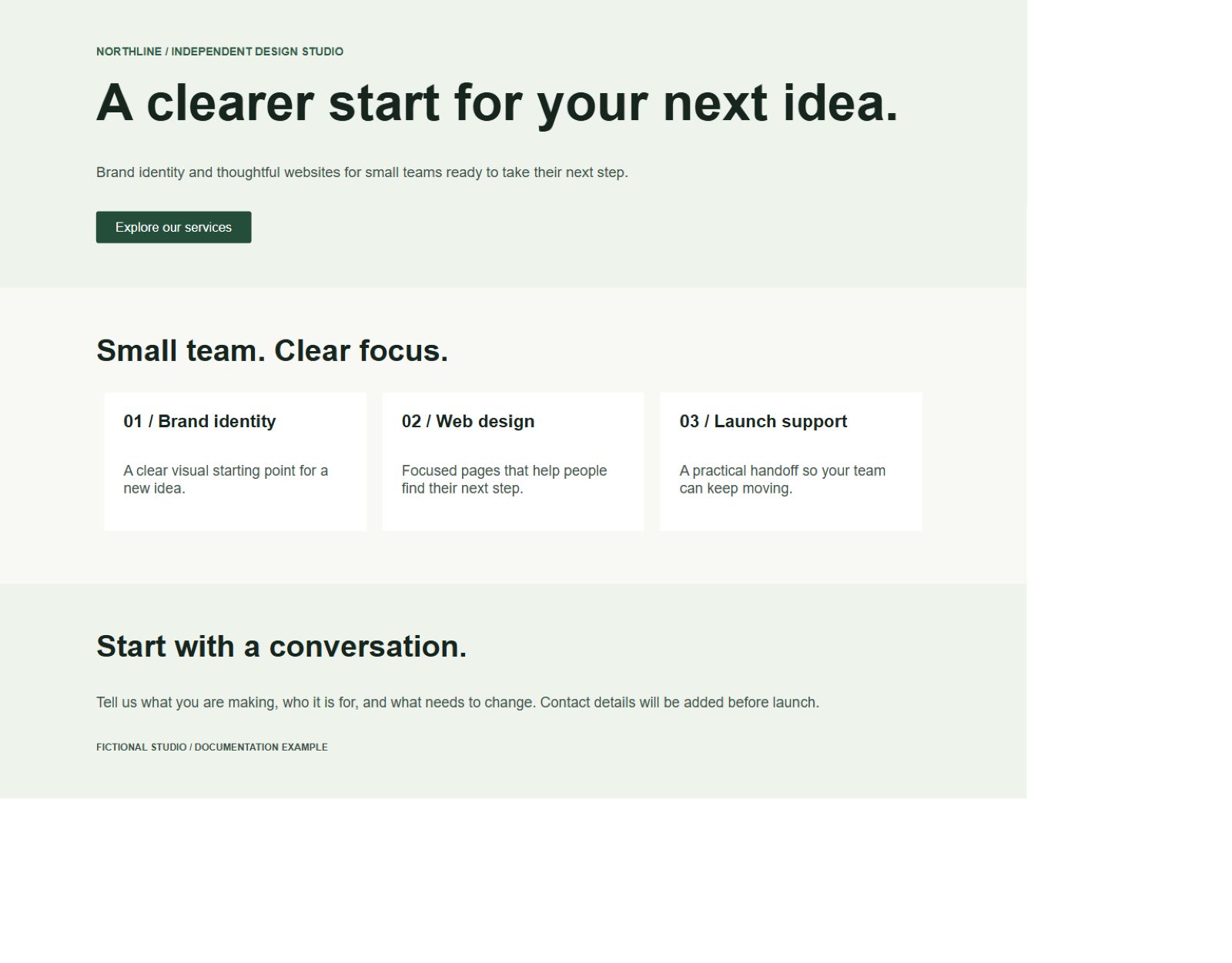
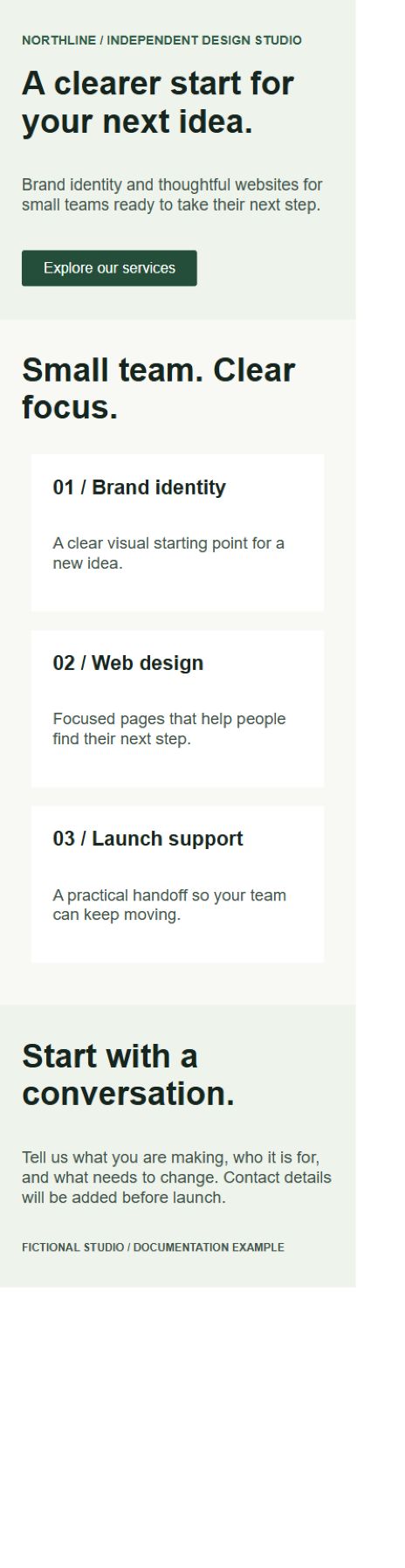
These captures show the layout, not the whole acceptance test. Check the full authenticated preview in the site's real theme, then open the editor. Test keyboard navigation, heading order, contrast, link destinations and focus visibility. At phone widths, inspect text wrapping, spacing and interactions rather than relying on a scaled desktop screenshot.
| Check | Recorded result or remaining work |
|---|---|
| Draft and structure | Saved status was draft; native element counts confirmed; global kit unchanged. |
| Desktop / mobile | Rendered at CSS widths 1280 and 390; mobile cards stacked and no horizontal page overflow was observed. |
| Services navigation | Initial target was missing. A targeted repair was saved and the matching anchor was verified. |
| Contact and forms | No form submission or email delivery was tested. Replace and test the sample contact destination before using the page for a real business. |
| Editor and accessibility | Saved structure was checked; authenticated editor review and a complete accessibility audit were not performed. |
| Client approval and launch | Not performed. This remains a sample draft, not a delivered client website. |
5. Fix one issue, then repeat the check
For a separate end-to-end editing demonstration, follow our tested Elementor page-editing tutorial. It shows the El Fuego hero's left-aligned buttons, native editor checks and responsive previews. For a different builder, the tested Bricks page tutorial documents the Nova draft. Those tutorials cover the actual edits; this playbook covers acceptance and delivery.
The services button used #services, but the initial rendered page had no matching target. The source used css_id; Elementor needed its native _element_id setting for the target container. The page could look finished while the action did nothing.
Before
Button destination: #services
Matching rendered target: absent
Effect: no working section jump.
After
Same page and container.
Saved _element_id: services.
Matching target verified; status remained draft.
On the confirmed draft, repair only the services anchor target. Preserve its text, layout and styling. Read the target setting and page status back, then check that the button destination matches the rendered target. Report any remaining issue without publishing.
The recorded revision changed container 521a229 on draft 1086. Treat those IDs as evidence, not values to paste into another site. On your project, obtain the target IDs from a fresh read. A narrow repair makes it easier to check whether the defect is resolved without introducing unrelated changes.
6. Hand over evidence and unresolved work
A useful handoff tells the next person where to work, what changed and what still needs approval. Include the site and page identifiers, editor type, before/after screenshots, changes made, test outcomes, remaining issues and publication status. Keep credentials and private exports out of the handoff document.
Download the Northline sample handoff. It records the real draft and repair, with explicit pending checks. Adapt it to your project rather than presenting the sample as client work.
Prepare a handoff for this draft: destination and page ID, approved requirements, saved changes, preview evidence, test results and unresolved checks. Separate observed results from recommendations. State whether publication occurred. Do not publish or send the handoff to anyone.
Before launch, have the reviewer accept the copy, assets, contact destination and responsive result. Test any forms through to delivery, review applicable privacy requirements, and take the appropriate backup. Publish only the approved page, then inspect the public URL and confirm its final status. Publishing and external delivery are separate steps from preparing this package.
7. Reuse the process, not the assumptions
Carry forward the brief format, review checklist and handoff structure. Re-read each site's identity, editor, dependencies and brand rules. Agent skills and templates can support repeatable work, but a reusable layout still needs project-specific content and QA.
For the first build, follow the step-by-step example. For several client sites, compare direct and hosted data paths before choosing your connection setup.