
 A brief becomes a real page.
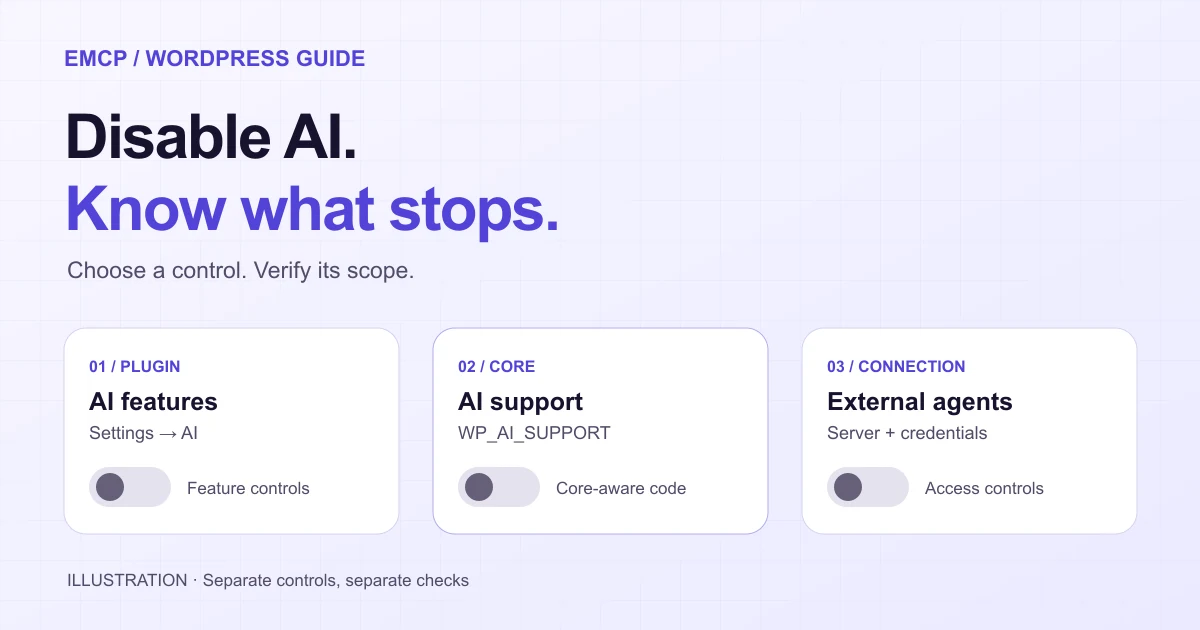
To disable AI in WordPress 7, choose the control for the feature or connection you want to stop. The official AI plugin has an Enable AI switch under Settings → AI. Developers can disable core AI support with WP_AI_SUPPORT. External agents, independent AI plugins and hosting assistants need their own access controls.
We tested the core flag on a local WordPress 7.1.5 practice installation using temporary CLI processes. No persistent site setting was changed. The steps below also explain the settings we reviewed in documentation but did not exercise end to end.
Choose the control that matches your goal
| What you want to stop | Starting point | What still needs checking |
|---|---|---|
| One feature in the official AI plugin | Its feature or experiment toggle | Other enabled features and automatic jobs |
| AI tools in that plugin | Settings → AI → Enable AI | Independent plugins and external connections |
| Core AI support | WP_AI_SUPPORT set to boolean false before bootstrap | Integrations that use their own AI implementation |
| Use of a provider credential | Its configuration source and provider account | Other copies, environments and apps sharing the key |
| An external agent accessing WordPress | Its server, app authorization or credential | Other MCP servers, gateways, API credentials and SSH access |
These controls operate at different layers. For the wider architecture, see WordPress AI features explained. Turning off generation is not the same operation as revoking an agent’s permission to edit a page.
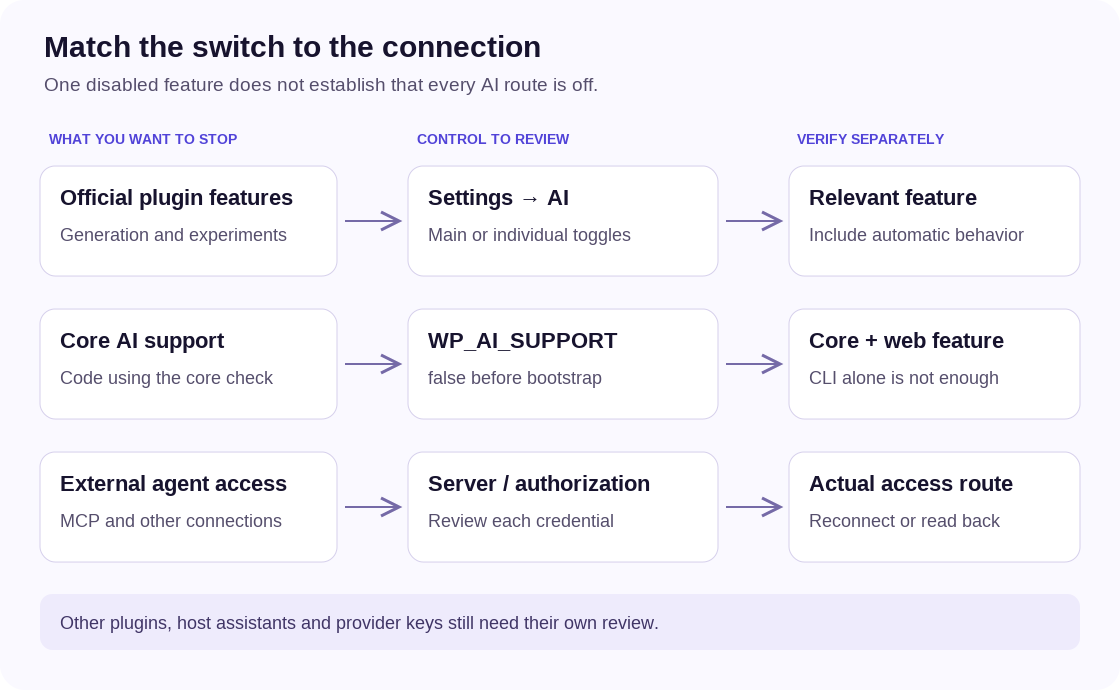
1. Turn off features in the official AI plugin
If you use the WordPress.org AI plugin:
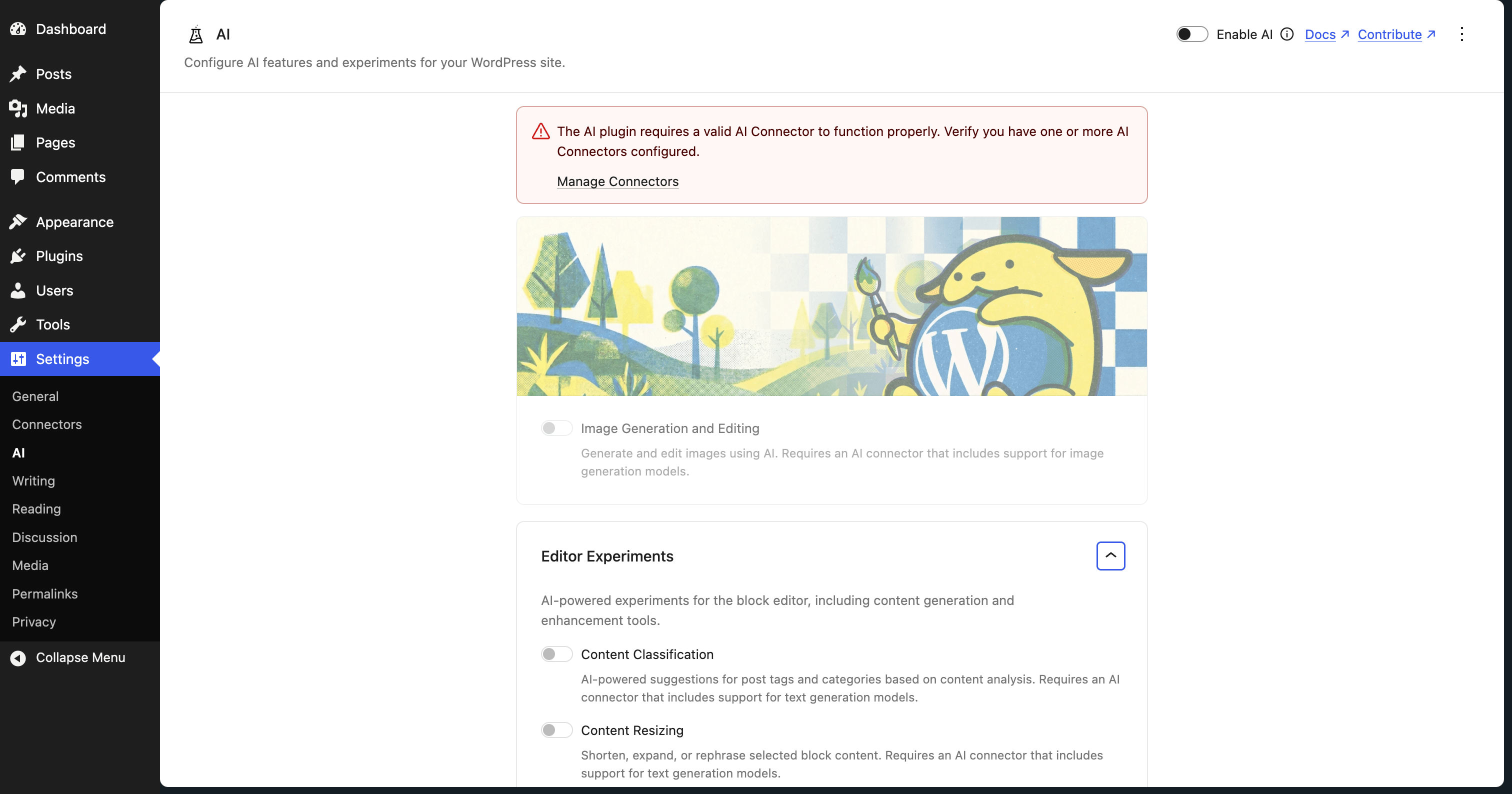
- Open Settings → AI as an administrator with access to its settings.
- Switch off an individual feature or experiment if you want to retain the others.
- Turn Enable AI off to disable AI through that plugin’s main control. Follow any save prompt in your installed release.
- Reload the relevant editor or admin screen and check the feature you intended to stop.
The WordPress settings documentation shows the main switch and feature controls. If Settings → AI is absent, check whether the official plugin is installed, active and accessible to your account. You do not need to install it just to turn it off.
Review automatic behavior as well as visible buttons. The official AI plugin listing identifies experiments that run automatically; comment moderation, for example, can process new visitor comments once enabled. It also documents a separate MCP Access experiment. Check these explicitly when your goal extends beyond editor suggestions.
Before deactivating the plugin, review its key-storage behavior: the listing states that disabling Key Encryption, or deactivating the plugin, restores plaintext provider keys. Plan credential handling with the site owner rather than assuming deactivation removes keys. This article does not test that transition.
2. Disable core AI support in configuration
For a developer-managed site using WordPress 7.0 or later, the core control is:
define( 'WP_AI_SUPPORT', false );Have the person responsible for configuration place this in wp-config.php before WordPress is loaded, ahead of the wp-settings.php bootstrap. Check for an existing definition first and edit it rather than adding a second one. Keep a recoverable copy of the configuration and test on staging before deployment.
Use boolean false, without quotes. A nonempty PHP string such as 'false' is truthy and does not express the intended setting.
Core’s wp_supports_ai() implementation returns false immediately when this constant is defined with a false value. That happens before its usual filter runs. In the connector registry, registration of an ai_provider connector is refused when AI support is disabled.
This is a core integration control. An independent plugin can make provider requests through its own code without consulting it. It also does not delete already generated content, erase credentials or revoke an external app’s authorization.
Read back the core result
A developer with WP-CLI access can check the current process:
wp --path=/absolute/path/to/wordpress eval 'echo wp_supports_ai() ? "enabled\n" : "disabled\n";'Replace the path with the intended installation. This reads core support; it does not prove that every integration respects it. CLI and web-server environments can differ, so verify the actual web feature separately after an approved configuration deployment.
To reverse a configuration change later, restore the previously approved definition or remove the line you added, as appropriate. Recheck feature settings before enabling anything again.
3. Review provider keys at their actual source
Removing a saved key from the Connectors screen may leave another credential source in effect. WordPress checks an environment variable before a PHP constant, then the database setting. Ask the host or developer to review the active source without copying secrets into a chat or screenshot. Official credential precedence
For connection setup and the distinction between in-site requests and outside agents, see our WordPress Connectors walkthrough.
If the goal is to invalidate a key everywhere, use the provider’s account controls after identifying the apps and environments that share it. Removing one local copy is not provider-side revocation. Conversely, revoking a shared key can disrupt a different site you intended to keep working.
4. Control external agents separately
An external agent may use its own model account while accessing WordPress through MCP. Disabling WordPress’s core AI support does not, by itself, remove that authorization.
For EMCP, the Connection screen documentation describes these controls:
- Advanced settings → Abilities API is EMCP’s switch for exposing its tools over its MCP server. Turning it off and saving puts that server in Server off state. The label does not mean it disables the entire WordPress Abilities API.
- A connected app’s Sign out revokes its tokens; the app can sign in again. Remove deletes that app registration and its tokens.
- Review the credentials for the connection route actually used. An application password, another server or a gateway is a separate access path.
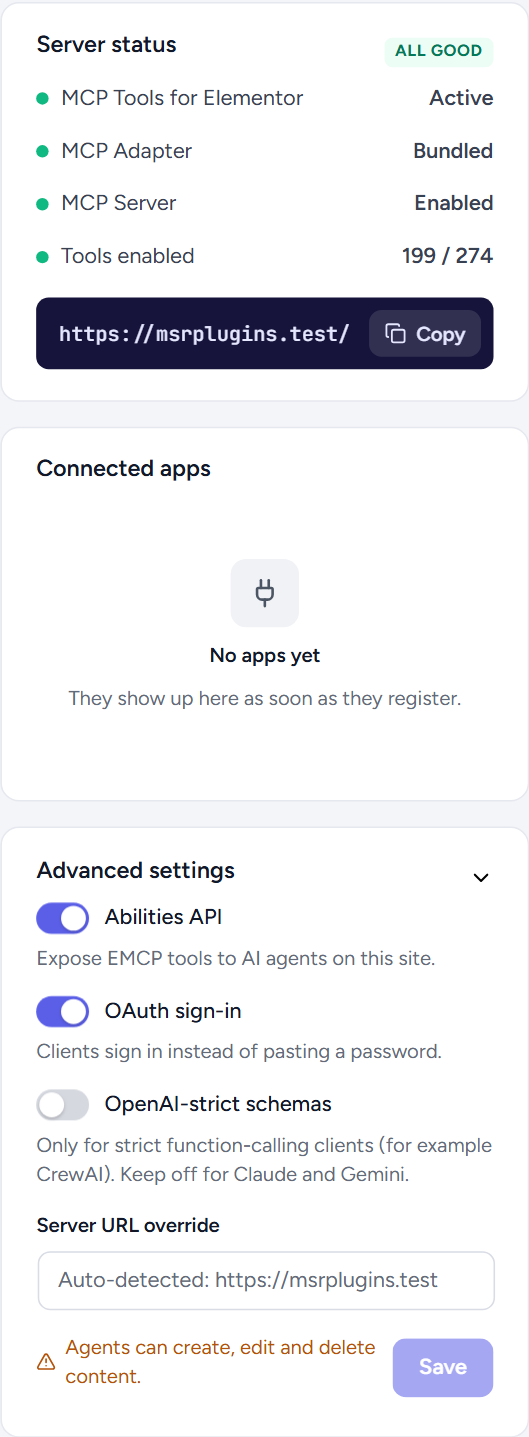
To keep a connection but remove a particular operation, use individual tool controls and save the change. Verify with a fresh tool list and the affected operation. A missing admin menu alone is not an access test.
Management access controls who can configure EMCP’s admin settings. It generally does not decide whether an already connected agent can use MCP tools; the documented Themer exception has its own scope. Do not use that admin-access list as a substitute for server, tool or credential controls.
What we actually tested
On 23 November 2026, we ran four separate WP-CLI processes against the established local practice installation, using WordPress 7.1.5. Normal plugins, themes and WP-CLI packages were skipped; must-use plugins are not excluded by the normal plugin-skip flag.
| Process | Core AI support | AI-provider connectors | Other connectors |
|---|---|---|---|
| Baseline | Enabled | 3 | 1 |
| Temporary false constant before bootstrap | Disabled | 0 | 1 |
| Same false constant, then a filter returning true | Disabled | 0 | 1 |
| Fresh baseline process | Enabled | 3 | 1 |
The false constant existed only inside those test processes. The before/after SHA-256 of wp-config.php matched. We issued no configuration or option write and made no provider-generation request.
This verifies the observed core-support and connector behavior in that CLI environment. It does not establish the behavior of all plugins or every database/background process. We did not test the official plugin’s UI switches, key removal or encryption changes, provider revocation, EMCP server shutdown, app-token revocation, or browser-side feature blocking end to end.
Verify the outcome you actually need
Keep a short record for each integration:
- Identify its owner, access route, configuration source and expected behavior.
- Record the approved control and previous value, without storing secrets.
- Apply one change, reload or reconnect as appropriate, and check that specific feature or access route.
- Check other enabled plugins, host assistants, scheduled jobs and external connections separately.
- Record the observed result and remaining exceptions. Keep rollback instructions with the site owner.
Download the AI-control verification checklist for a client handoff. Saved posts, generated images and provider-side data need their own review; switching a feature off does not undo earlier work.
If you later choose to connect an agent, EMCP Lite is available on WordPress.org. Review its supported operations and access controls before connecting it; installing an MCP plugin is not required to disable WordPress AI.