
 A brief becomes a real page.
Start with the job you want AI to do
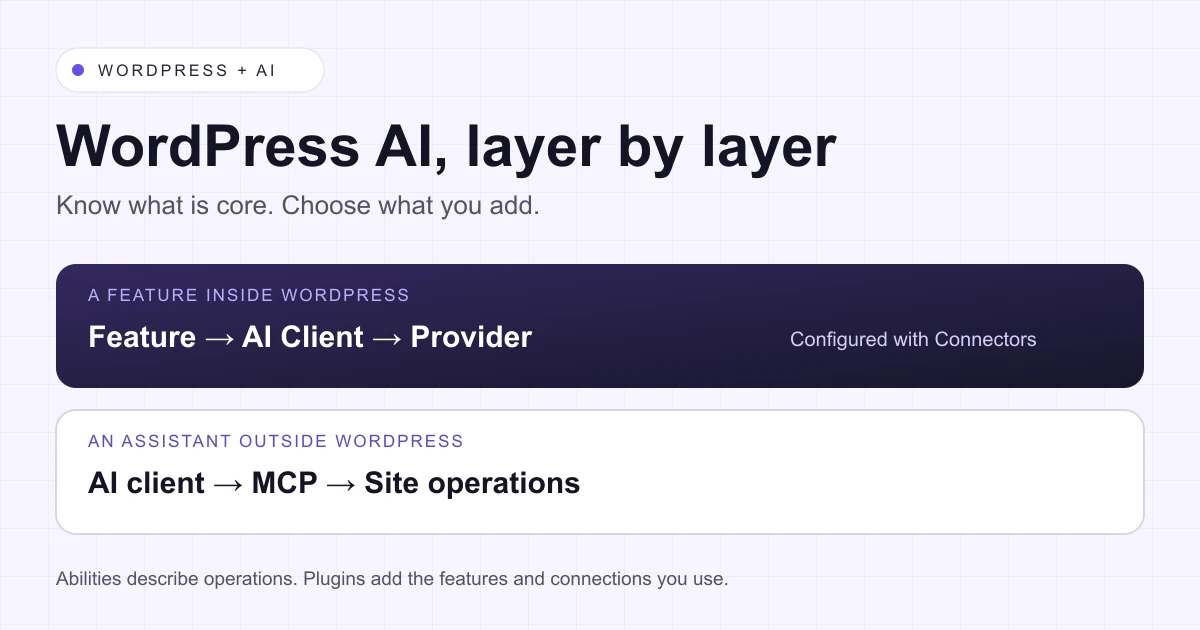
WordPress 7.0 AI features start with shared infrastructure: an AI Client for model requests and a Connectors screen for external services. A visible tool such as an excerpt generator comes from a feature plugin. An outside assistant editing a site uses another connection, such as MCP. Knowing which layer owns your task makes setup and troubleshooting much clearer.
This guide explains that division for site owners, agencies and plugin developers. It focuses on the foundations introduced with 7.0; check your installed WordPress and plugin versions before following a screen or enabling a feature. It does not assume that every AI option is part of core.
| Component | Its job | Where it comes from |
|---|---|---|
| AI Client | Provides a common API for requests to supported models | WordPress core, starting in 7.0 |
| Connectors | Registers external connections and provides their configuration screen | Core framework and screen in 7.0; provider implementations are installed separately |
| Abilities API | Registers named operations with inputs, outputs and access rules | WordPress core, starting in 6.9 |
| AI feature plugin | Adds actions people can use in the editor or admin | A separately installed plugin, such as WordPress.org's AI plugin |
| MCP server or Adapter | Makes selected operations available to a compatible external AI client | A separate integration; installing WordPress does not configure an agent connection |
Learn WordPress's overview distinguishes the core components from the optional plugins. Treat the table as a map of responsibilities, rather than a list of everything a site must install.
The AI Client sends requests to a configured provider
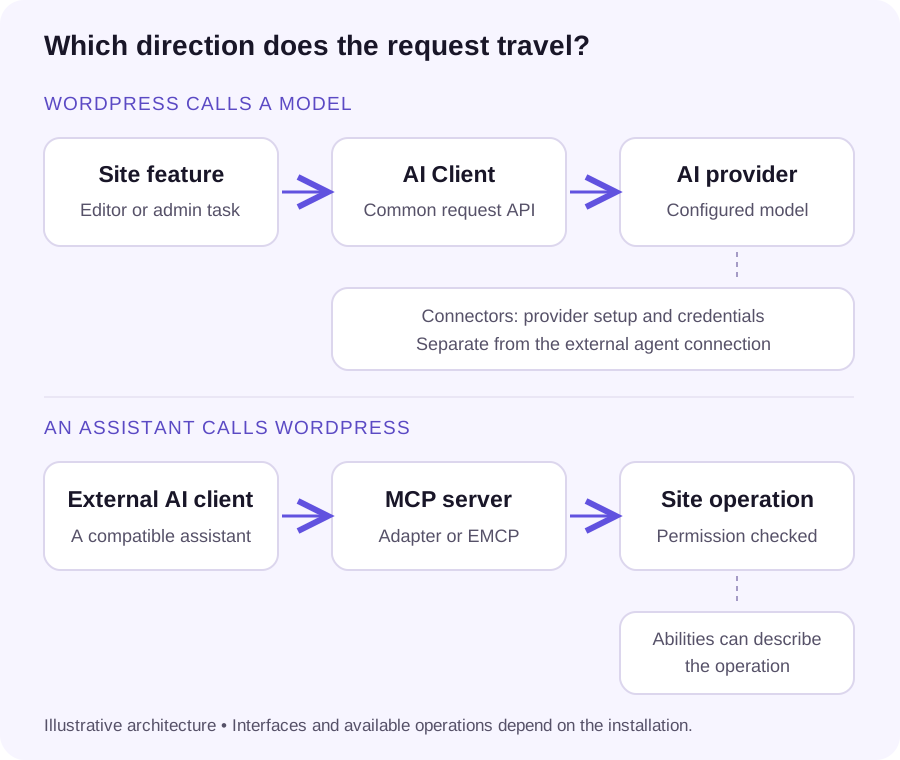
A plugin can use the AI Client to describe the result it needs through a consistent WordPress API. The configured provider supplies the model implementation. Core includes the interface; it does not bundle a hosted model account, API credits or a working implementation for every provider.
For example, a feature might ask for a short summary of a draft. Its code constructs the request, the AI Client routes it to a suitable available model, and the feature handles the returned result or error. Sending that request and saving a post are separate operations. The feature's own behavior determines whether a suggestion is shown for review or applied to content.
Developers can start with wp_ai_client_prompt(). Check errors and model capabilities, and handle an unavailable provider gracefully. Do not assume that the site has your preferred model or supports every output type. The official AI Client developer note documents the API and model-selection behavior.
Connectors configure the service behind the request
Open Settings → Connectors to manage supported external connections. The framework introduced in 7.0 features Anthropic, Google and OpenAI. A provider card can offer to install its integration; an active provider still needs appropriate credentials and access to a model your feature supports.
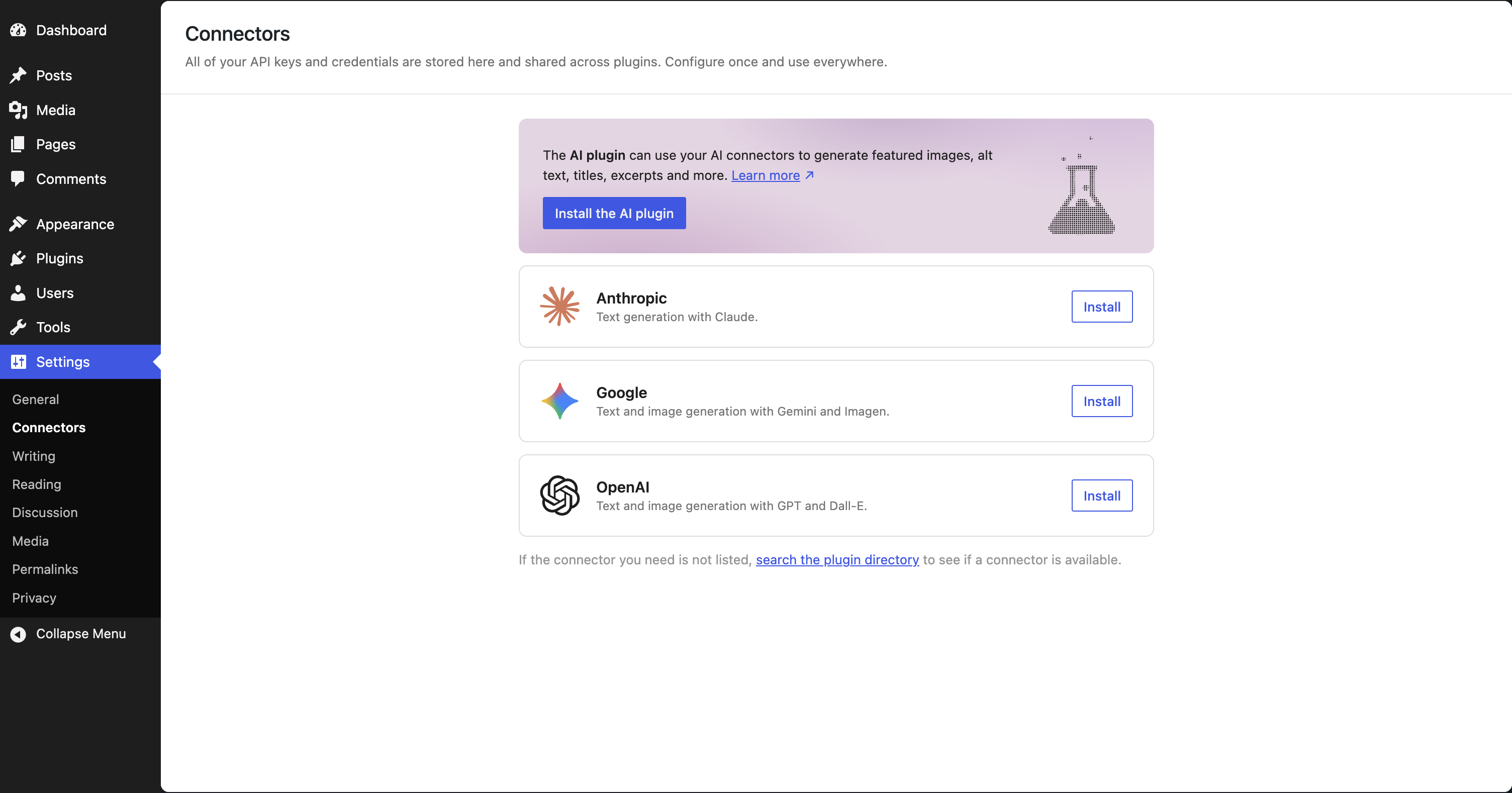
Compatible features can reuse the configured provider. A plugin with its own AI integration may still use separate settings. The presence of a Connectors card does not establish which installed plugins consume it, which data they send, or whether an individual request will succeed.
Follow our WordPress Connectors setup walkthrough for provider installation, credential entry and a feature check. The Connectors API developer note explains the registration and discovery mechanism.
Visible AI features come from the plugins you enable
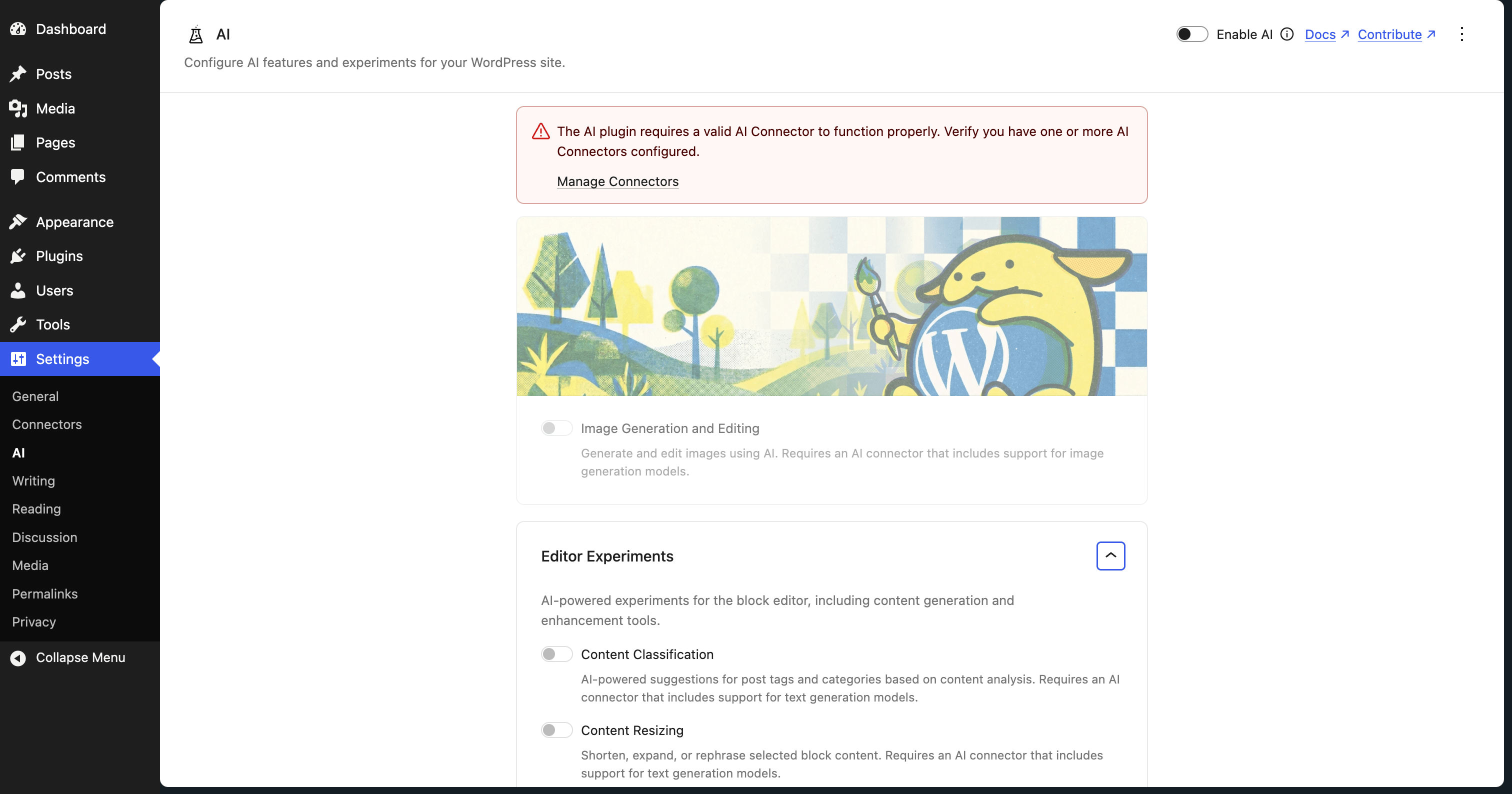
The AI plugin maintained by WordPress.org adds optional tools to the admin and Block Editor. Its current listing separates supported Features from developing Experiments. Examples include image generation and editing, excerpt suggestions and alt-text generation. Availability depends on the installed plugin, enabled options, provider and model support.
As checked on 7 November 2026, the plugin says activation leaves its Features and Experiments off. Settings → AI controls what you enable. Read each item's description: some experiments run automatically, and the current listing marks them accordingly. A manual excerpt test does not establish the behavior or cost of automatic comment processing.
Check a suggestion against the original material before accepting it. An excerpt must accurately represent the article; alt text must describe the relevant image in its context. A fluent response can still omit the detail a visitor needs. If generated content damages block structure, use the separate Gutenberg recovery guide.
Abilities describe operations that WordPress can perform
The Abilities API arrived in WordPress 6.9. An ability is a named unit of functionality, such as retrieving site information. It can declare structured inputs and outputs, an execution callback and permission logic. The registry helps code discover available operations without inventing a different convention for each plugin.
An ability does not need to call a language model. It could read an existing record or carry out a deterministic calculation. Conversely, an AI feature does not automatically make every action in its plugin available as an ability. Registration, external exposure and execution are distinct implementation choices.
When you evaluate an ability, ask what it does with a specific input and which user may run it. A descriptive name or schema cannot replace a correctly enforced permission check. The Abilities API Handbook documents these concepts. Developers should verify the actual callbacks before exposing operations to clients.
MCP connects an external assistant to site operations
The WordPress MCP Adapter bridges selected WordPress Abilities to compatible AI clients. It is an additional integration, not a switch that exposes every operation just because core has an Abilities registry. Its official tutorial covers exposure choices, transports and client configuration.
This is the opposite direction from an editor feature requesting a model response. In the first case, WordPress calls an AI provider. In the second, an external assistant calls a WordPress operation through an MCP server. One project may use both, but configuring a model key does not by itself connect Cursor or Claude to the site.
WordPress MCP Adapter vs EMCP compares the implementation scope. EMCP supplies a ready-made MCP tool surface for supported WordPress and builder tasks. Use the WordPress MCP guide to understand that connection, and our MCP vs REST API explanation when choosing an agent-facing interface.
Choose the smallest setup that serves your workflow
I want suggestions inside the editor
Choose a compatible feature plugin, configure one supported provider, and enable the specific option you need. Start with a draft and inspect what happens before the result is saved.
I want an assistant to work on my site
Choose an MCP server with the required operations, configure the client, and verify a read-only request. Inspect the authenticated user and available tools before approving an edit.
I am building a plugin: use the AI Client for provider requests and consider Abilities for reusable operations. Add an MCP interface only where an outside client needs it. Document what leaves the site, how errors appear, and which actions save changes. For repository and connected-site work together, follow the AI WordPress development workflow.
I only need a fixed application integration: an existing REST route may already fit. The choice should follow the caller, operation and permission boundary. Adding another interface creates configuration and verification work, so establish the actual need first.
Try one draft-only excerpt workflow
The following is a practice exercise, not a test completed for this guide. Use a staging site and non-sensitive sample content. It gives you a small result that a reviewer can compare with the source.
- Record the site URL and WordPress, feature-plugin and provider-plugin versions. Confirm that the intended excerpt feature supports the configured provider.
- Set the provider account's usage controls and confirm who owns the credential. Connect one provider through the documented setup.
- Create a draft with a short factual article. Enable only the relevant manual feature after checking its description and trigger behavior.
- Request one excerpt. Record the actual result or error. Compare names, dates, claims and the main point with the draft; edit inaccurate suggestions.
- Check whether accepting the suggestion changes the saved excerpt, and confirm the post remains a draft. Preview the theme's actual excerpt output; a saved field and a rendered archive can differ.
- Inspect the provider's request or usage records where available, then turn off the trial feature if it is no longer needed.
Success means more than seeing generated text: the result is accurate, the intended field is saved, the publication state is correct, and the relevant template displays the expected content. If a request fails, isolate the connector, provider access and feature compatibility before adding another plugin or repeating requests.
Decide costs, data and access before wider adoption
For hosted providers, requests run against the configured API account and can incur usage charges. Decide which content may leave the site, which features may run automatically and who reviews changes. Keep API keys out of public captures and project files. A masked field is not a guarantee about storage encryption; check the implementation and any encryption option you actually enable.
Keep controls attached to their scope. Turning off an option in the AI plugin governs that plugin's behavior; another plugin may have its own integration. Removing a provider key is different from revoking an external agent's site access. Inventory both directions before saying a site has no AI activity.
For external agents, confirm the allowed user capabilities and operation list, and retain a recovery path for writes. Our WordPress MCP security guide covers that boundary. For a client rollout, record the responsible owner, permitted tasks, provider account, review point and recovery method in the handoff.
Sources and evidence
Reviewed 7 November 2026 against the primary sources linked throughout this guide: the AI Client and Connectors core notes, Abilities API Handbook, WordPress.org AI plugin listing, Learn WordPress overview and official MCP Adapter tutorial. The two UI captures are reused WordPress.org documentation images. The cover and architecture graphic are illustrative. We did not connect a provider account, incur a generation charge or complete the excerpt exercise for this guide. Version-specific feature lists can change; check the installed plugin's controls.
Continue with the part you need
- Configure one WordPress AI provider.
- Choose MCP or REST for an agent integration.
- Compare the MCP Adapter and EMCP.
Try external agent access with EMCP Lite
Get EMCP Lite on WordPress.org, choose a supported client setup, and start with a read-only request on a practice site. Inspect the tool catalog for supported tasks and edition requirements before planning a change.