
 A brief becomes a real page.
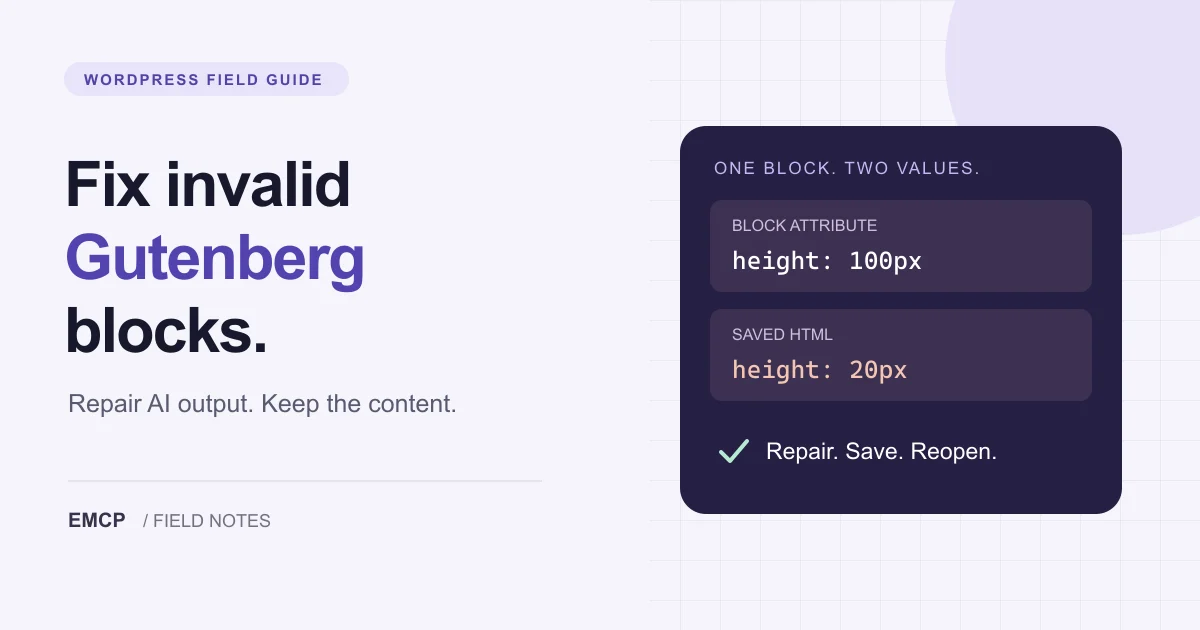
An invalid Gutenberg block after an AI edit usually means the saved block markup no longer matches the structure WordPress expects. The quickest safe response is to preserve the original, inspect the affected block, try a targeted repair, then save and reopen the draft. A page looking correct on the front end is not enough to establish that its blocks remain editable.
This guide covers the editor warning “This block contains unexpected or invalid content.” It helps you decide whether to recover a block, rebuild it with native controls, keep intentional HTML, or investigate a plugin change. It also explains how to give an AI agent a narrower repair task.
Evidence note — 5 November 2026: We checked current WordPress documentation and the Spacer block definition and save implementation in local WordPress 7.1.4 source. The two screenshots are genuine WordPress.org documentation captures from 2023, not screenshots of our test site. The local WordPress server was unavailable and Playground failed to load, so the exercise below has not been verified end to end in this session. The cover and flowchart are explanatory graphics.
First, identify which error you actually have
Before changing content, record the exact message and what changed immediately beforehand. These are different starting points:
| What you see | What to inspect first |
|---|---|
| Unexpected or invalid content | The affected block’s stored markup and the block definition that reads it |
| A message that the site does not support a block | Whether the required block plugin is available and active |
| An editor error saying a block cannot be previewed | The browser console and the component or plugin that failed |
| A page that looks wrong without an editor warning | Layout settings, theme styles and the rendered front end |
Do this on a copy or staging site. Preserve the original post content and any available revision before accepting a conversion. Keep your working copy private; there is no need to publish a troubleshooting example.

Why AI-generated HTML can trigger block validation
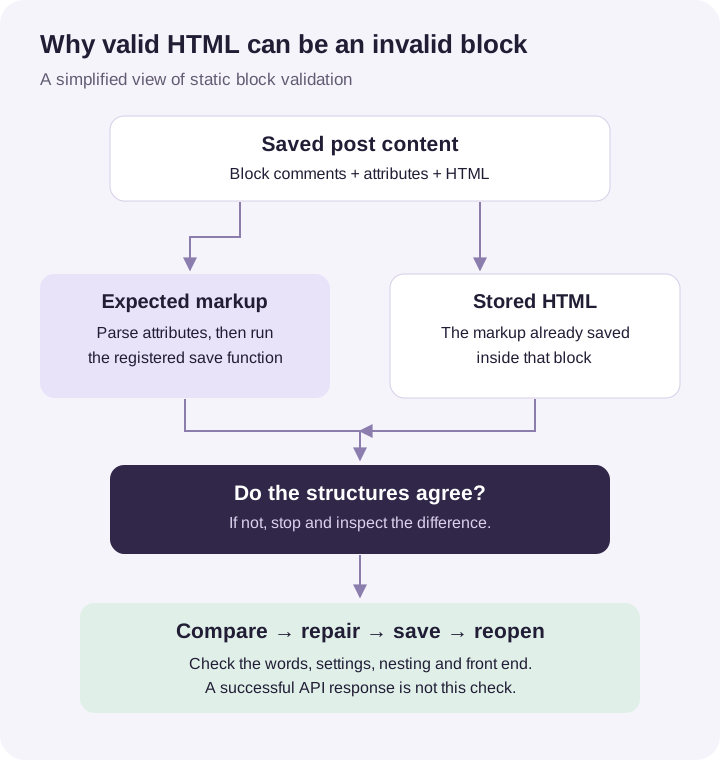
A block is more than the HTML you see on the page. Its saved representation can include block delimiter comments, a block name, JSON attributes and inner markup. WordPress uses that information to reconstruct an editable block. Read the official explanation of block markup representation.
For a static block, the editor regenerates expected markup using the parsed attributes and the registered block’s save function. A mismatch can make the block invalid. This is a consistency check, not a judgment about whether the prose is good or whether a browser can display the HTML. The Edit and Save reference describes this validation step.
An AI agent can introduce a mismatch by changing a wrapper, guessing a class, editing only one representation of a setting, or producing markup for a different block version. A useful diagnosis names the specific difference. “The AI broke Gutenberg” does not tell you which part to repair.
A small mismatch you can reason about
Consider a Spacer block whose comment requests 100 pixels but whose saved HTML specifies 20 pixels:
<!-- wp:spacer {"height":"100px"} --><div style="height:20px" aria-hidden="true" class="wp-block-spacer"></div><!-- /wp:spacer -->Both values look plausible in isolation. Together they describe different outcomes. In the inspected WordPress 7.1.4 source, Spacer’s height attribute is a string and its save implementation uses that attribute to produce the inline height. An edit to the HTML alone leaves the attribute unchanged.
If your intended height is 20 pixels, a consistent example is:
<!-- wp:spacer {"height":"20px"} --><div style="height:20px" aria-hidden="true" class="wp-block-spacer"></div><!-- /wp:spacer -->This is a deliberately constructed example, not captured AI output. Try it only in an expendable draft: open the editor’s options menu, switch to Code editor, insert the first example, then return to Visual editor and inspect the result. After testing recovery, set the intended height using the Spacer controls, save the draft and reload it. Record whether the warning returns and whether the gap is the height you intended.
For a real post, prefer its native block controls to manually maintaining both representations. Some attributes live in comment JSON, while others are extracted from HTML; their declared types and sources matter. The block attributes reference explains those storage rules.
Repair one affected block at a time
1. Preserve the content and find the boundary
Write down the affected post, block type and intended result. Copy the original block markup somewhere outside the post before making changes. If several nested blocks are involved, preserve their parent as well; otherwise you can lose the context needed to reconstruct columns, groups or lists.
Inspect the smallest affected section first. Avoid asking an agent to rewrite the entire page merely because one block reports a problem. If this followed an AI edit, compare the before and after versions for changed attributes, tags, classes and nesting.
2. Try recovery, then compare what survives
On the draft copy, use Attempt Block Recovery if the editor offers it. Inspect the recovered content immediately: words, links, image descriptions, settings and layout. Do not assume recovery will retain an unsupported customization or infer your intended design.
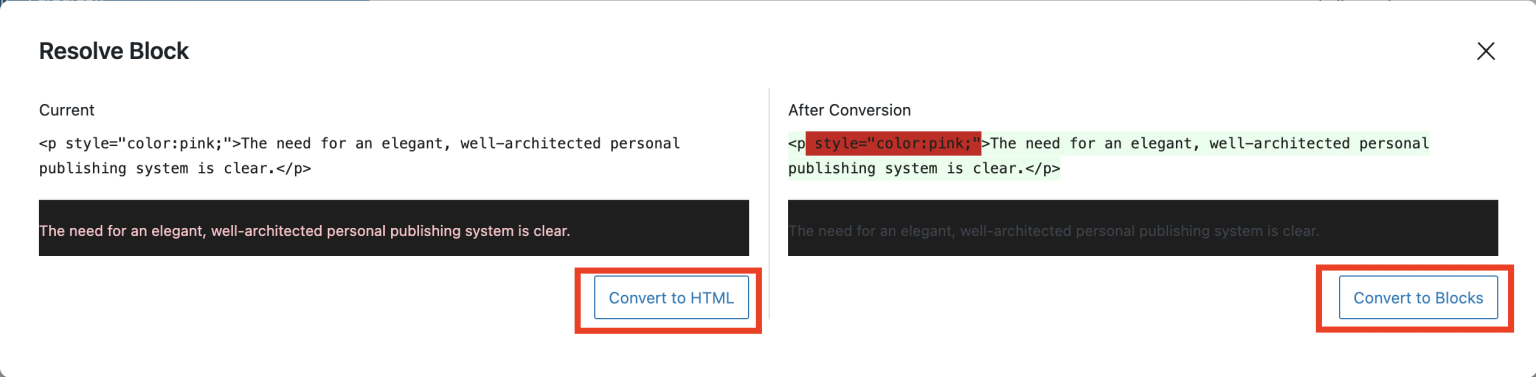
Where available, the Resolve option shows a comparison. The WordPress documentation also describes conversion choices, including Custom HTML. Review the proposed result before accepting it. See WordPress’s recovery options.
3. Choose the repair that preserves your intent
Rebuild with native blocks when you need normal editor controls. Create a fresh instance of the intended block on the draft copy and transfer the content and settings deliberately. Compare it with the original before removing the broken instance.
Use Custom HTML when the content is intentionally custom markup and you accept editing it as HTML. This changes the editing experience; it does not make arbitrary HTML a native Heading, Image or Group block. Review scripts and external embeds separately instead of treating conversion as a security check.
Investigate the plugin version when previously valid content breaks after a block update. Test the same content with the relevant versions on staging and send the block author a minimal example. If you maintain that block, support older saved representations with a suitable deprecation and migration path. WordPress’s deprecation API explains how older save implementations are matched; repeatedly repairing every post is not a substitute for fixing compatibility.
4. Save, reopen and check the front end
A useful completion check is a short round trip:
- Save the repaired draft.
- Reload or leave and reopen the editor.
- Confirm the warning stays gone and the block’s controls still work.
- Preview the page at a narrow and a wide width.
- Compare text, links, images, spacing and nested structure with the intended result.
If the error returns after saving, stop repeating recovery. Capture the smallest failing block and the validation difference from the browser console. The validation FAQ explains the expected-versus-stored markup diagnostic. Share a minimal, non-sensitive example when requesting help.
Give an AI agent a smaller repair task
Start with inspection and an explicit stopping point. Adapt this prompt to a draft copy:
Inspect this draft without writing changes.Identify the invalid block, its parent structure and the available block schema.Compare the original markup with what the registered block expects.Explain the smallest repair and any content or settings that could be lost.Wait for approval before editing. Do not replace the full post or publish it.After the approved edit, read back the changed block and its neighbors.Report which editor save/reopen and front-end checks still need a human.For EMCP, the Gutenberg integration exposes tools to list registered blocks, inspect a block schema and read a post’s block tree. Its update operation replaces markup at a block path. That helps scope the edit, but it does not guarantee that supplied markup passes the editor’s JavaScript validation. Re-read the tree after structural changes because a path can point to a different position.
Use a block created by the actual installed editor as the starting example where possible. Keep the task small enough that a reviewer can compare its result. See EMCP for WordPress developers for the wider workflow and the Cursor connection guide if you still need to connect your editor.
Common questions
Does every dynamic block need matching saved HTML?
No. A dynamic block whose save function returns null can store a placeholder and render on the server, so the same saved-markup validation does not apply. Dynamic blocks can still have saved inner content and other errors. Do not convert a block architecture merely to hide a warning. See WordPress’s static and dynamic rendering guide.
Does an HTTP success response prove that the repair worked?
No. Treat an accepted write, a readable block tree and a clean editor round trip as separate observations. An API can store content that still fails when the installed editor opens it.
Should I remove all the block comments?
No. Those comments carry block boundaries and attributes. Removing them changes how the content is reconstructed and can discard the editing structure you were trying to preserve.
Can I automate this across every post?
First prove a repair on one representative draft, including save and reopen checks. Different block types and plugin versions can require different fixes. Keep a recoverable original and review the proposed set of changes before applying a repeated transformation.
Inspect the structure before the next AI edit
Install EMCP Lite from WordPress.org to give a connected agent access to the free Gutenberg inspection and editing tools. Start with a read-only inspection of a draft, approve one targeted change, and verify it in the editor before publishing. The Gutenberg integration guide explains the available operations and their scope.