
 A brief becomes a real page.
llms.txt is an optional, curated map of a website for agents. For WordPress, you can publish it through an existing SEO plugin or maintain a small text file yourself. Choose one publisher, check the actual public response, and keep the listed content accurate. Creating the file does not establish that an AI service has read it or will cite your site.
If you are considering it for Google AI Overviews or AI Mode, start with the fundamentals: Google says those features have no extra technical requirements and do not require new AI text files. Fix blocked pages, unclear content and broken internal links before treating llms.txt as another project. Google Search Central’s guidance makes that distinction explicit.
What llms.txt does, and how it fits with your other files
The llms.txt proposal describes a Markdown overview with background and links to useful resources. Its current v2 format supports a file at the site root or within a path such as /docs/llms.txt. This article uses the common root URL, https://your-domain.example/llms.txt.
| Resource | Purpose | What to check |
|---|---|---|
llms.txt | A curated overview for agents that choose to use it | Accurate descriptions and useful, working links |
| XML sitemap | A source of URLs for search discovery | Canonical, indexable pages and valid sitemap delivery |
robots.txt and documented crawler controls | Rules and preferences for the relevant crawler | The actual user agent, allowed paths and intended effect |
| Your public pages | The information visitors and systems can inspect | Clear content, correct facts, semantic structure and access |
Keep these jobs separate when debugging. A line in llms.txt does not make a private page public, authorize an agent to edit WordPress, or replace a crawler’s documented controls. Removing a link from this file does not remove the underlying page from the web.
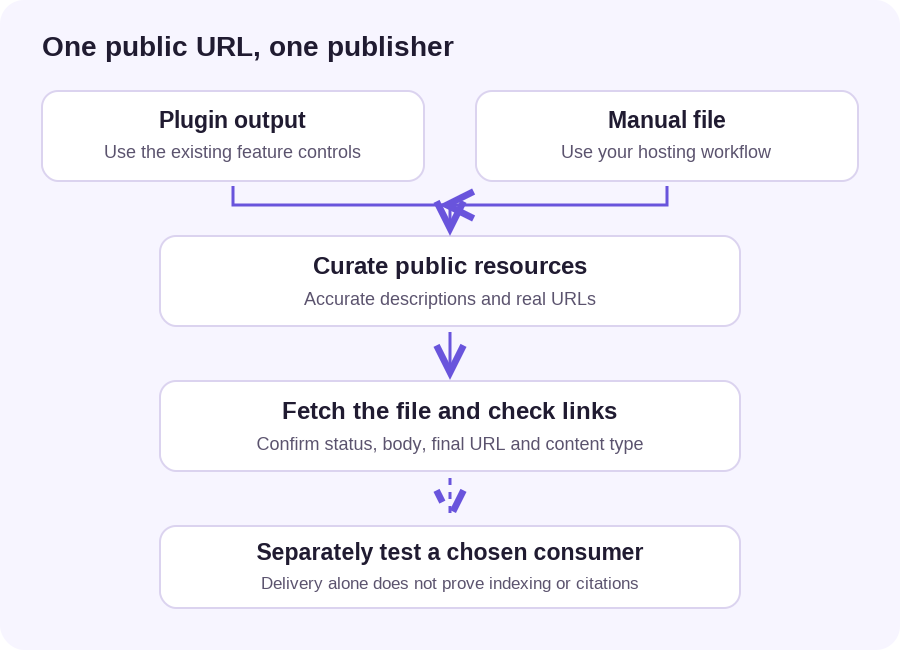
Choose a plugin or a manual file
Use a feature you already maintain when it gives you the selection and update controls you need. A manual file can suit a small, stable set of resources when someone owns its review and deployment. Both approaches still need an output check.
| Approach | Useful when | Main maintenance job |
|---|---|---|
| Existing Yoast SEO feature | Yoast already manages your site’s SEO and its page selection suits the task | Review the generated selection and scheduled output |
| Existing Rank Math module | Rank Math is already in use and you want its content-type and limit controls | Review included types, taxonomies and extra links |
| Manual file | You have a short editorial list and access to the correct public hosting path | Update descriptions and URLs after site changes |
Choose one component to own the public URL. Before enabling a generator, open the existing /llms.txt, identify who serves it, and keep a recoverable copy if you plan to replace it. A second generator can make it unclear which settings affect the response.
Option 1: use the llms.txt feature in Yoast SEO
Yoast’s current help page places the toggle under Yoast SEO → Settings → Site features → AI tools. Enable llms.txt and save. Its customization screen offers manual page selection. Check the installed version’s labels and access requirements; Yoast currently documents that this feature is unavailable on multisite. Yoast’s setup instructions are the reference for these controls.
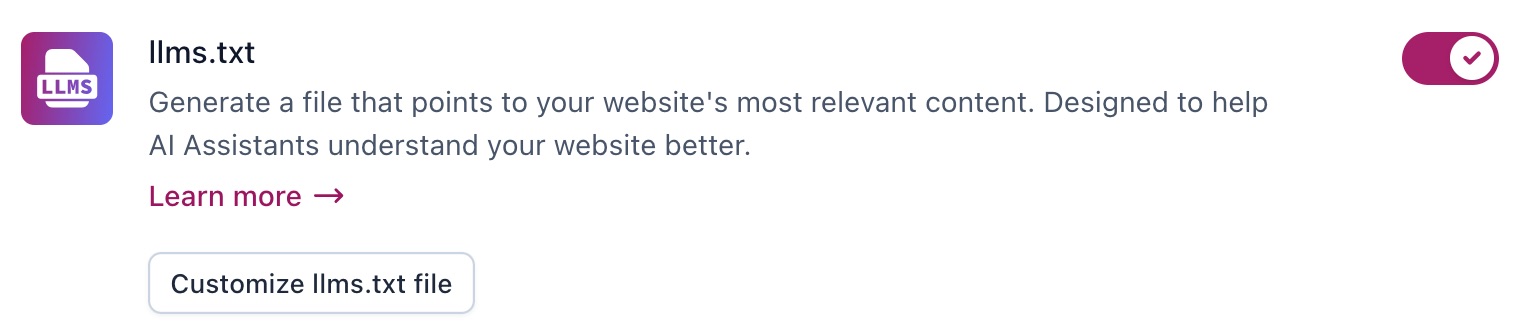
The Yoast functional specification describes a generated file and a weekly scheduled update. It also describes existing-file conflicts. Check the live content after a setting change rather than assuming every edit immediately regenerates it. If you switch to a manual file, follow the documented handover and preserve the earlier content before changing ownership.
Option 2: use Rank Math’s module
Rank Math documents an LLMS Txt module under Rank Math SEO → Dashboard. Its General Settings → Edit llms.txt section lets you select post types and taxonomies, set a limit and add content. Advanced Mode may be needed to expose the settings. Save, then follow the generated file’s preview link. Rank Math’s official settings guide describes the options.
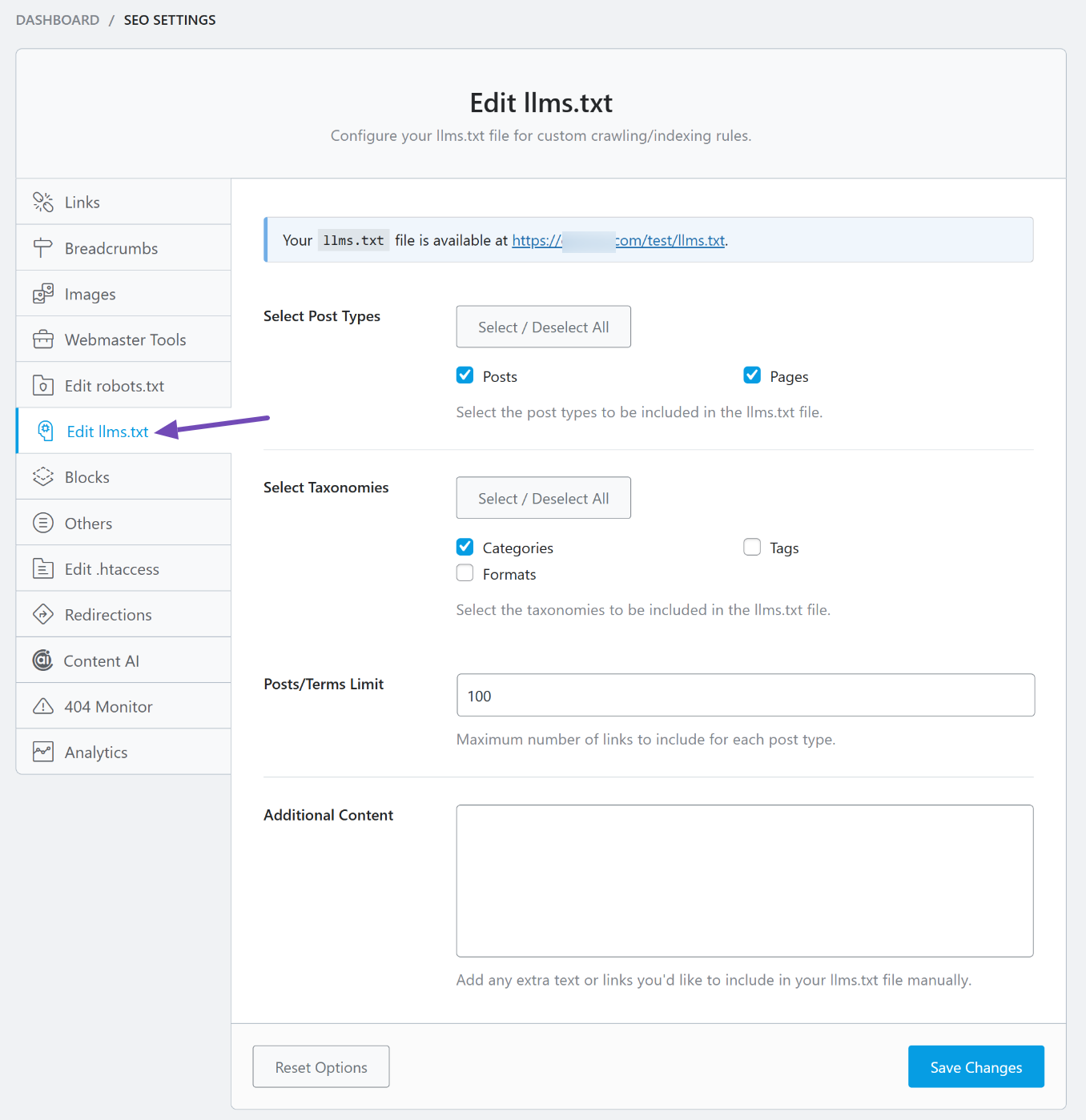
Review the output before increasing its size. Including every category or archive can add repetition without helping someone find the authoritative page for a question. Start with the content types your audience actually needs, inspect what the plugin produces, and make deliberate changes to the selection.
Option 3: publish a small manual file
The proposal’s only required section is an H1 naming the site or project. A short summary and grouped links make the file more useful. Here is an illustrative starter for a fictional site. Every example URL needs replacement and verification before publication.
# Example Studio
> WordPress maintenance guides and service information from Example Studio.
## Services
- [Maintenance](https://example.com/maintenance/): Service scope and contact details.
## Guides
- [Backups](https://example.com/guides/backups/): Backup planning and restoration steps.
## Optional
- [About](https://example.com/about/): The team behind the guides.
Download the editable llms.txt starter.
The v2 proposal recommends linking to content agents can readily use, including real Markdown versions of pages. Appending .md to a WordPress URL does not create such a version. Verify any exported resource you list. Keep links pointed at actual content rather than invented endpoints, and review any automated Markdown export for completeness.
To publish manually:
- Identify the hosting document root or route that serves the intended public URL. WordPress can live in a subdirectory, and the folder containing
wp-config.phpis not a reliable instruction for every hosting arrangement. - Save the reviewed content as a UTF-8 text file named
llms.txt. Keep a copy of the previous file if one exists. - Deploy through the site’s established file or hosting workflow. Avoid changing unrelated files or access rules.
- Open the intended public URL in a signed-out session, then inspect the response and linked resources as below.
For a site installed under a path, decide whether you control the origin’s root or are publishing a path-scoped file. Check that the URL and scope match your intention. Your hosting administrator can confirm the mapping without guessing at server directories.
Verify the response, the content and the consumer separately
A settings confirmation is one piece of evidence. The public response is another. Replace the placeholder domain in this read-only command with your real site:
curl.exe --fail --show-error --location --include "https://your-domain.example/llms.txt"Check the final status, URL, content type and body. The response should contain your intended text, not a login form, homepage, challenge or HTML error page returned with a 200 status. Confirm the H1 and a distinctive link from your latest revision. If a redirect is involved, make sure it ends at the resource you intended.
Then check a small selection of listed links, including important guides and recently changed pages. Confirm they are public, relevant and current. Use a real Markdown URL only when it exists and contains the material you expect. Cache or CDN behavior can explain why the response differs from the settings screen; compare the actual body before changing the generator again.
Finally, test a specific consumer if it supports this workflow: give it the file as a starting point, ask a factual question and inspect which sources it follows. That can establish the behavior of that test. It does not establish search indexing, ranking, training use or citation behavior across other products.
A recorded availability check, with its limits
On 8 November 2026 we fetched the existing EMCP llms.txt and checked five linked public resources. The response was 200 with text/plain; charset=utf-8; the five selected destinations returned 200 as well. This checks delivery and selected link availability. EMCP’s marketing website uses Astro, so this is not a WordPress plugin installation test.
The two settings screenshots above are reused official documentation captures. We did not enable Yoast or Rank Math on a WordPress installation for this article, deploy the fictional starter, or measure changes in search visibility or AI citations. The plugin instructions were checked against their primary documentation. The cover and flow diagram are illustrative.
Keep the index useful after publication
Give the file an owner and review it when a service changes, an important guide moves, or content is retired. An agent can help inventory public WordPress content and draft concise descriptions, but a person should confirm the selected URLs and claims. Publish through the chosen plugin or hosting process, then fetch the public output again.
EMCP connects an agent to supported WordPress operations; it does not make the presence of llms.txt a ranking signal or guarantee that a file is deployed. Use the Yoast SEO integration, Rank Math integration and tool catalog to check which operations your installation and edition expose. For everyday on-page work, start with our WordPress SEO title workflow.
Try a small content inventory first: Get EMCP Lite on WordPress.org, follow a supported client setup, and ask for a read-only list of the public resources you might include. Review the proposed file before approving any site change.