
 A brief becomes a real page.
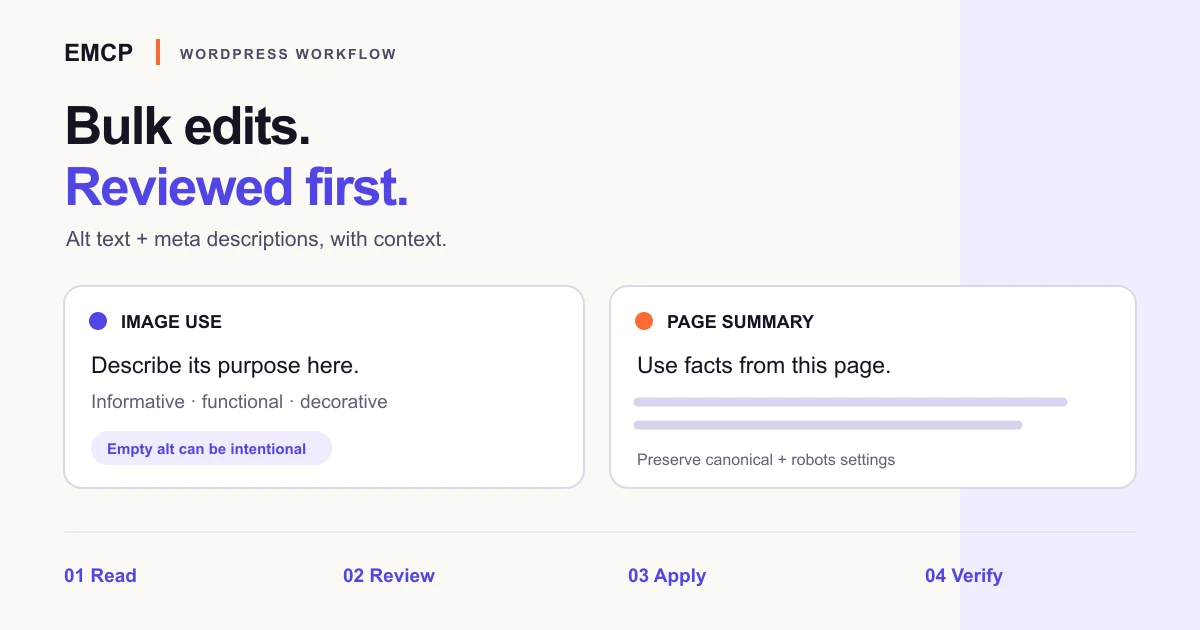
An AI agent can help you review bulk alt text and meta descriptions in WordPress by collecting current values, drafting useful changes and keeping a record of what you approve. Begin with a small set of pages. A blank image alternative, an empty Media Library field and a missing page description need different decisions.
The useful outcome is a reviewed batch whose saved values and rendered output agree. It is not a promise to fill every empty field or improve search rankings. This workflow concentrates on image context and batch review; our tested Rank Math tutorial covers the actual metadata-editing operation in more detail.
We include a review worksheet and a clearly fictional exercise sample. A bounded Claude Code planning test is recorded below. We did not apply this new bulk workflow to a live WordPress site.
First, identify which record needs to change
The attachment and the page where an image appears are separate targets. Record both before asking an agent to write anything.
| Target | What you inspect | What the proposed change means |
|---|---|---|
| Page meta description | Page content and the active SEO plugin’s stored description | Summarize that page using supported facts |
| Media Library attachment | Attachment ID and its current alternative text | Update the library’s default for that asset |
| Image occurrence | Page ID, block/widget location, current alt and surrounding context | Describe this particular use, or preserve its decorative role |
| Rendered page | Actual <meta name="description"> and image alt attributes | Confirm what visitors and automated readers receive |
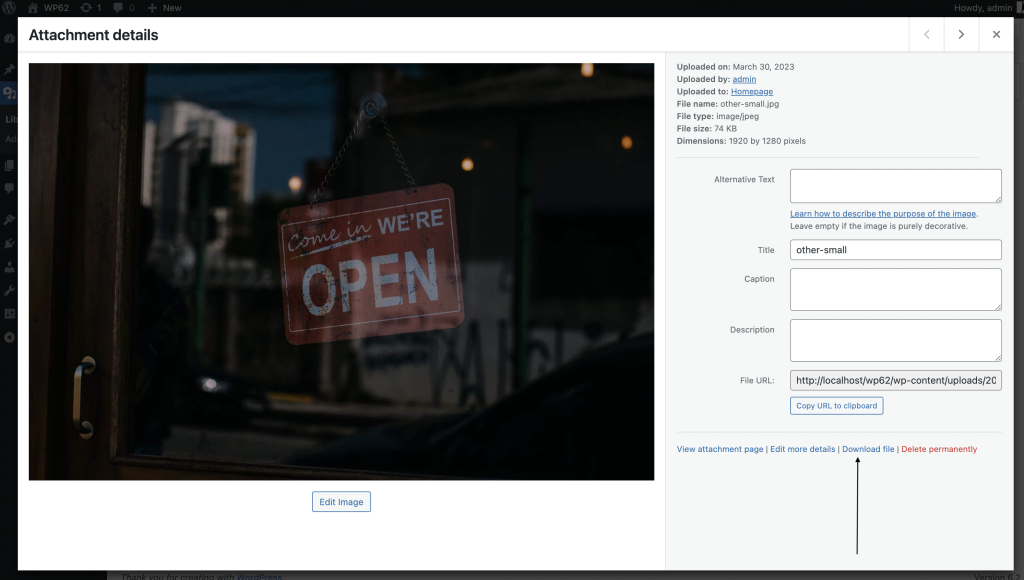
WordPress’s Edit Media documentation explains that library values supply defaults when an image is inserted; an individual inserted image can then have its own data. The Image block reference stores its alternative text on the image element. A library save alone is therefore not proof that an existing block’s output changed. Other builders and dynamic templates need their own checks.
Collect a small inventory before drafting
Choose a group you can review properly, such as the pages for one service. Record the environment, page IDs and URLs, active SEO integration, image attachment IDs, and each image’s block or widget location. Pagination matters: a first result page is not a complete inventory.
For every target, save the old value and its retrieval time. Distinguish an absent alt attribute from an intentional alt="". Also distinguish an unset SEO override from an effective description supplied by a plugin default. Inspect both storage and output.
Use this as the first request to your agent:
Confirm the connected site and the exact approved page IDs.Read their content, existing SEO descriptions and rendered image uses.For each image, record the attachment ID if available, its block/widgetlocation, current alt attribute, link function and surrounding context.
Return an inventory and unresolved questions. Do not write anything.Keep existing reviewed text, decorative uses and out-of-scope pagesseparate. Do not infer visual details from a filename alone.
A public page read may not locate the editable source. A theme template can render the same asset in several places; an image may be hosted elsewhere and have no local attachment. Mark those cases for investigation rather than inventing an ID or editing an unrelated record.
Decide alt text by purpose, not by emptiness
Use the W3C image decision tree to guide the review. Alternative text depends on what the image contributes in that context.
| Image use | Review decision |
|---|---|
| Informative photograph | Describe the relevant visible information briefly, using the image and page context |
| Image-only link or button | Communicate its destination or action when the image provides the accessible name |
| Purely decorative or redundant image | An empty alternative can be appropriate; do not fill it merely to satisfy a counter |
| Chart or other complex information | Make the important information available in text; a guessed one-line label is insufficient |
| Unknown image or unclear purpose | Request the missing evidence before proposing text |
The same photograph can be informative in a tutorial and decorative in a repeated divider. A single attachment default cannot express every use. Inspect the actual image; if an AI client cannot see it, provide a reliable visual description or leave the item for review. Keep keyword lists, invented product details and claims about people out of the text.
WordPress’s Image block guide distinguishes a page-specific alternative from the default stored in the library. When a site uses a decorative-image control, check its rendered result rather than assuming the library field describes that occurrence.
Draft meta descriptions from the page itself
Ask for a useful, page-specific summary based on current content. A description should help someone decide whether the page answers their question. Avoid invented prices, awards, response guarantees and locations.
Google’s snippet guidance supports accurate, distinct page summaries, including programmatic descriptions for suitable large sites. Google can choose page content instead of the supplied description, and truncation depends on the display. A character count is an editing aid, not a guarantee of an exact search snippet.
For example, a page explaining scheduled plugin updates, backup checks and a monthly maintenance summary supports this fictional draft:
Example Studio offers scheduled WordPress plugin updates, backup checks and a monthly maintenance summary.
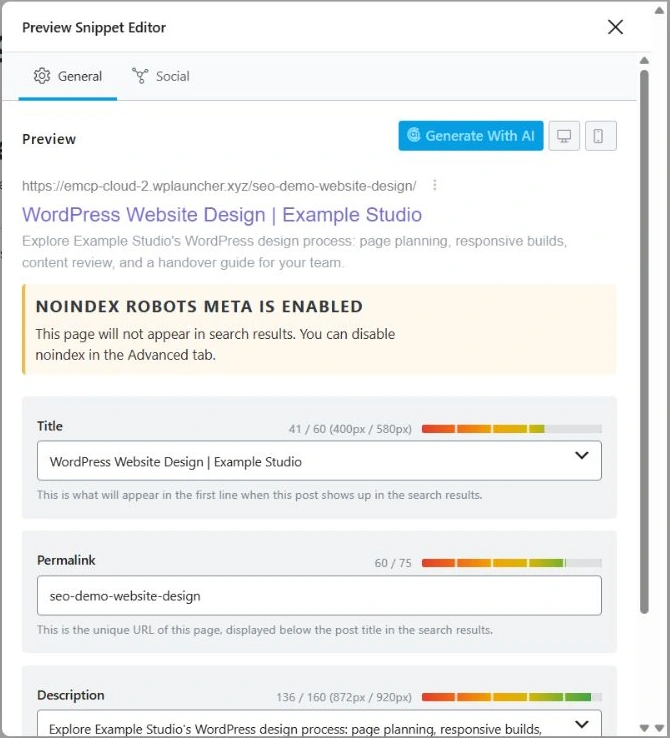
It does not support “24/7 emergency support” when that service is absent from the page. Keep titles, canonical overrides, robots directives and social overrides out of a description-only change unless you separately review them. If a page is intentionally excluded from indexing, preserve that decision rather than treating a new description as permission to change it.
Choose the available EMCP path deliberately
Check the installed catalog before relying on a tool name or setting. The Media Library tools can read an attachment and update supplied metadata fields. An attachment update is not a replacement for editing every affected block or widget. Discover the builder’s supported editing operation for each occurrence.
Use the SEO integration for the plugin that is actually active. Slim SEO and Visibility integrations are free; Yoast, Rank Math and the other listed Pro integrations require the appropriate edition. Their operations update supplied fields, so request the reviewed description without also sending unrelated settings. Our earlier Rank Math walkthrough shows saved-value and frontend checks.
The Pro SEO & Accessibility toolkit is a separate, opt-in Elementor path. Its context-based alt helper uses filename and page context without an AI vision call. The documented helpers support dry runs, but an applied alt operation can update both an attachment and its widget. Review the returned targets, including intentionally empty decorative uses, before applying. This toolkit is not a general bulk image-understanding service for every builder.
Do not turn on a wider write surface simply to reproduce a tutorial. An AI client may draft copy from approved evidence; the connection supplies only the operations and permissions available on that installation.
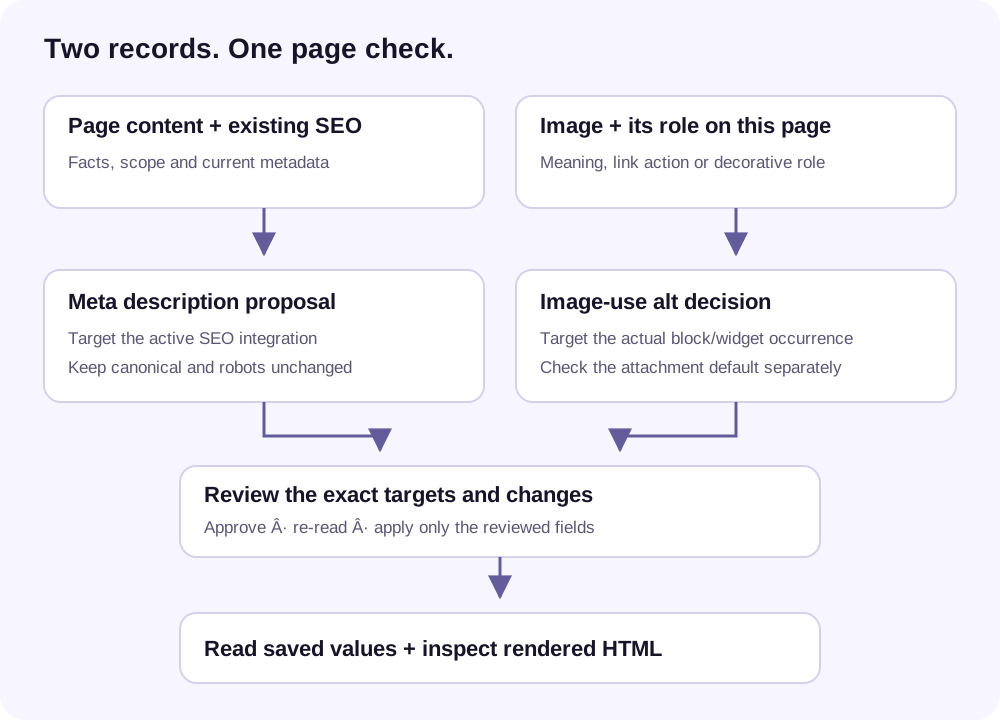
Approve a change list, then apply one item first
Use the CSV review worksheet to record page and attachment identifiers, the exact target field, old and proposed values, source evidence, reviewer and verification results. A worksheet is not an executable import or permission grant. Handle descriptions containing commas or newlines with a proper CSV editor.
Give the agent a concrete revision to review:
Prepare proposals for the approved inventory only.For each proposal, show target ID and image-use location if applicable,old value, proposed value, source evidence and reason.Label each item propose, keep, review or exclude.Preserve intentional decorative alt and existing reviewed alternatives.Use page-specific facts for descriptions. Preserve canonical and robots.Do not apply anything. Flag uncertainty instead of filling gaps.After the responsible person approves the exact changes, use a practice or staging site for the first write. Read the target again immediately before applying it; stop if the old value no longer matches. Apply only the reviewed fields, verify one item, then continue with a batch small enough to inspect.
Keep an operation-specific recovery record. A stored old string can support a description restoration, but it does not prove that an entire site can be rolled back. Builder revisions, attachment metadata and plugin fields can have different recovery paths. If two people or jobs can edit the same records, resolve conflicts before overwriting newer work.
Verify saved data and rendered output separately
A successful write response is the beginning of verification.
- Read the same records again. Compare the intended description or alt value and the fields that were meant to remain unchanged.
- Inspect the page output. Check the actual image occurrence and description tag in the relevant public or authenticated preview. Confirm the canonical and robots behavior separately.
- Check context. Verify that decorative images remain appropriately empty and image-only controls still have meaningful names. An alt count cannot establish accessibility compliance.
- Investigate mismatches. Check the editable source, plugin setup, template rendering and applicable caches before repeating writes. Do not assume clearing a cache will repair the wrong target.
- Record the result per item. Log the verified value, unresolved cases and any restoration performed. Search appearance and performance need later observation after publication and crawling.
In the browser, these selectors help locate values for inspection:
meta[name="description"]img:not([alt])img[alt=""]The first image selector finds missing attributes. The second lists empty alternatives that require contextual review; it is not a list of confirmed defects. Dynamic templates and other content such as CSS background images may require additional checks.
A recorded proposal test, with clear limits
On 12 November 2026, we ran Claude Code 2.1.302 using the Haiku alias against the fictional review sample. It contains two in-scope page summaries, one excluded page and five image-use records. One attachment is used twice with different purposes. The visual notes are human-authored fictional descriptions; there are no actual images or WordPress IDs in this exercise.
The run used plan mode, only Read/Glob/Grep built-in tools, an empty strict MCP configuration, project settings, no session persistence, a six-turn limit and a $0.50 estimated-spend cap. It completed successfully in three turns.
| Case in the sample | Actual proposal result |
|---|---|
| Two in-scope pages | Two distinct descriptions grounded in the supplied excerpts; canonical and robots fields marked for preservation |
| Informative notebook image | Proposed text describing the supplied notebook/checklist note |
| Decorative repeat of the same attachment | Kept its empty alternative rather than copying the informative use |
| Image-only contact link | Proposed “Contact Example Studio” to communicate its action |
| Unavailable chart | Requested review with no invented alternative |
| Out-of-scope page and image | No page proposal; image explicitly excluded |
We checked those decisions against the requested boundaries and compared the fixture’s SHA-256 before and after. The input remained unchanged. That confirms a bounded proposal exercise, not a WordPress write test, image-vision evaluation or guarantee that another batch will be correct.
Not tested in this new exercise: a connected EMCP media/SEO operation, attachment-to-block propagation, live metadata saves, recovery on a WordPress installation, screen-reader behavior, or search outcomes. The earlier linked Rank Math article records its own separate live metadata test. Our current task does not extend that evidence to a new site or batch.
Start with a batch you can review
Primary guidance was checked on 12 November 2026: Google’s snippet documentation, W3C’s image decision tree, WordPress’s Media Library/Image block references and EMCP’s maintained tool documentation. The cover and field diagram are illustrative. Both UI captures are credited reused documentation or tutorial images, not new screenshots of a bulk operation.
Start with EMCP Lite on WordPress.org and a supported client connection. Use the edition comparison and tool catalog to confirm the media, SEO and builder operations available to your site. The Pro toolkit and Pro SEO integrations discussed above are not included merely by installing Lite.