
 A brief becomes a real page.
Connect ChatGPTto your WordPress site.
Add your site to the ChatGPT desktop app as an MCP server, approve it once in your browser, and ChatGPT can work with your pages, posts, builders and plugins through EMCP. The free plugin is enough, with no config files or copied credentials.
- ChatGPT desktop appMCPs settings
- Any HTTPS WordPress site
- EMCP Free or Pro

Try asking
Ask the way you would brief a person.
“List the tools you can use on my site and my five most recent pages. Do not create, update or delete anything.”
“Find every page that mentions our old phone number and show me where it appears.”
“Build a landing page for our spring workshop with a hero, three benefits and a booking button. Leave it as a draft.”
Setup
Add the server, approve, done.
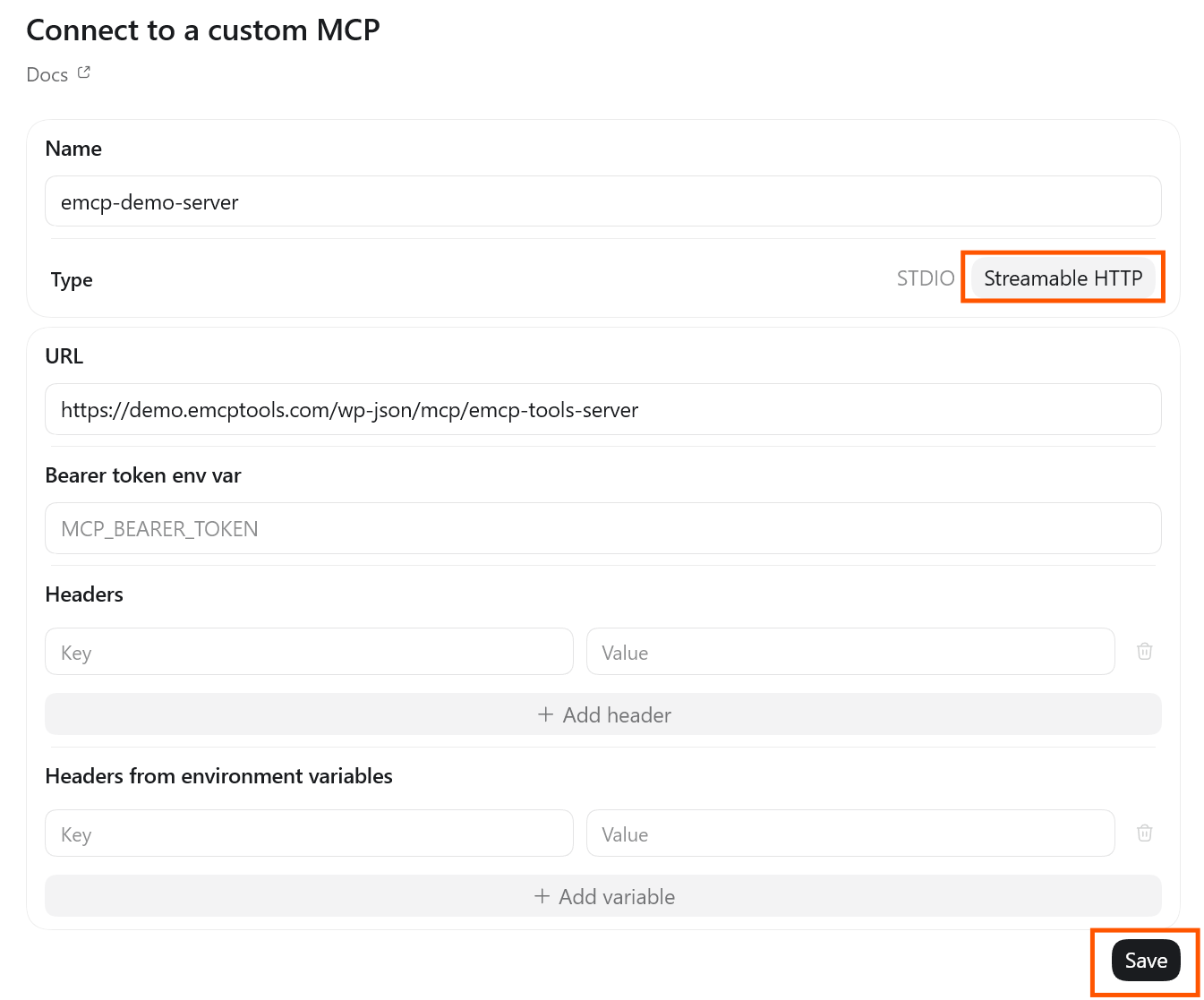
In the ChatGPT desktop app, open File → Settings → Plugins, then the MCPs tab, and choose Add server. Pick Streamable HTTP, name it and paste your site’s MCP address. Leave the token and headers empty.
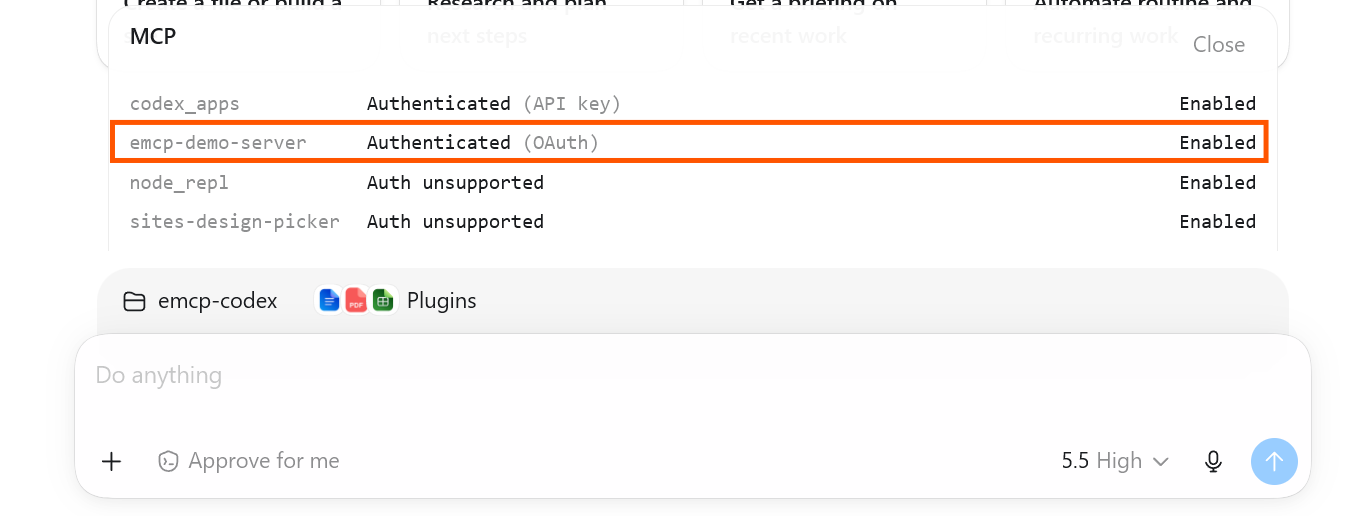
Click Authenticate, approve the connection in your browser, and the server shows as Authenticated (OAuth) and Enabled.
Confirmed
Know it works before you start.
The connection wizard in EMCP Tools → Connection walks you through the same steps for the ChatGPT App and waits for its first MCP call. When it arrives, the wizard tells you which tool ran and when.
If your site runs on plain HTTP, or your host blocks the /.well-known/ address OAuth needs, use an Application Password instead. The wizard shows every field the app asks for.
Built-in safety
Your login never leaves WordPress.
OAuth sign-in is free, built in and on by default on HTTPS sites. ChatGPT never sees your password, and only an administrator can approve a connection.
Your permissions
The connection acts as the administrator who approved it and gains no extra privilege.
Short-lived tokens
Access tokens last one hour and refresh automatically.
Your choice of tools
Switch individual tools on or off under EMCP Tools → Tools.
Revoke any time
Sign the app out, or remove it, under Connection → Connected apps.

Get started
Up and running in three steps.
You need: the ChatGPT desktop app, a WordPress site served over HTTPS, administrator access to approve the connection, and EMCP Free or Pro.
Installation guide- Step 1
Install EMCP
Upload the free plugin zip under Plugins → Add New and activate it.
Installation guide - Step 2
Add the server in ChatGPT
Settings → Plugins → MCPs → Add server, choose Streamable HTTP and paste your site’s address.
ChatGPT setup guide - Step 3
Approve and ask
Click Authenticate, approve in your browser, then start with a read-only prompt.
Write a useful brief
Questions, answered.
Still stuck? Drop a line at [email protected] or open an issue on GitHub. Most replies are under one business day; Pro tiers go to the front of the queue.
Open the full docsGive ChatGPT a WordPress toolkit.
Install the free plugin, add your site in the ChatGPT desktop app, and approve the connection.